
Let’s Encrypt issues over 400 million active certificates. It’s free, automated, and trusted by every browser and operating system. If you’re still paying for DV certificates or renewing manually, you’re wasting money and time.
This guide covers every Certbot scenario: Nginx, Apache, standalone, wildcard via DNS-01, multi-domain, auto-renewal with deploy hooks, and every common failure with fixes. Copy-paste commands for Ubuntu, Debian, RHEL, and CentOS.
Install Certbot
Ubuntu / Debian
# Install Certbot + web server plugin
sudo apt update
sudo apt install certbot python3-certbot-nginx   # For Nginx
# OR
sudo apt install certbot python3-certbot-apache  # For Apache
RHEL / CentOS / Rocky / Alma
# Enable EPEL repository
sudo dnf install epel-release

# Install Certbot
sudo dnf install certbot python3-certbot-nginx   # For Nginx
# OR
sudo dnf install certbot python3-certbot-apache  # For Apache
Using Snap (Universal — Recommended by EFF)
sudo snap install --classic certbot
sudo ln -s /snap/bin/certbot /usr/bin/certbot
Setup 1: Nginx (Automatic — Recommended)
The fastest path to HTTPS. Certbot modifies your Nginx config automatically.
# Obtain certificate and auto-configure Nginx
sudo certbot --nginx -d example.com -d www.example.com

# What happens:
# 1. Certbot verifies domain ownership (HTTP-01 challenge)
# 2. Obtains certificate from Let's Encrypt
# 3. Modifies your Nginx server block to add ssl directives
# 4. Sets up HTTP → HTTPS redirect
# 5. Reloads Nginx
After running, your Nginx config will have:
server {
    listen 443 ssl;
    server_name example.com www.example.com;

    ssl_certificate /etc/letsencrypt/live/example.com/fullchain.pem;
    ssl_certificate_key /etc/letsencrypt/live/example.com/privkey.pem;
    include /etc/letsencrypt/options-ssl-nginx.conf;
    ssl_dhparam /etc/letsencrypt/ssl-dhparams.pem;

    # ... your existing config
}

server {
    listen 80;
    server_name example.com www.example.com;
    return 301 https://$host$request_uri;
}
Setup 2: Apache (Automatic)
# Obtain certificate and auto-configure Apache
sudo certbot --apache -d example.com -d www.example.com

# Certbot:
# 1. Verifies domain ownership
# 2. Obtains certificate
# 3. Creates/modifies Apache VirtualHost with SSL
# 4. Enables mod_ssl if not already enabled
# 5. Restarts Apache
Setup 3: Standalone (No Web Server Running)
For servers that don’t run Nginx or Apache (mail servers, custom apps):
# Certbot starts its own temporary web server on port 80
sudo certbot certonly --standalone -d mail.example.com

# Port 80 must be free (stop any web server first)
# Certificate saved to /etc/letsencrypt/live/mail.example.com/
Setup 4: Webroot (Web Server Running, No Plugin)
When you can’t use the Nginx/Apache plugin (custom configs, Docker):
# Tell Certbot where your web root is
sudo certbot certonly --webroot -w /var/www/html -d example.com -d www.example.com

# Certbot places challenge files in /var/www/html/.well-known/acme-challenge/
# Your web server must serve this directory on port 80
Nginx config needed:
server {
    listen 80;
    server_name example.com;

    location /.well-known/acme-challenge/ {
        root /var/www/html;
    }

    location / {
        return 301 https://$host$request_uri;
    }
}
Setup 5: Wildcard Certificate (DNS-01 Challenge)
Wildcard certificates (*.example.com) require DNS-01 validation — you must prove control of DNS, not just HTTP.
Manual DNS (Any Provider)
sudo certbot certonly --manual --preferred-challenges dns \
  -d "example.com" -d "*.example.com"

# Certbot will prompt:
# "Please deploy a DNS TXT record under the name _acme-challenge.example.com with value: <random-string>"
#
# You manually add this TXT record in your DNS provider's dashboard
# Wait for propagation, then press Enter
Automated DNS with Cloudflare Plugin
# Install Cloudflare DNS plugin
sudo apt install python3-certbot-dns-cloudflare
# OR
sudo pip install certbot-dns-cloudflare

# Create credentials file
cat > ~/.secrets/cloudflare.ini << 'EOF'
dns_cloudflare_api_token = your-cloudflare-api-token-here
EOF
chmod 600 ~/.secrets/cloudflare.ini

# Obtain wildcard certificate (fully automated)
sudo certbot certonly --dns-cloudflare \
  --dns-cloudflare-credentials ~/.secrets/cloudflare.ini \
  -d "example.com" -d "*.example.com"
Automated DNS with AWS Route53
# Install Route53 plugin
sudo pip install certbot-dns-route53

# Configure AWS credentials (IAM user with Route53 permissions)
export AWS_ACCESS_KEY_ID=AKIA...
export AWS_SECRET_ACCESS_KEY=...

# Obtain wildcard certificate
sudo certbot certonly --dns-route53 \
  -d "example.com" -d "*.example.com"
Other DNS Plugins Available
| Provider | Plugin | Install |
|---|---|---|
| Cloudflare | certbot-dns-cloudflare | pip install certbot-dns-cloudflare |
| AWS Route53 | certbot-dns-route53 | pip install certbot-dns-route53 |
| Google Cloud DNS | certbot-dns-google | pip install certbot-dns-google |
| DigitalOcean | certbot-dns-digitalocean | pip install certbot-dns-digitalocean |
| Azure DNS | certbot-dns-azure | pip install certbot-dns-azure |
| Namecheap | certbot-dns-namecheap | pip install certbot-dns-namecheap |
| GoDaddy | certbot-dns-godaddy | pip install certbot-dns-godaddy |
| OVH | certbot-dns-ovh | pip install certbot-dns-ovh |
Automatic Renewal
Certbot installs a systemd timer (or cron job) that runs twice daily and renews any certificate expiring within 30 days.
# Check renewal timer status
sudo systemctl status certbot.timer

# Test renewal (dry run — doesn't actually renew)
sudo certbot renew --dry-run

# Force renewal of a specific certificate
sudo certbot renew --cert-name example.com --force-renewal
Deploy Hooks (Run Commands After Renewal)
# Reload Nginx after renewal
sudo certbot renew --deploy-hook "systemctl reload nginx"

# Reload Apache after renewal
sudo certbot renew --deploy-hook "systemctl reload apache2"

# Multiple commands
sudo certbot renew --deploy-hook "systemctl reload nginx && systemctl reload postfix"
Make deploy hooks permanent by adding to renewal config:
# /etc/letsencrypt/renewal/example.com.conf
[renewalparams]
# ... existing config ...

[deploy-hook]
command = systemctl reload nginx
Or create a hook script:
# /etc/letsencrypt/renewal-hooks/deploy/reload-services.sh
#!/bin/bash
systemctl reload nginx
systemctl reload postfix
# Notify monitoring
curl -s https://healthcheck.example.com/cert-renewed
chmod +x /etc/letsencrypt/renewal-hooks/deploy/reload-services.shCertificate File Locations
After obtaining a certificate, Certbot stores files at:
/etc/letsencrypt/live/example.com/
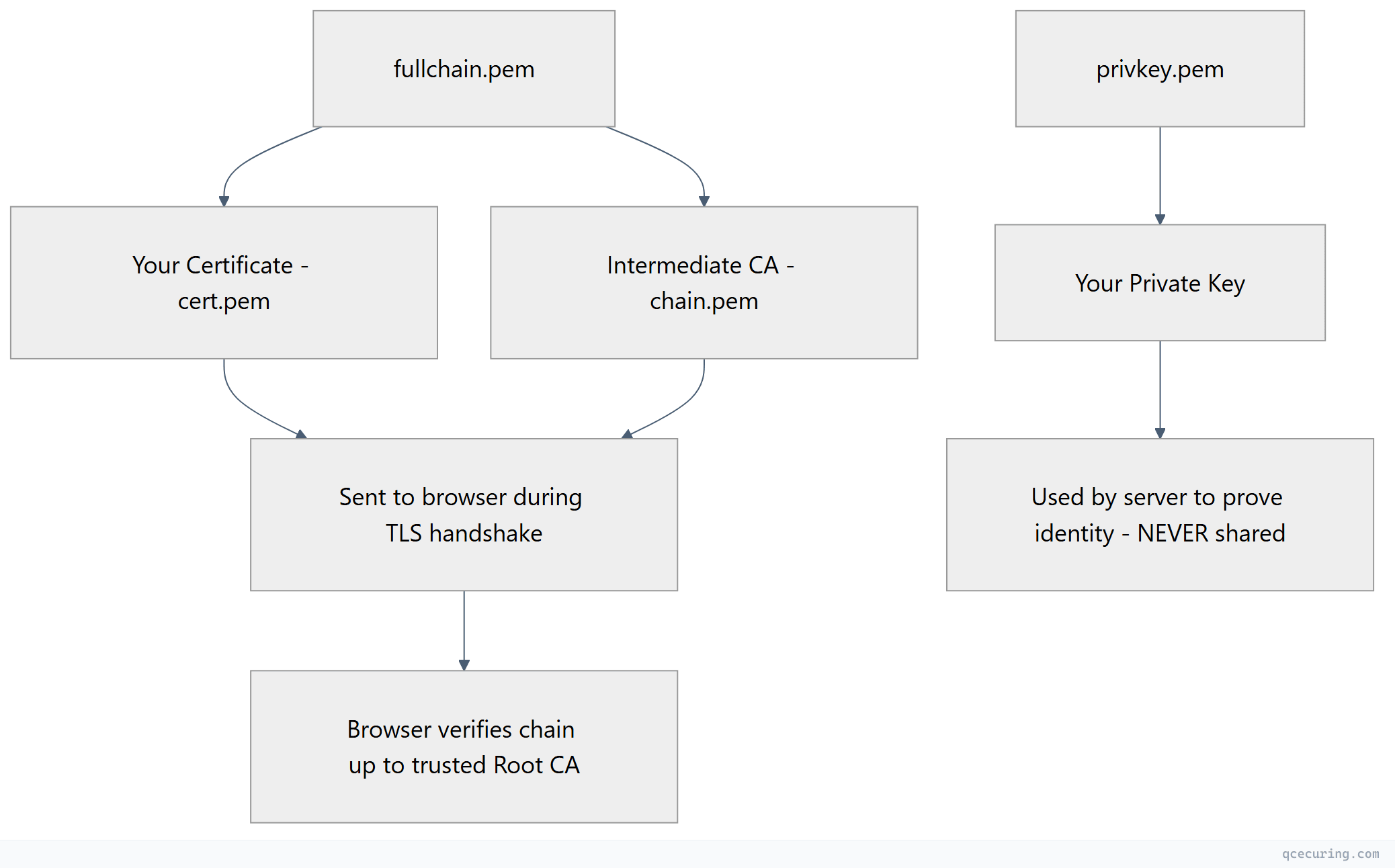
├── fullchain.pem   ← Certificate + intermediate chain (use this in web server)
├── cert.pem        ← Just the leaf certificate
├── chain.pem       ← Just the intermediate CA certificate
├── privkey.pem     ← Private key (keep secure!)
└── README
Always use fullchain.pem (not cert.pem) in your web server config. Missing the intermediate chain causes trust errors on some clients.
Multi-Domain Certificates (SAN)
# Single certificate covering multiple domains
sudo certbot --nginx \
  -d example.com \
  -d www.example.com \
  -d api.example.com \
  -d app.example.com \
  -d staging.example.com

# Add a domain to an existing certificate
sudo certbot --nginx --expand \
  -d example.com \
  -d www.example.com \
  -d api.example.com \
  -d new-subdomain.example.com
Rate Limits
Let’s Encrypt enforces rate limits to prevent abuse:
| Limit | Value | Reset |
|---|---|---|
| Certificates per registered domain | 50 per week | Rolling 7 days |
| Duplicate certificates | 5 per week | Rolling 7 days |
| Failed validations | 5 per hour | Rolling 1 hour |
| New orders | 300 per 3 hours | Rolling 3 hours |
| SANs per certificate | 100 | — |
How to avoid hitting limits:
- Use staging for testing:
--server https://acme-staging-v02.api.letsencrypt.org/directory - Combine domains into one certificate (SAN) instead of separate certs
- Don’t revoke and re-issue — just renew
- Use
--dry-runbefore real operations
# Test with staging (no rate limits, but certificate won't be trusted)
sudo certbot --nginx --staging -d test.example.com

# When satisfied, run for real (remove --staging)
sudo certbot --nginx -d test.example.com
Troubleshooting
”Challenge failed: Connection refused”
Cause: Port 80 is blocked by firewall or another service.
# Check if port 80 is open
sudo ss -tlnp | grep :80

# Open port 80 in UFW
sudo ufw allow 80/tcp

# Open port 80 in firewalld
sudo firewall-cmd --permanent --add-service=http
sudo firewall-cmd --reload
”DNS problem: NXDOMAIN looking up A for example.com”
Cause: Domain doesn’t resolve to your server’s IP.
# Verify DNS points to your server
dig +short example.com
# Should return your server's public IP

# If behind Cloudflare proxy, use DNS-only mode (grey cloud) during issuance
”Too many certificates already issued”
Cause: Hit the 50 certs/week rate limit.
Fix: Wait 7 days, or use a different registered domain. Check your limit status at crt.sh.
”Renewal failed: Nginx configuration error”
Cause: Nginx config was modified and is now invalid.
# Test Nginx config
sudo nginx -t

# Fix any errors, then retry
sudo certbot renew --force-renewal
”The requested nginx plugin does not appear to be installed”
# Install the Nginx plugin
sudo apt install python3-certbot-nginx
# OR with snap
sudo snap install certbot-nginx
Certificate Renewed But Server Still Serves Old Cert
Cause: Web server wasn’t reloaded after renewal.
# Add deploy hook
sudo certbot renew --deploy-hook "systemctl reload nginx"

# Or manually reload
sudo systemctl reload nginx
When Let’s Encrypt Isn’t Enough
Let’s Encrypt is perfect for:
- Public-facing web servers
- Simple setups (< 50 certificates)
- DV (Domain Validated) certificates
It doesn’t cover:
- OV/EV certificates — organization validation requires a paid CA
- Internal/private certificates — Let’s Encrypt only issues for public domains
- Non-ACME systems — legacy servers, network devices, IoT
- Enterprise scale — managing 1,000+ certificates across hybrid infrastructure
- Policy enforcement — approval workflows, compliance reporting
- Certificate discovery — finding certificates you don’t know about
For these scenarios, you need a Certificate Lifecycle Management platform that handles both ACME-automated and manually-managed certificates.
Quick Reference: Every Certbot Command
| Task | Command |
|---|---|
| Obtain + auto-configure (Nginx) | certbot --nginx -d example.com |
| Obtain + auto-configure (Apache) | certbot --apache -d example.com |
| Obtain only (standalone) | certbot certonly --standalone -d example.com |
| Obtain only (webroot) | certbot certonly --webroot -w /var/www/html -d example.com |
| Wildcard (Cloudflare DNS) | certbot certonly --dns-cloudflare -d "*.example.com" |
| Test renewal | certbot renew --dry-run |
| Force renewal | certbot renew --cert-name example.com --force-renewal |
| List certificates | certbot certificates |
| Delete certificate | certbot delete --cert-name example.com |
| Revoke certificate | certbot revoke --cert-path /etc/letsencrypt/live/example.com/cert.pem |
| Update contact email | certbot update_account --email new@example.com |
| Use staging server | Add --staging to any command |
FAQ
Q: Is Let’s Encrypt trusted by all browsers?
Yes. Let’s Encrypt’s root (ISRG Root X1) is trusted by all modern browsers, operating systems, and devices. The only exceptions are very old Android devices (< 7.1.1) which were resolved with a cross-sign from IdenTrust.
Q: How often do Let’s Encrypt certificates renew?
Certificates are valid for 90 days. Certbot attempts renewal when 30 days remain (at the 60-day mark). The systemd timer runs twice daily, so renewal happens automatically.
Q: Can I use Let’s Encrypt for internal/private domains?
No. Let’s Encrypt only issues certificates for publicly resolvable domains. For internal domains (.local, .internal, private IPs), use a private CA like Smallstep step-ca or HashiCorp Vault PKI.
Q: What happens if Let’s Encrypt goes down?
Your existing certificates continue working until they expire. Renewals will fail until the service recovers. Mitigation: configure a backup CA (ZeroSSL supports ACME with the same Certbot commands — just change the --server URL).
Q: Can I use Certbot in Docker?
Yes. Mount the /etc/letsencrypt directory as a volume:
docker run -v /etc/letsencrypt:/etc/letsencrypt certbot/certbot certonly --webroot -w /var/www/html -d example.comQ: How do I handle certificates for load-balanced servers?
Use DNS-01 challenge (doesn’t depend on which server handles the request) and distribute the certificate to all servers via your deployment pipeline or shared storage.
Related Reading: