
NDES (Network Device Enrollment Service) is Microsoft’s implementation of SCEP — the protocol that lets routers, switches, firewalls, MDM-managed devices, and IoT endpoints request certificates from your AD CS infrastructure without human intervention. When it works, it’s invisible. When it breaks, you get a flood of “HTTP 403” errors and devices falling off the network.
This guide covers the full NDES lifecycle: installation, configuration, template setup, IIS hardening, and — most importantly — fixing the errors that will inevitably appear in production.
How NDES Works
NDES sits between your network devices and your Certificate Authority. Devices speak SCEP (Simple Certificate Enrollment Protocol) over HTTP/HTTPS, and NDES translates those requests into certificate enrollment operations against AD CS.
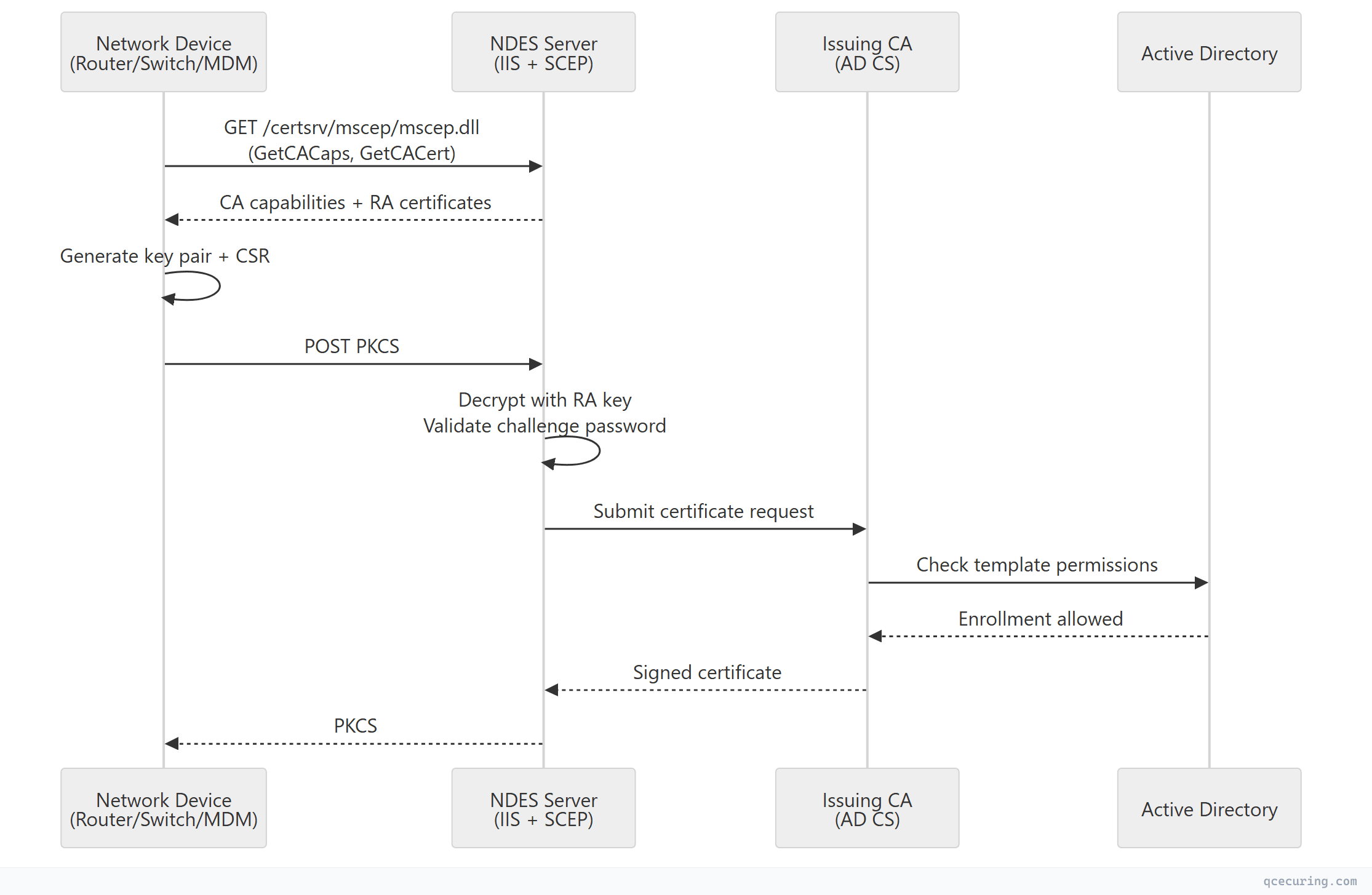
Key components:
| Component | Role |
|---|---|
| SCEP endpoint | IIS application (/certsrv/mscep/mscep.dll) handling HTTP requests |
| Registration Authority (RA) | Two certificates (encryption + signing) that NDES uses to process requests |
| Challenge password | One-time password that authorizes a single enrollment request |
| Certificate template | Defines what kind of certificate gets issued (key usage, validity, etc.) |
| Service account | Domain account running the NDES application pool |
Prerequisites
Before installing NDES, verify:
| Requirement | Details |
|---|---|
| AD CS Issuing CA | Enterprise CA (not standalone) already operational |
| Dedicated server | NDES should NOT run on the CA server itself |
| Windows Server | 2016, 2019, or 2022 (2022 recommended) |
| IIS | Will be installed automatically with the NDES role |
| Service account | Domain user account with specific permissions |
| Certificate templates | Published to AD and available for enrollment |
| Network access | Devices must reach NDES on port 80/443 |
Service Account Setup
Create a dedicated domain account for NDES:
# Create NDES service account
New-ADUser -Name "svc-ndes" `
  -SamAccountName "svc-ndes" `
  -UserPrincipalName "svc-ndes@contoso.com" `
  -Path "OU=Service Accounts,DC=contoso,DC=com" `
  -AccountPassword (ConvertTo-SecureString "P@ssw0rd!Complex" -AsPlainText -Force) `
  -Enabled $true `
  -PasswordNeverExpires $true `
  -CannotChangePassword $true

# Add to IIS_IUSRS group on the NDES server (run on NDES server)
Add-LocalGroupMember -Group "IIS_IUSRS" -Member "CONTOSO\svc-ndes"
Required permissions for the service account:
- Request Certificates permission on the CA
- Read and Enroll on the certificate template
- Local logon right on the NDES server
- Member of IIS_IUSRS local group on NDES server
Set the CA permission:
# On the CA server — grant Request Certificates permission
certutil -setreg ca\InterfaceFlags +IF_ENFORCEENCRYPTICERTREQUEST
# Then in certsrv.msc → Right-click CA → Properties → Security
# Add svc-ndes → Grant "Request Certificates"
Installation
Install the NDES Role
# Install NDES role with management tools
Install-WindowsFeature -Name ADCS-Device-Enrollment -IncludeManagementTools

# Install IIS management tools (useful for troubleshooting)
Install-WindowsFeature -Name Web-Mgmt-Console, Web-Mgmt-Tools
Configure NDES Post-Installation
# Configure NDES with the service account
Install-AdcsNetworkDeviceEnrollmentService `
  -ServiceAccountName "CONTOSO\svc-ndes" `
  -ServiceAccountPassword (ConvertTo-SecureString "P@ssw0rd!Complex" -AsPlainText -Force) `
  -CAConfig "CA-SERVER\Contoso-Issuing-CA" `
  -RAName "NDES-RA" `
  -RACountry "US" `
  -RACompany "Contoso" `
  -SigningProviderName "Microsoft Strong Cryptographic Provider" `
  -SigningKeyLength 2048 `
  -EncryptionProviderName "Microsoft Strong Cryptographic Provider" `
  -EncryptionKeyLength 2048
After installation, verify the SCEP endpoint responds:
# Test NDES endpoint
Invoke-WebRequest -Uri "http://ndes-server.contoso.com/certsrv/mscep/mscep.dll" -Method GET
# Should return HTTP 200 with SCEP capabilities
Certificate Template Configuration
NDES uses a certificate template to determine what certificates it issues. The default template is “IPSec (Offline request)” — which is almost never what you want.
Create a Custom NDES Template
- Open Certificate Templates Console (
certtmpl.msc) - Duplicate the Computer or Web Server template
- Configure:
| Tab | Setting | Value |
|---|---|---|
| General | Template name | NDES-Device-Certificate |
| General | Validity | 1 year (or per policy) |
| General | Renewal period | 6 weeks |
| Request Handling | Purpose | Signature and encryption |
| Request Handling | Allow private key export | No (unless required) |
| Subject Name | Supply in request | Yes (SCEP devices provide their own subject) |
| Security | NDES service account | Read + Enroll |
| Cryptography | Key size | 2048 minimum |
| Cryptography | Provider | Microsoft RSA SChannel |
| Extensions | Application Policies | Client Authentication + Server Authentication |
Publish the Template
# Publish template to the CA
Add-CATemplate -Name "NDES-Device-Certificate" -Force

# Verify it's published
Get-CATemplate | Where-Object { $_.Name -eq "NDES-Device-Certificate" }
Configure NDES to Use Your Template
Edit the registry on the NDES server:
# Set the certificate template NDES uses
Set-ItemProperty -Path "HKLM:\SOFTWARE\Microsoft\Cryptography\MSCEP" `
  -Name "EncryptionTemplate" -Value "NDES-Device-Certificate"
Set-ItemProperty -Path "HKLM:\SOFTWARE\Microsoft\Cryptography\MSCEP" `
  -Name "GeneralPurposeTemplate" -Value "NDES-Device-Certificate"
Set-ItemProperty -Path "HKLM:\SOFTWARE\Microsoft\Cryptography\MSCEP" `
  -Name "SignatureTemplate" -Value "NDES-Device-Certificate"

# Restart IIS to apply
iisreset /restart
All three registry values (EncryptionTemplate, GeneralPurposeTemplate, SignatureTemplate) must be set. If any one points to a non-existent or unpublished template, NDES silently fails.
Challenge Password Configuration
NDES uses one-time challenge passwords to authorize enrollment requests. By default, each password is valid for 60 minutes and can be used once.
Password Behavior Options
# Registry path for NDES password settings
$regPath = "HKLM:\SOFTWARE\Microsoft\Cryptography\MSCEP"

# Option 1: Enforce passwords (default — most secure)
Set-ItemProperty -Path $regPath -Name "EnforcePassword" -Value 1

# Option 2: Disable password requirement (for MDM/Intune scenarios)
# WARNING: Any device can enroll without authorization
Set-ItemProperty -Path $regPath -Name "EnforcePassword" -Value 0

# Set password cache duration (minutes) — default 60
Set-ItemProperty -Path $regPath -Name "PasswordMax" -Value 60

# Set max number of cached passwords — default 5
Set-ItemProperty -Path $regPath -Name "PasswordCacheMax" -Value 5

# Restart after changes
iisreset /restart
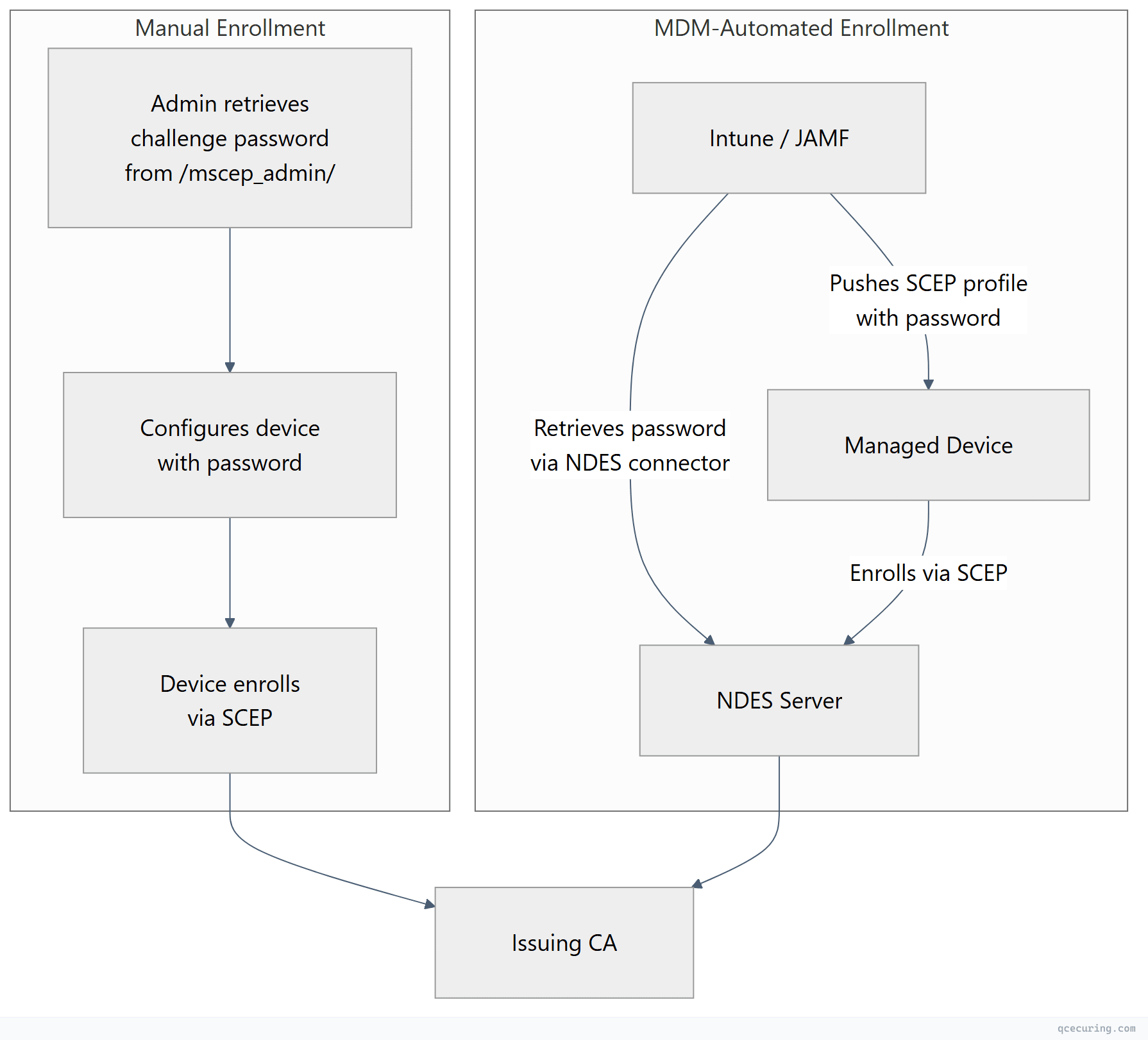
Retrieving Challenge Passwords
Administrators retrieve passwords from the NDES web page:
http://ndes-server.contoso.com/certsrv/mscep_admin/For automated enrollment (Intune, JAMF), the MDM platform retrieves challenge passwords via the NDES admin endpoint using a service account with appropriate permissions.
IIS Configuration and Hardening
Enable HTTPS on the NDES Endpoint
NDES installs with HTTP by default. For production, bind an SSL certificate:
# Request a web server certificate for the NDES server
# (Use your internal CA or a template with Server Authentication EKU)

# Bind SSL to the Default Web Site
New-WebBinding -Name "Default Web Site" -Protocol https -Port 443

# Assign the certificate (get thumbprint first)
$cert = Get-ChildItem Cert:\LocalMachine\My | Where-Object { $_.Subject -like "*ndes*" }
$binding = Get-WebBinding -Name "Default Web Site" -Protocol https
$binding.AddSslCertificate($cert.Thumbprint, "My")
Request Size Limits
SCEP requests can be large (especially with long certificate chains). Increase IIS limits:
# Increase max request size for SCEP (default 30MB is usually fine)
Set-WebConfigurationProperty -Filter "/system.webServer/security/requestFiltering/requestLimits" `
  -PSPath "IIS:\Sites\Default Web Site\certsrv\mscep" `
  -Name "maxAllowedContentLength" -Value 52428800

# Increase URL length limit
Set-WebConfigurationProperty -Filter "/system.webServer/security/requestFiltering/requestLimits" `
  -PSPath "IIS:\Sites\Default Web Site\certsrv\mscep" `
  -Name "maxUrl" -Value 65534
Application Pool Settings
# Set the NDES app pool to use the service account
Set-ItemProperty "IIS:\AppPools\SCEP" -Name processModel.identityType -Value SpecificUser
Set-ItemProperty "IIS:\AppPools\SCEP" -Name processModel.userName -Value "CONTOSO\svc-ndes"
Set-ItemProperty "IIS:\AppPools\SCEP" -Name processModel.password -Value "P@ssw0rd!Complex"

# Enable 32-bit applications (required for NDES on 64-bit)
Set-ItemProperty "IIS:\AppPools\SCEP" -Name enable32BitAppOnWin64 -Value $true

# Restart the app pool
Restart-WebAppPool -Name "SCEP"
Troubleshooting NDES Errors
HTTP 403 Forbidden
The most common NDES error. Multiple causes:
Cause 1: Service account lacks permissions
# Verify the service account has Request Certificates on the CA
certutil -getreg ca\Security
# Look for the NDES service account with "Request Certificates" permission

# Fix: Add permission via certsrv.msc → CA Properties → Security
Cause 2: Certificate template not available
# Check which templates are published on the CA
certutil -CATemplates

# Verify the template name matches registry exactly (case-sensitive!)
Get-ItemProperty "HKLM:\SOFTWARE\Microsoft\Cryptography\MSCEP" | Select-Object *Template*
Cause 3: RA certificates expired or missing
# Check RA certificates in the NDES server's Local Machine store
Get-ChildItem Cert:\LocalMachine\My | Where-Object {
  $_.Subject -like "*CEP Encryption*" -or $_.Subject -like "*Exchange Enrollment*"
} | Select-Object Subject, NotAfter, Thumbprint

# If expired, re-run NDES configuration or manually renew
Cause 4: Challenge password expired or already used
# Check NDES event log for password-related errors
Get-WinEvent -LogName "Application" -FilterXPath "*[System[Provider[@Name='NetworkDeviceEnrollmentService']]]" |
  Select-Object -First 20 TimeCreated, Message
HTTP 500 Internal Server Error
Cause 1: MSCEP DLL registration issue
# Re-register the SCEP ISAPI DLL
regsvr32 /s "C:\Windows\System32\certsrv\mscep\mscep.dll"
iisreset /restart
Cause 2: Cryptographic provider mismatch
# Check which provider NDES is configured to use
Get-ItemProperty "HKLM:\SOFTWARE\Microsoft\Cryptography\MSCEP" |
  Select-Object SigningProviderName, EncryptionProviderName

# If using a provider that's not available, reconfigure:
Set-ItemProperty -Path "HKLM:\SOFTWARE\Microsoft\Cryptography\MSCEP" `
  -Name "SigningProviderName" -Value "Microsoft Strong Cryptographic Provider"
Cause 3: IIS app pool crash
# Check if the SCEP app pool is running
Get-WebAppPoolState -Name "SCEP"

# Check event log for app pool crashes
Get-WinEvent -LogName "System" -FilterXPath "*[System[Provider[@Name='WAS']]]" |
  Where-Object { $_.Message -like "*SCEP*" } | Select-Object -First 5
”The Network Device Enrollment Service cannot process the request”
Cause: CA connectivity issue
# Test connectivity to the CA
certutil -ping -config "CA-SERVER\Contoso-Issuing-CA"

# Check RPC connectivity
Test-NetConnection -ComputerName CA-SERVER -Port 135

# Verify the CA is running
certutil -isvalid
”The certificate template is not supported by this CA"
# List templates the CA supports
certutil -CATemplates | findstr /i "NDES"

# If missing, publish the template
Add-CATemplate -Name "NDES-Device-Certificate" -Force

# Verify template version compatibility
# V2/V3 templates require Enterprise CA (not Standalone)
certutil -template "NDES-Device-Certificate" | findstr "Schema Version"
"The enrollment policy server cannot be reached”
# Verify NDES URL is accessible from the device's network
Test-NetConnection -ComputerName ndes-server.contoso.com -Port 443

# Check if the SCEP endpoint responds
Invoke-WebRequest "https://ndes-server.contoso.com/certsrv/mscep/mscep.dll?operation=GetCACaps" `
  -UseBasicParsing

# Expected response: plain text with capabilities like:
# POSTPKIOperation
# SHA-512
# SHA-256
# AES
# SCEPStandard
# Renewal
RA Certificate Renewal Failures
The NDES Registration Authority certificates expire (typically every 2 years). When they do, all enrollment stops.
# Check RA certificate expiry
Get-ChildItem Cert:\LocalMachine\My | Where-Object {
  $_.EnhancedKeyUsageList.FriendlyName -contains "Certificate Request Agent"
} | Format-Table Subject, NotAfter, Thumbprint

# Manual RA renewal: remove old RA certs and reconfigure NDES
# Step 1: Note the old thumbprints
# Step 2: Remove from store
# Step 3: Re-run Install-AdcsNetworkDeviceEnrollmentService with -Force
Monitoring NDES Health
Event Log Monitoring
# NDES logs to Application log under source "NetworkDeviceEnrollmentService"
# Key Event IDs:
#   1 = Service started
#   2 = Certificate issued successfully
#   4 = Request denied (check details for reason)
#   6 = Challenge password validation failed
#  16 = RA certificate problem

# Create a scheduled task to alert on errors
$query = @"
<QueryList>
  <Query Id="0" Path="Application">
    <Select Path="Application">
      *[System[Provider[@Name='NetworkDeviceEnrollmentService'] and (Level=2 or Level=3)]]
    </Select>
  </Query>
</QueryList>
"@

Get-WinEvent -FilterXml $query | Select-Object TimeCreated, Id, Message
Health Check Script
# ndes-health-check.ps1 — Run as scheduled task every 15 minutes

$ndesUrl = "https://ndes-server.contoso.com/certsrv/mscep/mscep.dll?operation=GetCACaps"
$alertEmail = "pki-team@contoso.com"

try {
    $response = Invoke-WebRequest -Uri $ndesUrl -UseBasicParsing -TimeoutSec 10
    if ($response.StatusCode -ne 200) {
        throw "NDES returned HTTP $($response.StatusCode)"
    }
    if ($response.Content -notmatch "POSTPKIOperation") {
        throw "NDES response missing expected capabilities"
    }
    Write-Output "NDES healthy: $(Get-Date)"
}
catch {
    $body = "NDES health check failed at $(Get-Date): $($_.Exception.Message)"
    Send-MailMessage -To $alertEmail -From "monitoring@contoso.com" `
      -Subject "ALERT: NDES Unhealthy" -Body $body -SmtpServer "smtp.contoso.com"
}

# Check RA certificate expiry (warn 30 days before)
$raCerts = Get-ChildItem Cert:\LocalMachine\My | Where-Object {
    $_.EnhancedKeyUsageList.FriendlyName -contains "Certificate Request Agent"
}
foreach ($cert in $raCerts) {
    $daysLeft = ($cert.NotAfter - (Get-Date)).Days
    if ($daysLeft -lt 30) {
        $body = "NDES RA certificate '$($cert.Subject)' expires in $daysLeft days"
        Send-MailMessage -To $alertEmail -From "monitoring@contoso.com" `
          -Subject "WARNING: NDES RA Certificate Expiring" -Body $body -SmtpServer "smtp.contoso.com"
    }
}
NDES with Microsoft Intune
The most common modern NDES deployment is as a backend for Intune SCEP profiles. The Intune Certificate Connector bridges Intune cloud to your on-premises NDES:
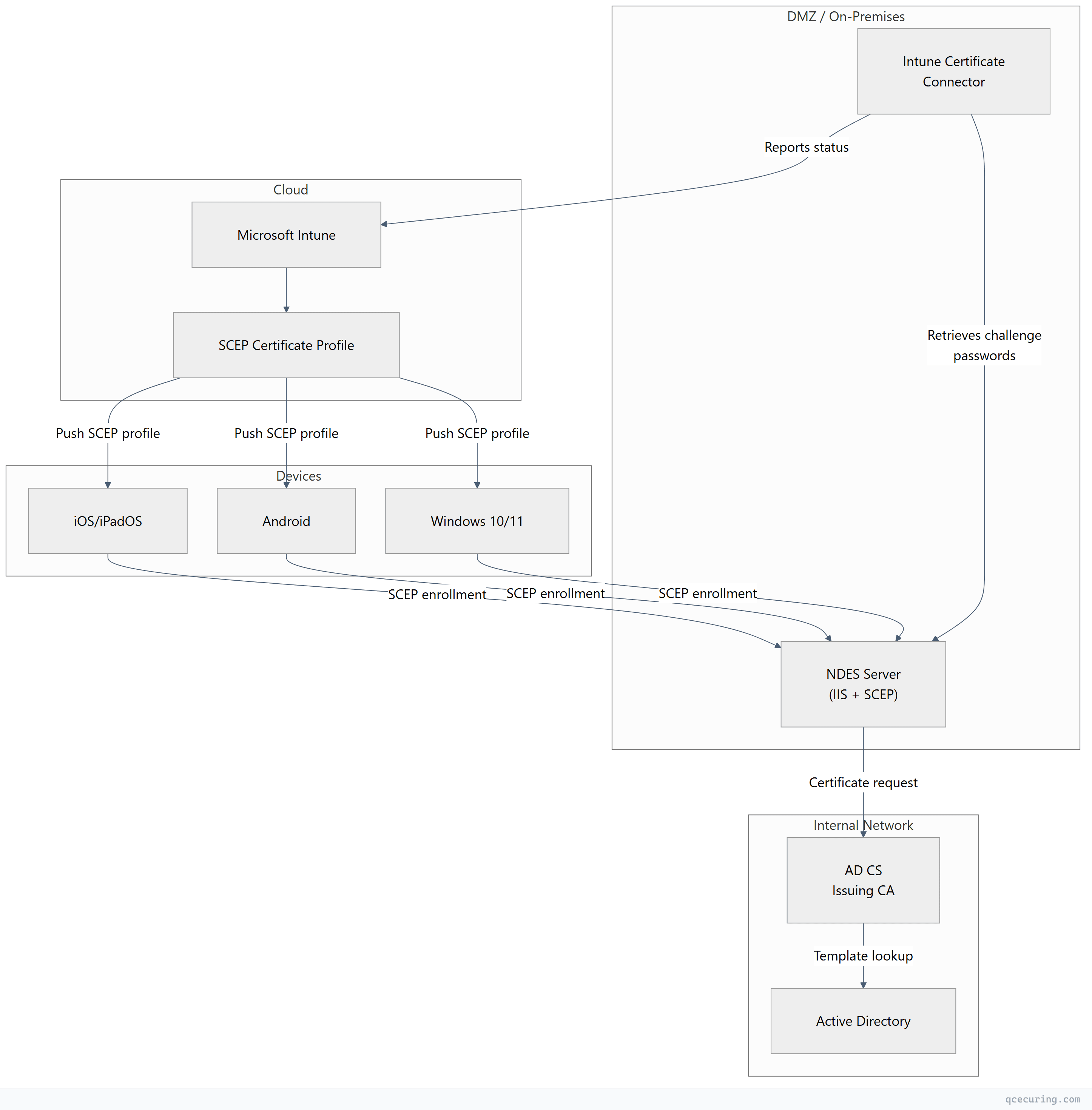
Intune-specific configuration:
- Install the Microsoft Intune Certificate Connector on the NDES server (or a separate server)
- Disable challenge password enforcement (
EnforcePassword = 0) — Intune handles authorization - Configure the SCEP profile in Intune with the NDES external URL
- Ensure the NDES URL is reachable from managed devices (often requires Azure AD App Proxy or reverse proxy)
Production Hardening
| Area | Recommendation |
|---|---|
| HTTPS | Always use TLS on the NDES endpoint — SCEP sends challenge passwords in the clear over HTTP |
| Network isolation | Place NDES in a DMZ; only allow inbound 443 from device networks |
| Service account | Minimal permissions — only Request Certificates on the CA, Enroll on the template |
| Challenge passwords | Keep enforcement ON unless using MDM; set short expiry (15-30 min) |
| RA key protection | Consider storing RA keys in an HSM for high-security environments |
| Template restrictions | Limit SANs, key sizes, and validity periods in the template — don’t trust device-supplied values blindly |
| Logging | Forward NDES events to your SIEM; alert on Event ID 4 (denied) and 16 (RA issues) |
| Patching | NDES runs on IIS — keep Windows and IIS patched; SCEP vulnerabilities have been found before |
FAQ
Q: Can NDES run on the same server as the CA?
Microsoft supports it but strongly discourages it. NDES exposes an IIS endpoint to the network — putting it on your CA increases the CA’s attack surface. Always use a dedicated NDES server, especially if the endpoint is reachable from untrusted networks.
Q: How many devices can a single NDES server handle?
A single NDES server typically handles 500-1,000 concurrent enrollment requests. For larger deployments, deploy multiple NDES servers behind a load balancer. Each NDES server needs its own RA certificates and service account.
Q: Do I need NDES if I’m using Intune only for Windows devices?
For Windows 10/11 devices joined to Azure AD, you can use PKCS certificate profiles (which don’t require NDES) instead of SCEP profiles. NDES/SCEP is primarily needed for iOS, Android, macOS, and network devices that don’t support direct PKCS enrollment.
Q: How do I renew certificates issued through NDES?
SCEP supports renewal if the device’s existing certificate is still valid. The device re-enrolls using its current certificate for authentication instead of a challenge password. Configure the template’s renewal period (e.g., 6 weeks before expiry) and ensure devices have network access to NDES at renewal time.
Q: What’s the difference between NDES and CEP/CES?
NDES uses SCEP (for network devices and MDM). CEP/CES (Certificate Enrollment Policy/Service) uses WS-Trust and HTTPS for domain-joined Windows machines that can’t reach a CA directly. CEP/CES is for Windows clients behind firewalls; NDES is for non-Windows devices and network equipment.
Q: Why does NDES show “password cache is full”?
NDES caches a limited number of challenge passwords (default: 5). If admins generate passwords faster than devices use them, the cache fills up. Increase PasswordCacheMax in the registry, or reduce PasswordMax (expiry time) so old passwords expire faster.
Related Reading: