

You’re seeing this error in certificate validation, Event Viewer, or application logs:
A certificate chain could not be built to a trusted root authority.CERT_E_UNTRUSTEDROOT (0x800B0109)A certificate chain processed, but terminated in a root certificate which is not trusted by the trust provider.The certificate chain was issued by an authority that is not trusted.This breaks smart card logon, 802.1X network authentication, VPN connections, HTTPS validation, and any service that validates certificates against a trust store. Here’s how to fix it.
Fastest Fix: Identify What’s Missing
# Verify the certificate chain and see exactly where it breaks
certutil -verify -urlfetch "C:\path\to\certificate.cer"

# Look for the line that says "ERROR" or "UNTRUSTED"
# It will tell you which certificate in the chain is the problem
Quick visual check:
# Open the certificate and inspect the chain
certutil -URL "C:\path\to\certificate.cer"
# Click "Retrieve" — look for broken chain links

# Or double-click the .cer file → Certification Path tab
# A red X on any certificate in the path indicates the break point
Common results:
- Root CA has red X → Root not in trust store. Jump to Root CA Fix
- Intermediate missing → Chain incomplete. Jump to Intermediate Fix
- AIA download failed → Can’t fetch chain certs. Jump to AIA Fix
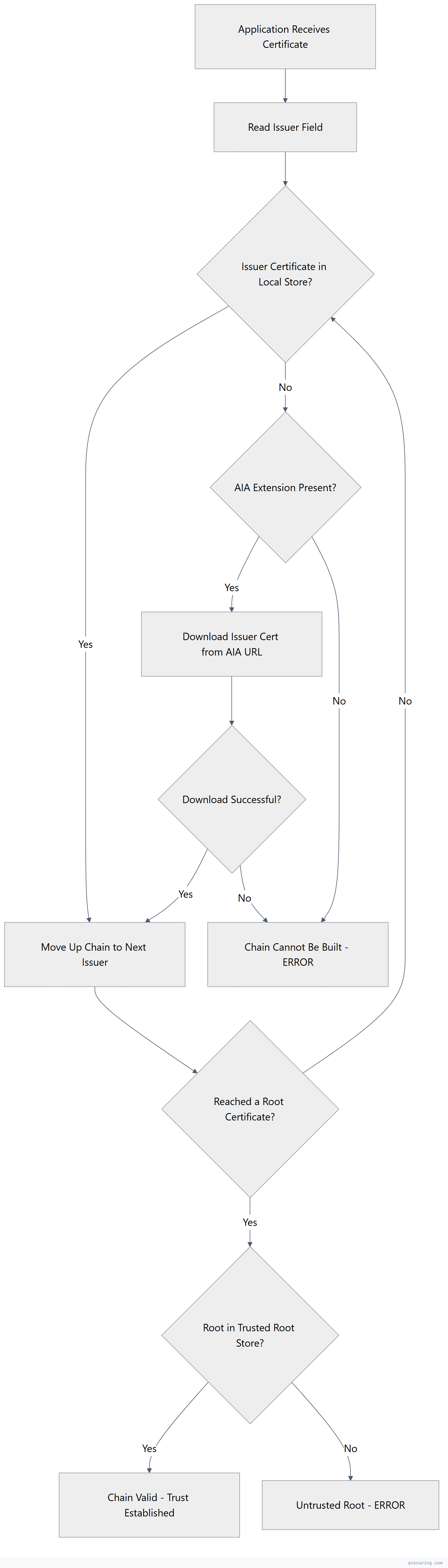
Certificate Chain Validation Flow
Cause 1: Root CA Not in Trusted Root Store
What’s happening: The root CA that issued the certificate chain isn’t in the machine’s Trusted Root Certification Authorities store.
Diagnose:
# Find the root CA from the certificate
certutil -verify "certificate.cer" 2>&1 | findstr "Root"

# Check if that root is in the trust store
certutil -store Root | findstr "Issuer"

# Or search for a specific root
certutil -store Root "Root CA Name"
Fix — import the root CA certificate manually:
# Import to Local Machine trust store (affects all users on this machine)
certutil -addstore Root "RootCA.cer"

# Or using PowerShell
Import-Certificate -FilePath "RootCA.cer" -CertStoreLocation Cert:\LocalMachine\Root
Fix — distribute via Group Policy (domain-wide):
# Method 1: GPO (recommended for domain environments)
# 1. Open Group Policy Management (gpmc.msc)
# 2. Edit the appropriate GPO
# 3. Computer Configuration → Policies → Windows Settings → Security Settings
#    → Public Key Policies → Trusted Root Certification Authorities
# 4. Right-click → Import → select the root CA certificate

# Method 2: certutil to publish to AD (auto-distributed to all domain members)
certutil -dspublish -f RootCA.cer RootCA

# Force clients to pick up the new trust
gpupdate /force
Fix — for non-domain machines (workgroup):
# Import via command line
certutil -addstore Root "RootCA.cer"

# Or via PowerShell remoting to multiple machines
$servers = "SERVER1", "SERVER2", "SERVER3"
$cert = Get-Content "RootCA.cer" -Encoding Byte
foreach ($server in $servers) {
    Invoke-Command -ComputerName $server -ScriptBlock {
        param($certBytes)
        $certObj = New-Object System.Security.Cryptography.X509Certificates.X509Certificate2(,$certBytes)
        $store = New-Object System.Security.Cryptography.X509Certificates.X509Store("Root", "LocalMachine")
        $store.Open("ReadWrite")
        $store.Add($certObj)
        $store.Close()
    } -ArgumentList (,$cert)
}
Cause 2: Intermediate Certificate Missing
What’s happening: The chain has a gap — the server or application isn’t providing the intermediate CA certificate, and the client can’t find it locally or download it.
Diagnose:
# Check the full chain
certutil -verify -urlfetch "certificate.cer"

# Look for "Missing" or "Unable to find" in the output
# The error will show which intermediate is needed

# Check what's in the intermediate store
certutil -store CA
Fix — import the intermediate certificate:
# Import to the Intermediate Certification Authorities store
certutil -addstore CA "IntermediateCA.cer"

# Or PowerShell
Import-Certificate -FilePath "IntermediateCA.cer" -CertStoreLocation Cert:\LocalMachine\CA
Fix — for web servers (include intermediate in the chain):
# Nginx — concatenate certs in order: leaf + intermediate(s)
cat server.crt intermediate.crt > fullchain.crt

# Apache — specify the chain file
SSLCertificateChainFile /etc/apache2/ssl/intermediate.crt

# IIS — import the intermediate to the server's CA store
certutil -addstore CA intermediate.cer
Fix — download the intermediate from AIA:
# Extract the AIA URL from the certificate
certutil -dump certificate.cer | findstr "Authority Info Access" -A 5

# Download the intermediate
Invoke-WebRequest -Uri "http://pki.domain.com/CertEnroll/IssuingCA.crt" -OutFile "IssuingCA.cer"

# Import it
certutil -addstore CA "IssuingCA.cer"
Fix — distribute intermediate via GPO:
# GPO: Computer Configuration → Policies → Windows Settings → Security Settings
#      → Public Key Policies → Intermediate Certification Authorities
# Import the intermediate CA certificate

# Or publish to AD
certutil -dspublish -f IntermediateCA.cer SubCA
Cause 3: AIA Extension Unreachable
What’s happening: The certificate has an Authority Information Access (AIA) extension with a URL to download the issuer certificate, but that URL is unreachable.
Diagnose:
# Check AIA URLs in the certificate
certutil -dump certificate.cer | findstr -i "Authority Info Access" -A 10

# Test if the AIA URL is accessible
Invoke-WebRequest -Uri "http://pki.domain.com/CertEnroll/IssuingCA.crt" -UseBasicParsing

# Test connectivity
Test-NetConnection -ComputerName pki.domain.com -Port 80
Fix — make AIA accessible:
# If the AIA web server is down
Get-Service W3SVC -ComputerName AIA-SERVER
Start-Service W3SVC -ComputerName AIA-SERVER

# If firewall is blocking
# Allow HTTP (port 80) from clients to the AIA server

# If DNS doesn't resolve the AIA hostname
Resolve-DnsName pki.domain.com
# Add DNS record if missing
Fix — if AIA will never be accessible (air-gapped, external):
# Manually download and install the issuer certificates
# This bypasses the need for AIA

# Import all chain certificates to the appropriate stores
certutil -addstore Root "RootCA.cer"
certutil -addstore CA "IssuingCA.cer"
Cause 4: Path Length Constraint Exceeded
What’s happening: The certificate chain is too long. A CA certificate has a pathLenConstraint that limits how many CAs can exist below it in the chain.
Diagnose:
# Check path length constraints in the chain
certutil -dump RootCA.cer | findstr "PathLen"
certutil -dump IntermediateCA.cer | findstr "PathLen"

# Example: If Root has pathLenConstraint=1, only ONE subordinate CA is allowed
# Root → Sub CA (OK) → Sub-Sub CA (VIOLATES constraint)
Fix:
This is an architectural issue. Options:
- Reduce chain depth — issue certificates from a CA that’s within the path length constraint
- Reissue the constraining CA certificate with a higher pathLenConstraint (requires CA renewal)
- Restructure your PKI hierarchy — flatten the chain
# Check your current chain depth
certutil -verify -urlfetch certificate.cer
# Count the number of CA certificates in the chain
Cause 5: Cross-Certification or Bridge CA Issues
What’s happening: Your environment uses cross-certified CAs or a bridge CA, and the cross-certificate isn’t installed or has expired.
Diagnose:
# Check for cross-certificates
certutil -store CA | findstr "Cross"

# Verify the cross-certificate is valid
certutil -verify "CrossCert.cer"
Fix — install or update cross-certificates:
# Import the cross-certificate
certutil -addstore CA "CrossCert.cer"

# If the cross-cert expired, obtain a new one from the partner CA
# and redistribute via GPO
Cause 6: Certificate Was Issued by an Untrusted Internal CA
What’s happening: A certificate was issued by your organization’s internal CA, but the machine validating it doesn’t trust that CA (not domain-joined, new machine, different forest).
Diagnose:
# Check the issuer
certutil -dump certificate.cer | findstr "Issuer"

# Check if that issuer is trusted
certutil -store Root | findstr "Subject"
certutil -store CA | findstr "Subject"
Fix — for machines joining the domain:
# Domain-joined machines automatically get root CA trust via GPO
# Force a refresh
gpupdate /force
certutil -pulse

# Verify the CA cert was distributed
certutil -store Root "Your Internal Root CA"
Fix — for non-domain machines that need to trust internal certs:
# Export your root CA certificate
certutil -ca.cert RootCA.cer

# Transfer to the non-domain machine and import
certutil -addstore Root "RootCA.cer"

# For Linux/macOS clients
# Copy the CA cert to the trust store
sudo cp RootCA.crt /usr/local/share/ca-certificates/
sudo update-ca-certificates
Verify the Fix
After importing certificates or fixing AIA:
# Clear the certificate cache
certutil -urlcache * delete

# Re-verify the certificate chain
certutil -verify -urlfetch "certificate.cer"

# Expected output: "CertUtil: -verify command completed successfully."
# No errors about untrusted root or missing chain

# For smart card logon, test with
certutil -scinfo

# For 802.1X, reconnect to the network and check NPS logs
Get-WinEvent -LogName "Security" | Where-Object { $_.Id -eq 6272 -or $_.Id -eq 6273 } | Select-Object -First 5

# For VPN, reconnect and check RRAS logs
Get-WinEvent -LogName "Application" -FilterXPath "*[System[Provider[@Name='RemoteAccess']]]" -MaxEvents 5
FAQ
Why does this error appear on some machines but not others in the same domain?
Group Policy distribution of CA certificates can be inconsistent. Check: (1) Is the machine in the correct OU receiving the GPO? Run gpresult /r to verify. (2) Has the machine been offline and missed GPO updates? Run gpupdate /force. (3) Is the machine using a different DNS server that can’t resolve AIA URLs? (4) Was the machine recently reimaged without rejoining the domain properly?
I imported the root CA but still get the error. What am I missing?
You likely need the intermediate CA certificate too. A chain typically has 3 levels: Root → Intermediate → Leaf. Import the root to Trusted Root Certification Authorities and the intermediate to Intermediate Certification Authorities. Run certutil -verify -urlfetch cert.cer to see exactly which certificate is missing.
How do I fix this for Linux clients that need to trust our internal CA?
Copy your root CA certificate (in PEM format) to the system trust store and update it:
# Ubuntu/Debian
sudo cp InternalRootCA.crt /usr/local/share/ca-certificates/
sudo update-ca-certificates

# RHEL/CentOS
sudo cp InternalRootCA.crt /etc/pki/ca-trust/source/anchors/
sudo update-ca-trust

# Verify
openssl verify -CApath /etc/ssl/certs certificate.pem
The chain error appears during 802.1X authentication. How do I fix it?
The RADIUS/NPS server’s certificate must chain to a root that the client trusts. Check: (1) The NPS server certificate was issued by your internal CA. (2) The client has the root CA in its trust store (GPO distribution). (3) The NPS server is sending the full chain (intermediate included). Configure the NPS server certificate in NPS → Policies → Network Policies → Constraints → Authentication Methods → EAP → Properties.
Can I temporarily bypass this error for testing?
For testing only, you can disable chain validation in specific applications. For PowerShell web requests: [System.Net.ServicePointManager]::ServerCertificateValidationCallback = {$true}. For curl: curl -k https://.... Never use these in production. The proper fix is always to install the correct CA certificates in the trust store.
Related Reading
- Certificate Chain of Trust Explained — understand how chains work
- AD CS Complete Architecture Guide — design proper trust hierarchies
- X.509 Certificate Fields Explained — understand AIA, CDP, and other extensions
- What Is a TLS Certificate — foundational concepts