
You’re seeing this when trying to enroll a certificate via MMC, certreq, or auto-enrollment:
The certificate template is not available.Certificate enrollment for <user/computer> failed to enroll for a <TemplateName> certificate.
The requested certificate template is not supported by this CA.certreq: The certificate template is not available. 0x80094800CertEnroll::CX509Enrollment::Enroll: The certificate template is not supported by this CA. 0x80094800The template exists in Active Directory but enrollment fails. Here’s how to fix it.
Fastest Fix: Check If the Template Is Published
# List all templates published on the CA
certutil -CATemplates

# Look for your template name in the output
# If it's NOT listed, that's your problem — jump to "Publish the Template"
If your template IS listed but enrollment still fails, the issue is permissions or compatibility. Continue below.
Template Enrollment Flow
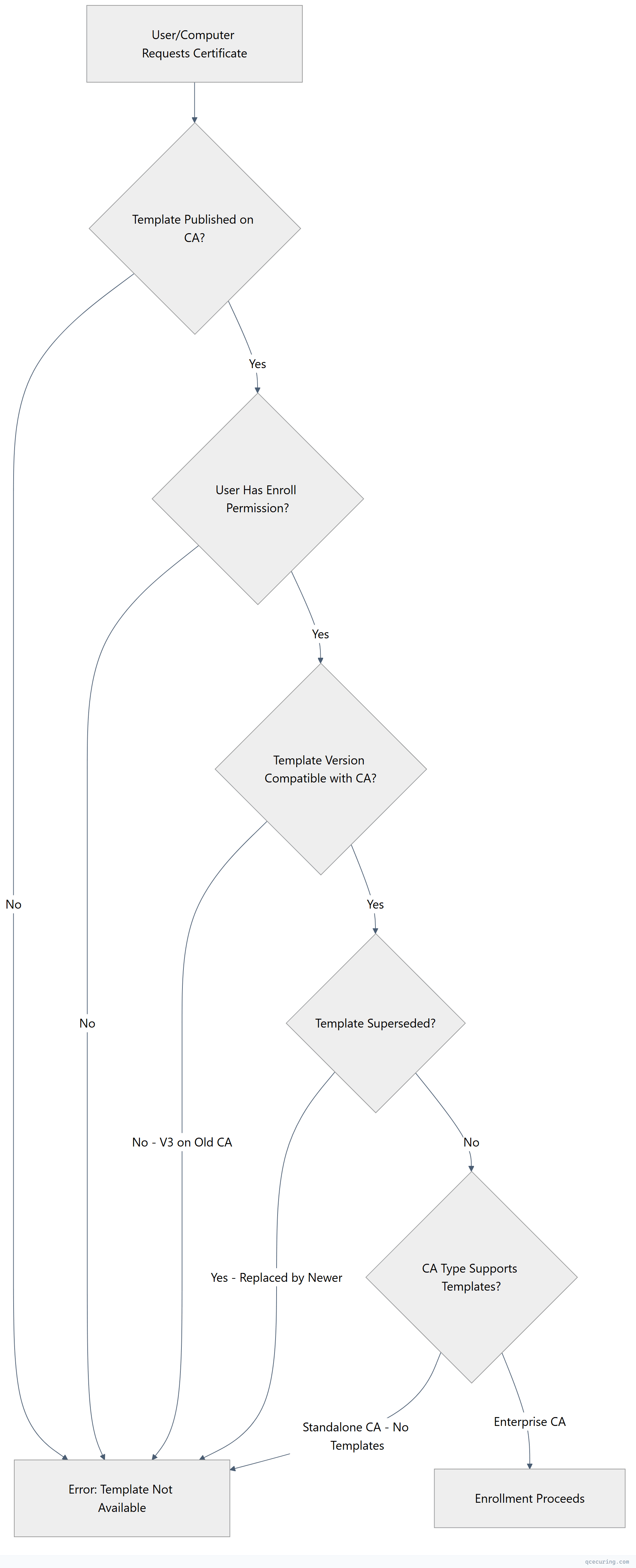
Cause 1: Template Not Published on the CA
What’s happening: The template exists in AD (you can see it in Certificate Templates console) but it hasn’t been added to the CA’s list of templates to issue.
Diagnose:
# List templates the CA is configured to issue
certutil -CATemplates

# List all templates in AD (regardless of CA publishing)
certutil -ADTemplate

# Compare — if your template is in ADTemplate but not CATemplates, it's not published
Fix — publish the template on the CA:
# Method 1: PowerShell (Windows Server 2012+)
Add-CATemplate -Name "YourTemplateName" -Force

# Method 2: certutil
certutil -SetCATemplates +YourTemplateName

# Method 3: GUI
# Open Certification Authority console (certsrv.msc)
# Right-click "Certificate Templates" → New → Certificate Template to Issue
# Select your template → OK
Verify it’s published:
certutil -CATemplates | findstr "YourTemplateName"If you have multiple CAs, publish the template on the correct one:
# Check which CA the client is targeting
certutil -config - -ping

# Publish on that specific CA
certutil -config "CA-SERVER\CA-Name" -SetCATemplates +YourTemplateName
Cause 2: User/Computer Lacks Enroll Permission
What’s happening: The template is published, but the requesting user or computer doesn’t have the Enroll (or Autoenroll) permission on the template.
Diagnose:
# Check template permissions
# Method 1: PowerShell
$templateName = "YourTemplateName"
$configContext = ([ADSI]"LDAP://RootDSE").configurationNamingContext
$templateDN = "CN=$templateName,CN=Certificate Templates,CN=Public Key Services,CN=Services,$configContext"
$template = [ADSI]"LDAP://$templateDN"
$template.ObjectSecurity.Access | Format-Table IdentityReference, ActiveDirectoryRights, AccessControlType

# Method 2: certutil (shows template details including security)
certutil -ADTemplate $templateName
Fix — grant Enroll permission:
# Using the Certificate Templates MMC snap-in:
# 1. Open certtmpl.msc
# 2. Find your template → Properties → Security tab
# 3. Add the user/group → check "Enroll" (and "Autoenroll" if needed)

# Using PowerShell (DVCS module):
# Grant Enroll to Domain Computers
$templateName = "YourTemplateName"
$configContext = ([ADSI]"LDAP://RootDSE").configurationNamingContext
$templateDN = "CN=$templateName,CN=Certificate Templates,CN=Public Key Services,CN=Services,$configContext"
dsacls $templateDN /G "Domain Computers:CA;Enroll"
Required permissions for enrollment:
| Permission | Purpose |
|---|---|
| Read | See the template exists |
| Enroll | Manually request certificates |
| Autoenroll | Auto-enrollment via GPO |
For auto-enrollment, you need BOTH Enroll AND Autoenroll:
# Grant both permissions
dsacls $templateDN /G "Domain Computers:CA;Enroll"
dsacls $templateDN /G "Domain Computers:CA;AutoEnrollment"
Cause 3: Template Version Incompatibility
What’s happening: Version 3 (V3) and Version 4 (V4) templates require specific CA and OS versions. If your CA is too old, it can’t issue these templates.
Template version requirements:
| Template Version | Minimum CA OS | Minimum Client OS |
|---|---|---|
| V1 | Windows 2000 | Windows 2000 |
| V2 | Windows Server 2003 | Windows XP |
| V3 | Windows Server 2008 | Windows Vista |
| V4 | Windows Server 2012 | Windows 8 |
Diagnose:
# Check template version
certutil -ADTemplate YourTemplateName | findstr "msPKI-Template-Schema-Version"

# Check CA OS version
certutil -CAInfo | findstr "Server"

# Check CA schema version support
certutil -getreg CA\Version
Fix — if the template version is too high for your CA:
Option 1: Upgrade the CA to a newer Windows Server version.
Option 2: Duplicate the template and set a lower schema version:
# In certtmpl.msc:
# 1. Right-click the V3/V4 template → Duplicate Template
# 2. In the dialog, select "Windows Server 2003" compatibility
#    (this creates a V2 template)
# 3. Configure the duplicate with your settings
# 4. Publish the new V2 template on the CA
Option 3: Check if V3/V4 features are actually needed. If you’re not using key attestation, cryptography settings, or other V3+ features, a V2 template works fine.
Cause 4: Template Has Been Superseded
What’s happening: A newer template supersedes (replaces) your template. When a template is superseded, the old one is no longer available for enrollment.
Diagnose:
# Check if the template is superseded
certutil -ADTemplate YourTemplateName | findstr -i "supersed"

# Or check the Superseded Templates tab in template properties
# certtmpl.msc → Template → Properties → Superseded Templates tab
Fix — remove the supersession:
- Open
certtmpl.msc - Find the newer template that supersedes yours
- Properties → Superseded Templates tab
- Remove your template from the list
Or use the superseding template instead:
# Find which template supersedes yours
certutil -ADTemplate | findstr -A5 "YourTemplateName"

# Publish the superseding template if it's not already
Add-CATemplate -Name "NewerTemplateName" -Force
Cause 5: CA Is Standalone (Not Enterprise)
What’s happening: Standalone CAs don’t support certificate templates. Only Enterprise CAs (joined to Active Directory) can issue template-based certificates.
Diagnose:
# Check CA type
certutil -CAInfo | findstr "CA type"

# Enterprise CA shows: "Enterprise Root CA" or "Enterprise Subordinate CA"
# Standalone CA shows: "Standalone Root CA" or "Standalone Subordinate CA"
Fix:
You cannot convert a Standalone CA to an Enterprise CA. Options:
- Install a new Enterprise CA alongside the Standalone CA
- Use the Standalone CA for manual requests only (submit CSR directly with
certreq -submit) - If this is a Root CA, it’s normal for it to be Standalone. Issue certificates from a subordinate Enterprise CA instead.
# For standalone CA, submit requests manually without templates:
certreq -submit -config "STANDALONE-CA\CA-Name" request.csr
Cause 6: Replication Delay
What’s happening: You just created or published the template, but AD replication hasn’t completed to all domain controllers yet.
Diagnose:
# Check AD replication status
repadmin /replsummary

# Force replication
repadmin /syncall /AdeP

# Check if the template exists on the DC the client is using
$clientDC = (Get-ADDomainController -Discover).HostName
certutil -config $clientDC -ADTemplate YourTemplateName
Fix — wait or force replication:
# Force replication across all DCs
repadmin /syncall /AdeP

# Wait 15-30 minutes for large environments

# On the client, clear cached template info
certutil -pulse

# Force the client to re-read templates
gpupdate /force
Complete Diagnostic Script
Run this on the client experiencing the error:
$TemplateName = "YourTemplateName"
$CAConfig = "CA-SERVER\CA-Name"

Write-Host "=== Certificate Template Diagnostic ===" -ForegroundColor Cyan

# 1. Does the template exist in AD?
Write-Host "`n[1] Template exists in AD:" -ForegroundColor Yellow
$adResult = certutil -ADTemplate $TemplateName 2>&1
if ($adResult -match $TemplateName) {
    Write-Host "  OK: Template found in AD" -ForegroundColor Green
} else {
    Write-Host "  FAIL: Template not found in AD" -ForegroundColor Red
    Write-Host "  → Create the template in certtmpl.msc" -ForegroundColor Gray
}

# 2. Is it published on the CA?
Write-Host "`n[2] Template published on CA:" -ForegroundColor Yellow
$caTemplates = certutil -CATemplates 2>&1
if ($caTemplates -match $TemplateName) {
    Write-Host "  OK: Template is published on CA" -ForegroundColor Green
} else {
    Write-Host "  FAIL: Template not published on CA" -ForegroundColor Red
    Write-Host "  → Run: Add-CATemplate -Name '$TemplateName'" -ForegroundColor Gray
}

# 3. Check permissions
Write-Host "`n[3] Current user/computer permissions:" -ForegroundColor Yellow
Write-Host "  Current user: $env:USERDOMAIN\$env:USERNAME" -ForegroundColor Gray
Write-Host "  Current computer: $env:COMPUTERNAME" -ForegroundColor Gray
Write-Host "  → Verify Enroll permission in certtmpl.msc → Security tab" -ForegroundColor Gray

# 4. Template version
Write-Host "`n[4] Template schema version:" -ForegroundColor Yellow
$versionInfo = certutil -ADTemplate $TemplateName 2>&1 | findstr "msPKI-Template-Schema-Version"
Write-Host "  $versionInfo" -ForegroundColor Gray

# 5. CA type
Write-Host "`n[5] CA type:" -ForegroundColor Yellow
$caInfo = certutil -CAInfo 2>&1 | findstr "CA type"
Write-Host "  $caInfo" -ForegroundColor Gray

Write-Host "`n=== Diagnostic Complete ===" -ForegroundColor Cyan
FAQ
I published the template but users still can’t see it in the enrollment wizard. Why?
After publishing, clients need to refresh their template cache. Run gpupdate /force on the client, or wait for the next Group Policy refresh cycle (90 minutes by default). Also verify the user has at least Read and Enroll permissions on the template. If using the Certificates MMC snap-in, close and reopen it after the GPO refresh.
Can I publish the same template on multiple CAs?
Yes, and this is recommended for redundancy. Publish the template on all Enterprise CAs that should issue it: Add-CATemplate -Name "TemplateName" on each CA. Clients will automatically select an available CA. Ensure all CAs have the same template version and that the template permissions are consistent.
How do I find which templates are available for my user account?
Run certutil -Template from the user’s session. This shows only templates the current user has Enroll permission for AND that are published on a reachable CA. Compare with certutil -CATemplates (shows all published templates regardless of permissions) to identify permission gaps.
The template shows in certutil -CATemplates but enrollment still fails with “not supported.” What else could be wrong?
Check these less obvious causes: (1) The template’s cryptographic provider (CSP/KSP) isn’t available on the client. (2) The template requires a minimum key size the client can’t generate. (3) The template has issuance requirements (CA manager approval, authorized signatures) that aren’t met. (4) The template’s validity period exceeds the CA certificate’s remaining validity. Check template properties → Request Handling and Issuance Requirements tabs.
How do I create a custom template from scratch?
You can’t create templates from scratch — you must duplicate an existing one. In certtmpl.msc, right-click an existing template that’s closest to your needs → Duplicate Template. Choose the compatibility level (Windows Server version), configure the settings, then publish it on your CA with Add-CATemplate -Name "NewTemplateName". The base template you duplicate from determines the initial settings.
Related Reading
- AD CS Certificate Templates Explained — deep dive into template configuration
- AD CS Troubleshooting Common Errors — fix other AD CS issues
- AD CS Complete Architecture Guide — understand the full AD CS topology
- Understanding PKI Basics — foundational PKI concepts