

You’re seeing this error in Event Viewer, application logs, or certificate validation dialogs:
The revocation function was unable to check revocation for the certificate.Error: CRYPT_E_REVOCATION_OFFLINE (0x80092013)The revocation function was unable to check revocation because the revocation server was offline.Certificate Status: Revocation check failed - unable to contact CRL distribution pointThis blocks smart card logon, code signing verification, HTTPS connections in Internet Explorer/Edge, VPN authentication, and any Windows service that validates certificates with revocation checking. Here’s how to fix it.
Fastest Fix: Identify What’s Unreachable
Run this on the machine showing the error:
# Check revocation for a specific certificate (replace with your cert path)
certutil -verify -urlfetch "C:\path\to\certificate.cer"

# Or test the URLs in a certificate interactively
certutil -URL "C:\path\to\certificate.cer"
The certutil -verify -urlfetch output shows exactly which CRL or OCSP URL is failing. Look for lines marked FAILED or OFFLINE.
If you don’t have the cert file handy:
# Export a cert from the store to test
certutil -store My | findstr "Serial"
certutil -store My "SerialNumber" cert.cer
certutil -verify -urlfetch cert.cer
Revocation Check Flow
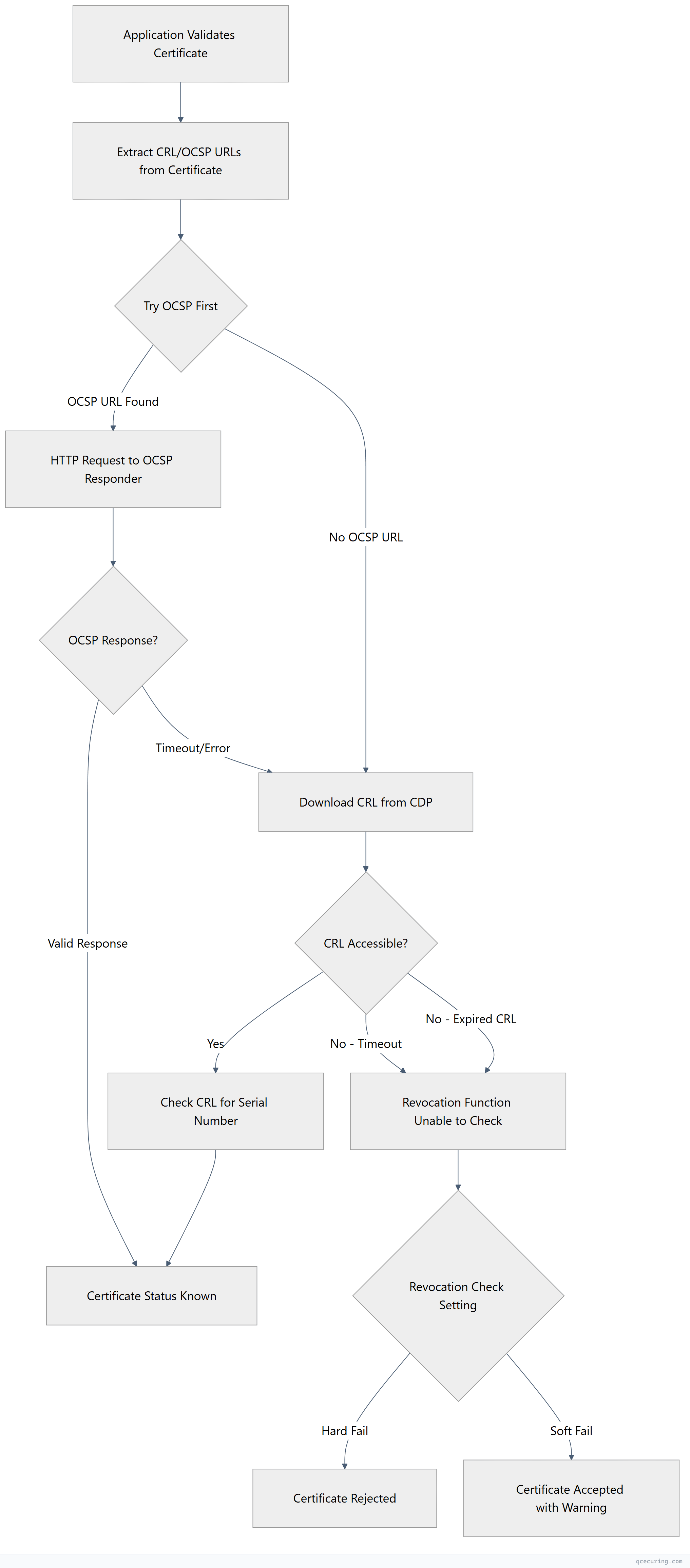
Cause 1: CRL Distribution Point Unreachable
What’s happening: The certificate contains a CDP URL (usually HTTP), and the client can’t reach it.
Diagnose:
# Extract CDP URLs from the certificate
certutil -dump certificate.cer | findstr "URL"

# Test if the CRL URL is accessible
# Example CDP: http://pki.domain.com/CertEnroll/CA-Name.crl
Invoke-WebRequest -Uri "http://pki.domain.com/CertEnroll/CA-Name.crl" -UseBasicParsing

# Or with certutil
certutil -URL certificate.cer
# Click "Retrieve" next to each CDP — look for failures
Fix — if the CDP web server is down:
# On the CDP server, check IIS
Get-Service W3SVC
Start-Service W3SVC

# Verify the CRL file exists in the virtual directory
Get-ChildItem "C:\Windows\System32\CertSrv\CertEnroll\*.crl"

# Check IIS binding
Get-WebBinding -Name "Default Web Site"
Fix — if a firewall is blocking HTTP to the CDP:
# From the client, test HTTP connectivity
Test-NetConnection -ComputerName pki.domain.com -Port 80

# If blocked, open port 80 to the CDP server in your firewall
# This is HTTP (not HTTPS) — CRLs are signed, so HTTP is acceptable
Fix — if DNS can’t resolve the CDP hostname:
# Test DNS resolution
Resolve-DnsName pki.domain.com

# If it fails, add a DNS record or use the IP directly for testing
# Add to hosts file temporarily:
Add-Content C:\Windows\System32\drivers\etc\hosts "10.0.1.50 pki.domain.com"
Cause 2: CRL Has Expired
What’s happening: The CRL was published but its validity period has passed. Windows treats an expired CRL as invalid.
Diagnose:
# Download and check the CRL
certutil -URL certificate.cer
# Look at "Next Update" date — if it's in the past, the CRL is expired

# Or download and inspect directly
certutil -dump "http://pki.domain.com/CertEnroll/CA-Name.crl"
# Look for: "Next CRL Publish" or "Next Update"
Fix — publish a new CRL from the CA:
# On the CA server, publish a new CRL immediately
certutil -CRL

# Verify the new CRL
certutil -getCRL "C:\Windows\System32\CertSrv\CertEnroll\CA-Name.crl"
certutil -dump "C:\Windows\System32\CertSrv\CertEnroll\CA-Name.crl" | findstr "Update"
Fix — if the CA is offline (Offline Root CA):
# Start the offline CA (physically or via VM)
# Publish the CRL
certutil -CRL

# Copy the CRL to the CDP location
copy "C:\Windows\System32\CertSrv\CertEnroll\*.crl" "\\CDP-SERVER\CertEnroll$\"

# Verify the CRL is accessible from clients
certutil -URL certificate.cer
Prevent CRL expiry — set appropriate CRL validity:
# On the CA, check current CRL period
certutil -getreg CA\CRLPeriod
certutil -getreg CA\CRLPeriodUnits

# For an offline root CA, set a longer CRL period (e.g., 6 months)
certutil -setreg CA\CRLPeriod "Months"
certutil -setreg CA\CRLPeriodUnits 6

# For an online issuing CA, keep it shorter (e.g., 7 days)
certutil -setreg CA\CRLPeriod "Days"
certutil -setreg CA\CRLPeriodUnits 7

# Republish after changing
Restart-Service CertSvc
certutil -CRL
Cause 3: OCSP Responder Down or Misconfigured
What’s happening: The certificate has an OCSP URL in its AIA extension, but the OCSP responder isn’t responding.
Diagnose:
# Check OCSP URL from the certificate
certutil -dump certificate.cer | findstr -i "OCSP"

# Test OCSP responder directly
# Example: http://ocsp.domain.com/ocsp
Invoke-WebRequest -Uri "http://ocsp.domain.com/ocsp" -Method GET -UseBasicParsing

# Use OpenSSL for a proper OCSP check
openssl ocsp -issuer issuer.crt -cert certificate.crt -url http://ocsp.domain.com/ocsp -resp_text
Fix — restart the OCSP responder (Windows):
# Check Online Responder service
Get-Service OCSPSvc
Restart-Service OCSPSvc

# Check Online Responder configuration
Get-OCSPRevocationConfiguration | Format-List

# Refresh the OCSP signing certificate if expired
# Open Online Responder Management snap-in → Revocation Configuration → Refresh
Fix — OCSP signing certificate expired:
# Check OCSP signing cert validity
Get-ChildItem Cert:\LocalMachine\My | Where-Object { $_.EnhancedKeyUsageList.FriendlyName -contains "OCSP Signing" } | Select-Object Subject, NotAfter

# Enroll a new OCSP signing certificate
# The OCSP responder should auto-enroll if the template is configured correctly
certutil -pulse
Cause 4: Offline Root CA Didn’t Publish CRL on Schedule
What’s happening: Your offline root CA needs to publish a CRL periodically (typically every 3-12 months). If someone forgot to power it on and publish, the CRL expires and the entire chain breaks.
Diagnose:
# Check the root CA's CRL validity
certutil -dump "http://pki.domain.com/CertEnroll/RootCA.crl" | findstr "Update"

# If "Next Update" is in the past, the root CRL is expired
Fix:
- Power on the offline root CA
- Log in and publish a new CRL:
certutil -CRL- Copy the CRL to all CDP locations:
# Copy to file share that the CDP web server serves
copy "C:\Windows\System32\CertSrv\CertEnroll\RootCA.crl" "\\CDP-SERVER\CertEnroll$\"- Verify from a client:
certutil -URL certificate.cerPrevent this — set a calendar reminder:
The CRL overlap period gives you a grace window. If your root CRL is valid for 6 months with a 2-week overlap, set a reminder for 5 months to republish.
# Check overlap period
certutil -getreg CA\CRLOverlapPeriod
certutil -getreg CA\CRLOverlapPeriodUnits
Cause 5: Client Can’t Reach External CRLs (Internet-Issued Certs)
What’s happening: For certificates from public CAs (DigiCert, Sectigo, etc.), the CRL/OCSP endpoints are on the internet. If the client has no internet access or a proxy blocks it, revocation checks fail.
Diagnose:
# Check if the client can reach common CRL endpoints
Test-NetConnection -ComputerName crl.digicert.com -Port 80
Test-NetConnection -ComputerName ocsp.digicert.com -Port 80

# Check proxy settings
netsh winhttp show proxy

# Test through proxy
Invoke-WebRequest -Uri "http://crl3.digicert.com/DigiCertGlobalRootCA.crl" -UseBasicParsing -Proxy "http://proxy:8080"
Fix — configure proxy for WinHTTP:
# Set system proxy (used by services and background processes)
netsh winhttp set proxy proxy-server="http://proxy.domain.com:8080" bypass-list="*.domain.local;10.*"

# Or import from IE settings
netsh winhttp import proxy source=ie
Fix — allow CRL/OCSP traffic through firewall:
Allow outbound HTTP (port 80) to:
- crl.digicert.com, crl3.digicert.com, crl4.digicert.com
- ocsp.digicert.com
- crl.sectigo.com, ocsp.sectigo.com
- crl.globalsign.com, ocsp.globalsign.com
- (or allow all outbound port 80 — CRLs use HTTP, not HTTPS)
Temporary workaround — disable revocation checking (NOT recommended for production):
# Disable CRL checking for a specific application (testing only)
# In Internet Options → Advanced → uncheck "Check for server certificate revocation"

# Or via registry (machine-wide — USE WITH CAUTION)
# This disables revocation checking entirely
Set-ItemProperty -Path "HKLM:\SOFTWARE\Policies\Microsoft\SystemCertificates\AuthRoot" -Name "DisableRootAutoUpdate" -Value 0
Verify the Fix
After resolving the issue:
# Clear the CRL cache (forces fresh download)
certutil -urlcache * delete

# Re-verify the certificate
certutil -verify -urlfetch certificate.cer

# Check with the GUI tool
certutil -URL certificate.cer
# Click "Retrieve" for each CDP and OCSP — all should show "OK"

# For smart card logon issues, test with:
certutil -scinfo

# Force a fresh revocation check
certutil -verify -urlfetch -crl certificate.cer
FAQ
What’s the difference between “soft fail” and “hard fail” for revocation checking?
Soft fail (default in most Windows configurations) means: if the revocation check can’t be completed (CRL unreachable, OCSP timeout), the certificate is accepted anyway. Hard fail means the certificate is rejected if revocation status can’t be confirmed. Smart card logon and some high-security scenarios use hard fail. You can control this via GPO or registry settings.
The error only happens intermittently. What causes that?
Intermittent failures usually mean: (1) The CRL is cached and works until the cache expires, then the next download attempt fails. (2) The OCSP responder is overloaded and times out under load. (3) Network connectivity to the CDP is unreliable. Check the CRL cache with certutil -urlcache CRL to see cached entries and their expiry times.
Can I pre-download CRLs to avoid this error on air-gapped systems?
Yes. Download the CRL on a connected machine, transfer it to the air-gapped system, and import it into the local CRL cache: certutil -addstore -f CA "downloaded.crl". You’ll need to repeat this before the CRL expires. For a permanent solution, set up a local CDP that you manually update.
Why does this error appear after migrating to a new domain controller?
The new DC may not have the CA’s CRL cached, and if the CDP is unreachable from the new DC, certificate validation fails. This commonly affects smart card logon and LDAPS. Verify the new DC can reach all CDP URLs listed in certificates. Also check that the new DC has the root and intermediate CA certificates in its trust store.
How do I find which certificate is causing the revocation error?
Check the Event Viewer: Applications and Services Logs → Microsoft → Windows → CAPI2 → Operational. Enable this log if it’s not already active: wevtutil set-log Microsoft-Windows-CAPI2/Operational /enabled:true. The CAPI2 log shows the exact certificate, the URL it tried to reach, and why it failed.
Related Reading
- AD CS Complete Architecture Guide — design reliable CRL/OCSP infrastructure
- AD CS Troubleshooting Common Errors — fix other AD CS issues
- Certificate Chain of Trust Explained — understand how revocation fits into validation
- Understanding PKI Basics — foundational concepts