
You’re seeing this:
ssh user@server.com
Permission denied (publickey).
Or one of these variations:
user@server.com: Permission denied (publickey,gssapi-keyex,gssapi-with-mic).git@github.com: Permission denied (publickey).
fatal: Could not read from remote repository.Permission denied (publickey,keyboard-interactive).This means the SSH server rejected your authentication because it couldn’t match your public key. The fix depends on which part of the key exchange is broken.
Fastest Fix
Run this to see exactly why authentication is failing:
ssh -vvv user@server.com 2>&1 | grep -E "Offering|Trying|Authentication|identity|Accepted|Rejected"Look at the output:
- “No identities found” → SSH agent has no keys loaded. Jump to SSH Agent Fix
- “Offering public key: /path/to/key” but then “Received disconnect” → Key isn’t in
authorized_keys. Jump to Authorized Keys Fix - “Could not open identity file” → Wrong key path. Jump to Wrong Key Fix
- “sign_and_send_pubkey: no mutual signature supported” → Key type rejected. Jump to Key Type Fix
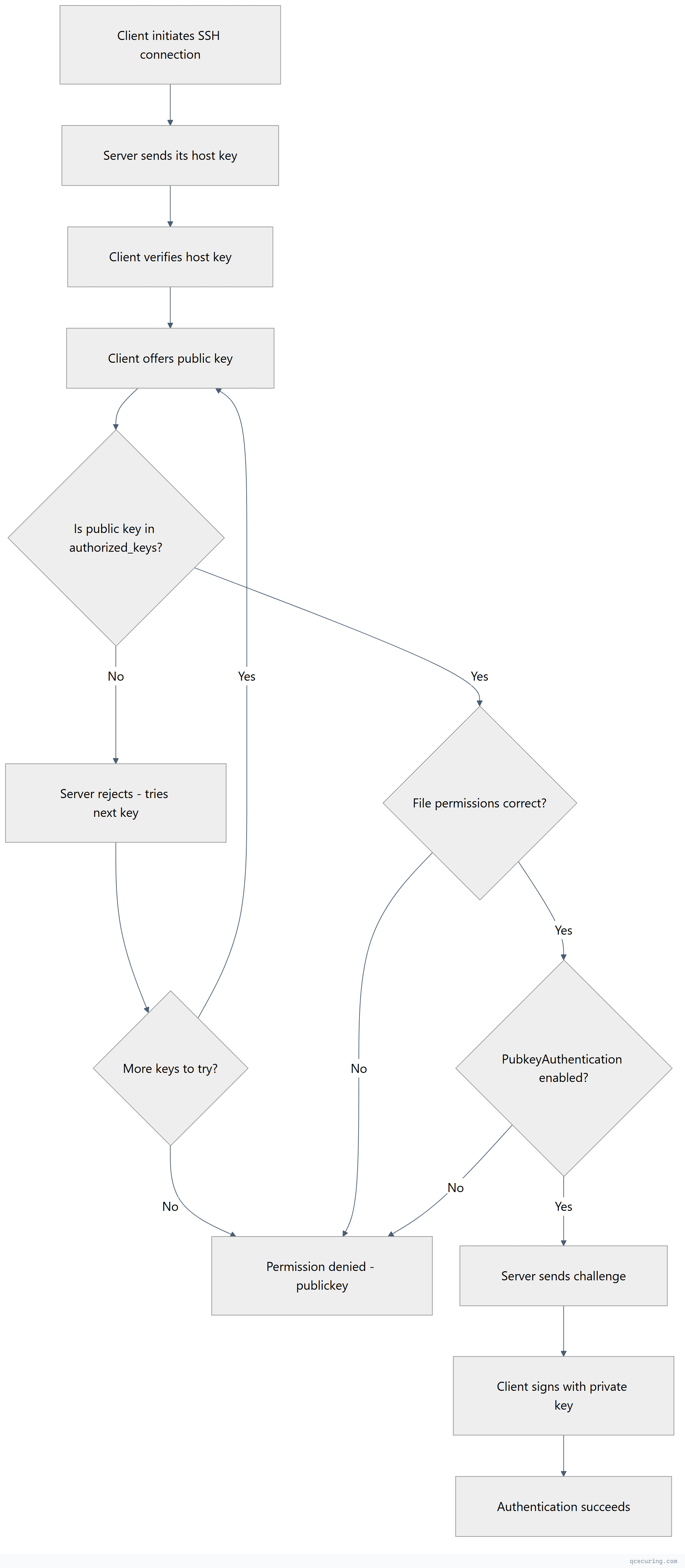
SSH Authentication Flow
Cause 1: Wrong Key File
What’s happening: SSH is offering a key that doesn’t match what’s in the server’s authorized_keys.
Diagnose:
# See which keys SSH is trying
ssh -vvv user@server.com 2>&1 | grep "Offering public key"
# Compare with what's on the server
# (if you can access the server another way)
cat ~/.ssh/authorized_keysFix — specify the correct key:
# Use -i to specify the exact key file
ssh -i ~/.ssh/id_ed25519 user@server.com
# Make it permanent in ~/.ssh/config~/.ssh/config:
Host server.com
HostName server.com
User user
IdentityFile ~/.ssh/id_ed25519
IdentitiesOnly yesThe IdentitiesOnly yes line tells SSH to only try the specified key, not every key in your agent.
Fix — if you don’t have the right key, generate a new one:
# Generate a new Ed25519 key (recommended)
ssh-keygen -t ed25519 -C "user@server.com"
# Copy it to the server
ssh-copy-id -i ~/.ssh/id_ed25519.pub user@server.com
# If ssh-copy-id doesn't work (no password auth), manually add:
cat ~/.ssh/id_ed25519.pub
# Then paste into server's ~/.ssh/authorized_keysCause 2: Key Not in authorized_keys
What’s happening: Your public key isn’t in the server’s ~/.ssh/authorized_keys file (or the file doesn’t exist).
Fix — add your key to the server:
# Method 1: ssh-copy-id (if password auth is still enabled)
ssh-copy-id -i ~/.ssh/id_ed25519.pub user@server.com
# Method 2: Manual (if you have another way to access the server)
# On the server:
mkdir -p ~/.ssh
chmod 700 ~/.ssh
echo "ssh-ed25519 AAAAC3NzaC1lZDI1NTE5AAAA... user@client" >> ~/.ssh/authorized_keys
chmod 600 ~/.ssh/authorized_keysVerify the key format in authorized_keys:
# Each line should be: key-type base64-key comment
# Example:
ssh-ed25519 AAAAC3NzaC1lZDI1NTE5AAAAIGxxx... user@laptop
ssh-rsa AAAAB3NzaC1yc2EAAAADAQABAAAB... user@desktopCommon mistakes:
- Line breaks in the middle of the key (each key must be on ONE line)
- Extra whitespace or invisible characters (copy-paste from email/Slack can add these)
- Wrong user’s home directory (if connecting as
deploy, the key goes in/home/deploy/.ssh/authorized_keys)
Cause 3: SSH Agent Not Loaded
What’s happening: Your private key isn’t loaded into the SSH agent, and SSH can’t find it automatically.
Diagnose:
# List keys in the agent
ssh-add -l
# If you see "The agent has no identities" or "Could not open a connection to your authentication agent"Fix — start the agent and add your key:
# Start the SSH agent
eval "$(ssh-agent -s)"
# Add your key
ssh-add ~/.ssh/id_ed25519
# Verify it's loaded
ssh-add -lMake it persistent (macOS):
# Add to Keychain so it persists across reboots
ssh-add --apple-use-keychain ~/.ssh/id_ed25519
# In ~/.ssh/config, add:
Host *
AddKeysToAgent yes
UseKeychain yes
IdentityFile ~/.ssh/id_ed25519Make it persistent (Linux) — add to ~/.bashrc or ~/.zshrc:
# Auto-start SSH agent
if [ -z "$SSH_AUTH_SOCK" ]; then
eval "$(ssh-agent -s)" > /dev/null
ssh-add ~/.ssh/id_ed25519 2>/dev/null
fiWindows (Git Bash / WSL):
# In Git Bash, start the agent:
eval $(ssh-agent -s)
ssh-add ~/.ssh/id_ed25519
# For Windows OpenSSH (PowerShell as Admin):
Get-Service ssh-agent | Set-Service -StartupType Automatic
Start-Service ssh-agent
ssh-add $env:USERPROFILE\.ssh\id_ed25519Cause 4: Wrong File Permissions
What’s happening: SSH refuses to use keys or authorized_keys files with overly permissive permissions. This is a security feature.
Required permissions:
| Path | Permission | Command |
|---|---|---|
~/.ssh/ | 700 (drwx------) | chmod 700 ~/.ssh |
~/.ssh/authorized_keys | 600 (-rw-------) | chmod 600 ~/.ssh/authorized_keys |
~/.ssh/id_ed25519 (private key) | 600 (-rw-------) | chmod 600 ~/.ssh/id_ed25519 |
~/.ssh/id_ed25519.pub (public key) | 644 (-rw-r—r—) | chmod 644 ~/.ssh/id_ed25519.pub |
~/.ssh/config | 600 (-rw-------) | chmod 600 ~/.ssh/config |
Home directory ~/ | 755 or stricter | chmod 755 ~ |
Fix — set correct permissions on the client:
chmod 700 ~/.ssh
chmod 600 ~/.ssh/id_ed25519
chmod 644 ~/.ssh/id_ed25519.pub
chmod 600 ~/.ssh/configFix — set correct permissions on the server:
chmod 755 /home/user # Home dir must not be group/world writable
chmod 700 /home/user/.ssh
chmod 600 /home/user/.ssh/authorized_keys
chown -R user:user /home/user/.sshDiagnose — check if permissions are the issue:
# On the server, check sshd logs
sudo journalctl -u sshd -n 20
# You'll see messages like:
# "Authentication refused: bad ownership or modes for directory /home/user/.ssh"Cause 5: Wrong Username
What’s happening: You’re connecting with the wrong username. The server looks for authorized_keys in that user’s home directory.
Common mistakes:
# Wrong — using your local username instead of the server username
ssh myname@server.com
# Right — use the correct remote username
ssh deploy@server.com
ssh ubuntu@ec2-instance.amazonaws.com
ssh ec2-user@ec2-instance.amazonaws.com
ssh root@server.comPlatform-specific default usernames:
| Platform | Default User |
|---|---|
| AWS EC2 (Amazon Linux) | ec2-user |
| AWS EC2 (Ubuntu) | ubuntu |
| AWS EC2 (Debian) | admin |
| AWS EC2 (RHEL) | ec2-user |
| Azure | Set during VM creation |
| GCP | Your Google username |
| DigitalOcean | root |
| GitHub | git |
| GitLab | git |
Cause 6: PubkeyAuthentication Disabled in sshd_config
What’s happening: The SSH server has public key authentication disabled.
Diagnose:
# Check the server's SSH config
sudo grep -i "PubkeyAuthentication" /etc/ssh/sshd_config
# If it shows "PubkeyAuthentication no", that's the problemFix — enable public key authentication:
# Edit sshd_config
sudo nano /etc/ssh/sshd_config
# Ensure these lines are set:
PubkeyAuthentication yes
AuthorizedKeysFile .ssh/authorized_keys
# Restart SSH daemon
sudo systemctl restart sshdAlso check for overrides:
# Check for Match blocks that might disable pubkey for specific users
sudo grep -A5 "Match" /etc/ssh/sshd_config
# Check included config files
sudo grep -r "PubkeyAuthentication" /etc/ssh/sshd_config.d/Cause 7: Key Type Not Accepted
What’s happening: Newer versions of OpenSSH (8.8+) disable RSA with SHA-1 signatures by default. If your key is an older RSA key, the server might reject it.
Diagnose:
ssh -vvv user@server.com 2>&1 | grep "sign_and_send_pubkey"
# Look for: "sign_and_send_pubkey: no mutual signature supported"Fix — generate a new Ed25519 key (recommended):
ssh-keygen -t ed25519 -C "user@server.com"
ssh-copy-id -i ~/.ssh/id_ed25519.pub user@server.comFix — if you must keep the RSA key, allow RSA-SHA2 on the client:
# ~/.ssh/config
Host server.com
PubkeyAcceptedAlgorithms +ssh-rsa
HostkeyAlgorithms +ssh-rsaFix — on the server (if you control it):
# /etc/ssh/sshd_config
PubkeyAcceptedAlgorithms +ssh-rsa
sudo systemctl restart sshdEd25519 keys are smaller, faster, and more secure than RSA. If you’re generating new keys, always use Ed25519.
GitHub SSH Fix
The error:
$ git push origin main
git@github.com: Permission denied (publickey).
fatal: Could not read from remote repository.Step 1 — Test your GitHub SSH connection:
ssh -T git@github.comIf you see “Permission denied (publickey)”, continue below.
Step 2 — Check which key GitHub is seeing:
ssh -vvv git@github.com 2>&1 | grep "Offering public key"Step 3 — Verify your key is added to GitHub:
# List your local public key
cat ~/.ssh/id_ed25519.pub

# Compare with: GitHub → Settings → SSH and GPG keys
# The key must match exactly
Step 4 — Fix ~/.ssh/config for GitHub:
Host github.com
    HostName github.com
    User git
    IdentityFile ~/.ssh/id_ed25519
    IdentitiesOnly yes
Step 5 — If using multiple GitHub accounts:
Host github.com-personal
    HostName github.com
    User git
    IdentityFile ~/.ssh/id_ed25519_personal

Host github.com-work
    HostName github.com
    User git
    IdentityFile ~/.ssh/id_ed25519_work
Then clone with: git clone git@github.com-work:org/repo.git
AWS EC2 SSH Fix
The error:
$ ssh -i my-key.pem ec2-user@ec2-xx-xx-xx-xx.compute-1.amazonaws.com
Permission denied (publickey,gssapi-keyex,gssapi-with-mic).
Common causes and fixes:
# 1. Wrong username (most common)
ssh -i my-key.pem ubuntu@...    # Ubuntu AMI
ssh -i my-key.pem ec2-user@...  # Amazon Linux AMI

# 2. Wrong key file — use the .pem you downloaded when creating the instance
ssh -i /path/to/correct-key.pem ec2-user@...

# 3. Key file permissions too open
chmod 400 my-key.pem
ssh -i my-key.pem ec2-user@...

# 4. Security group not allowing SSH (port 22)
# Check: AWS Console → EC2 → Security Groups → Inbound rules
# Must have: Type=SSH, Port=22, Source=Your IP

# 5. Instance not in public subnet or no public IP
# Check: AWS Console → EC2 → Instance → Networking tab
If you lost access to an EC2 instance:
# Option 1: EC2 Instance Connect (if enabled)
aws ec2-instance-connect send-ssh-public-key \
  --instance-id i-1234567890abcdef0 \
  --instance-os-user ec2-user \
  --ssh-public-key file://~/.ssh/id_ed25519.pub

# Option 2: SSM Session Manager (if SSM agent is installed)
aws ssm start-session --target i-1234567890abcdef0

# Option 3: Detach volume, mount on another instance, fix authorized_keys
GitLab SSH Fix
# Test connection
ssh -T git@gitlab.com

# If permission denied, add your key:
# GitLab → Preferences → SSH Keys → Add key

# Paste your public key:
cat ~/.ssh/id_ed25519.pub

# Configure ~/.ssh/config:
Host gitlab.com
    HostName gitlab.com
    User git
    IdentityFile ~/.ssh/id_ed25519
    IdentitiesOnly yes
    PreferredAuthentications publickey
Full Debug with ssh -vvv
When nothing else works, the verbose output tells you exactly what’s happening:
ssh -vvv user@server.com 2>&1 | tee ssh-debug.logKey lines to look for:
# Which keys are being offered:
debug1: Offering public key: /home/user/.ssh/id_ed25519 ED25519 SHA256:xxx

# Whether the server accepted the key type:
debug1: Server accepts key: /home/user/.ssh/id_ed25519 ED25519 SHA256:xxx

# Authentication result:
debug1: Authentication succeeded (publickey)
# OR
debug1: Authentications that can continue: publickey
debug1: No more authentication methods to try.
Server-side debugging (if you have root access):
# Check auth logs
sudo tail -f /var/log/auth.log        # Ubuntu/Debian
sudo tail -f /var/log/secure           # RHEL/CentOS

# Run sshd in debug mode on a different port
sudo /usr/sbin/sshd -d -p 2222

# Then connect to the debug instance
ssh -vvv -p 2222 user@server.com
Quick Reference: Fix Checklist
Run through this checklist in order:
# 1. Is the SSH agent running and key loaded?
ssh-add -l

# 2. Are permissions correct on the client?
ls -la ~/.ssh/
# id_ed25519 should be 600, .ssh dir should be 700

# 3. Is the right key being offered?
ssh -vvv user@server.com 2>&1 | grep "Offering"

# 4. Is the public key in authorized_keys on the server?
# (access server via console/other method)
cat ~/.ssh/authorized_keys

# 5. Are permissions correct on the server?
ls -la ~/.ssh/
ls -la ~/.ssh/authorized_keys

# 6. Is PubkeyAuthentication enabled?
sudo grep PubkeyAuthentication /etc/ssh/sshd_config

# 7. Is the key type accepted?
ssh -vvv user@server.com 2>&1 | grep "mutual signature"
FAQ
Why does SSH work for one user but not another on the same server?
Each user has their own ~/.ssh/authorized_keys file. The key must be in the correct user’s file. Also check that the target user’s home directory and .ssh folder have correct ownership (chown user:user) and permissions (755 for home, 700 for .ssh, 600 for authorized_keys).
I just regenerated my key. Why can’t I connect anymore?
When you regenerate a key, the old public key in the server’s authorized_keys no longer matches your new private key. You need to add the new public key to the server. If you can’t access the server, use an alternative method (console access, another user, cloud provider’s web console).
Can I use the same SSH key for multiple servers?
Yes. Your public key can be added to authorized_keys on as many servers as you want. However, for security best practices, consider using different keys for different trust levels (personal vs. work, production vs. development).
Why does “Permission denied (publickey)” appear after an OS or OpenSSH upgrade?
OpenSSH 8.8+ disabled RSA/SHA-1 signatures by default. If your key is an older RSA key, it may no longer be accepted. Generate a new Ed25519 key or add PubkeyAcceptedAlgorithms +ssh-rsa to your SSH config as a temporary workaround.
How do I fix this on Windows with PuTTY?
PuTTY uses .ppk format, not OpenSSH format. Convert your key: open PuTTYgen → Load your OpenSSH private key → Save as .ppk. Then in PuTTY: Connection → SSH → Auth → Private key file → select the .ppk file. Alternatively, use Windows OpenSSH (built into Windows 10+) which uses standard key formats.
What if I’m locked out of the server completely?
Options depend on your hosting: (1) Cloud providers offer web consoles (AWS EC2 Serial Console, GCP Serial Console, Azure Serial Console). (2) VPS providers have VNC/KVM access. (3) For physical servers, boot into single-user mode. (4) For AWS EC2, detach the root volume, attach to another instance, fix authorized_keys, reattach.
Related Reading
- SSH Key Management Enterprise Guide — manage SSH keys at scale
- Best SSH Key Management Tools 2026 — tooling comparison
- Key Management Best Practices — security standards for key lifecycle
- Secrets Management vs Key Management — understand the difference