

You’re seeing this in Chrome:
Your connection is not private
Attackers might be trying to steal your information from example.com
(for example, passwords, messages, or credit cards).

NET::ERR_CERT_AUTHORITY_INVALID
The error page shows “This server could not prove that it is example.com; its security certificate is not trusted by your computer’s operating system.”
This means Chrome doesn’t trust the certificate authority (CA) that signed the site’s SSL certificate. The fix depends on whether you’re a visitor or the site owner.
Fastest Fix (Site Owner)
If you own the site, run this from any terminal:
openssl s_client -connect yourdomain.com:443 -servername yourdomain.com 2>/dev/null | openssl x509 -noout -issuer -dates -subjectThis tells you who issued the cert, whether it’s expired, and what domain it covers. Match the output to the causes below.
Fastest Fix (Visitor)
Try these in order — stop when one works:
- Check your clock — Click the time in your taskbar. If it’s wrong, fix it (Settings → Time & Language → Sync now)
- Try incognito mode —
Ctrl+Shift+N. If it works there, clear your browser cache - Temporarily disable antivirus SSL scanning — Avast, Kaspersky, ESET, and Bitdefender all intercept HTTPS
If none of those work, the problem is on the server side and only the site owner can fix it.
How Chrome Validates Certificate Authority
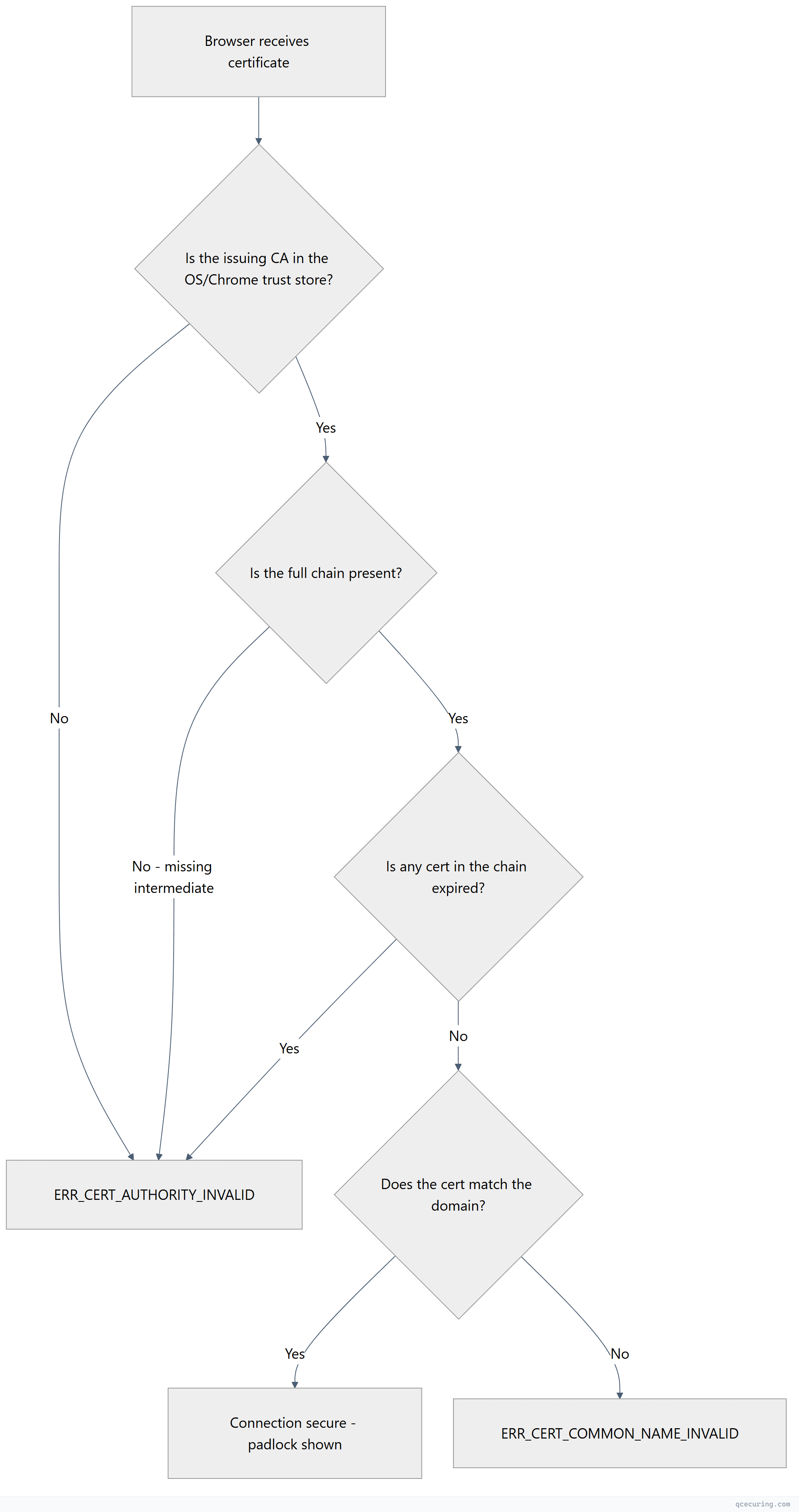
Chrome checks the certificate against its trust store (which uses the operating system’s root CA list on Windows/Mac, or the Chrome Root Store on Linux). If any step fails, you get ERR_CERT_AUTHORITY_INVALID.
Cause 1: Self-Signed Certificate
What’s happening: The certificate was generated locally and isn’t signed by any public CA. Chrome will never trust it by default.
How to confirm:
openssl s_client -connect yourdomain.com:443 -servername yourdomain.com 2>/dev/null | openssl x509 -noout -issuer -subjectIf issuer and subject are identical, it’s self-signed.
Fix (site owner) — Replace with a real certificate:
# Install Certbot and get a free Let's Encrypt certificate
sudo apt install certbot python3-certbot-nginx
sudo certbot --nginx -d yourdomain.com -d www.yourdomain.com

# Verify
sudo certbot certificates
Fix (visitor/developer) — Trust it locally for development only:
# Export the cert
openssl s_client -connect localhost:8443 2>/dev/null | openssl x509 -out dev-cert.pem

# Windows: Import to Trusted Root Certification Authorities
certutil -addstore "Root" dev-cert.pem

# macOS: Add to Keychain
sudo security add-trusted-cert -d -r trustRoot -k /Library/Keychains/System.keychain dev-cert.pem

# Linux: Copy to trust store
sudo cp dev-cert.pem /usr/local/share/ca-certificates/dev-cert.crt
sudo update-ca-certificates
Never trust self-signed certificates on production systems. Use them only for local development.
Cause 2: Missing Intermediate Certificate
What’s happening: Your server sends the leaf certificate but not the intermediate CA certificate(s). Chrome can’t build the chain back to a trusted root.
How to confirm:
openssl s_client -connect yourdomain.com:443 -servername yourdomain.com 2>/dev/null | grep -c "s:.*"If you see only 1 certificate in the chain (just 0 s:), intermediates are missing.
Fix (Nginx):
# Download the intermediate from your CA's documentation
# Concatenate: leaf cert + intermediate(s) + (optionally) root
cat yourdomain.pem intermediate.pem > fullchain.pem

# Update nginx.conf
# ssl_certificate /etc/nginx/ssl/fullchain.pem;
# ssl_certificate_key /etc/nginx/ssl/yourdomain.key;

sudo nginx -t && sudo systemctl reload nginx
Fix (Apache):
SSLCertificateFile /etc/apache2/ssl/yourdomain.pem
SSLCertificateKeyFile /etc/apache2/ssl/yourdomain.key
SSLCertificateChainFile /etc/apache2/ssl/intermediate.pem
sudo apachectl configtest && sudo systemctl reload apache2Fix (Let’s Encrypt/Certbot):
Certbot handles this automatically. If you’re seeing this error with Certbot, you likely configured ssl_certificate to point to cert.pem instead of fullchain.pem:
# Wrong:
ssl_certificate /etc/letsencrypt/live/yourdomain.com/cert.pem;

# Correct:
ssl_certificate /etc/letsencrypt/live/yourdomain.com/fullchain.pem;
Verify the fix:
openssl s_client -connect yourdomain.com:443 -servername yourdomain.com 2>/dev/null | grep "Verify return code"
# Should show: Verify return code: 0 (ok)
This is the most common cause of ERR_CERT_AUTHORITY_INVALID for site owners. See our certificate chain of trust guide for a deeper explanation.
Cause 3: Expired Certificate
What’s happening: The certificate (or an intermediate in the chain) has passed its expiration date.
How to confirm:
openssl s_client -connect yourdomain.com:443 -servername yourdomain.com 2>/dev/null | openssl x509 -noout -datesIf notAfter is in the past, the cert is expired.
Fix:
# If using Certbot/Let's Encrypt:
sudo certbot renew --force-renewal
sudo systemctl reload nginx  # or apache2

# If using a commercial CA:
# 1. Generate a new CSR
openssl req -new -key yourdomain.key -out yourdomain.csr -subj "/CN=yourdomain.com"
# 2. Submit CSR to your CA for reissuance
# 3. Install the new certificate
Prevent this: Set up automated renewal with ACME or monitoring alerts at 30, 14, and 7 days before expiry. See our Certbot setup guide.
Cause 4: Untrusted or Unknown Certificate Authority
What’s happening: The certificate was issued by a CA that Chrome/your OS doesn’t recognize. This happens with:
- Internal enterprise CAs (Active Directory Certificate Services)
- Government CAs not in the public trust store
- Newer CAs that haven’t been added to all trust stores yet
- CAs that have been distrusted (like older Symantec/GeoTrust certs)
How to confirm:
openssl s_client -connect yourdomain.com:443 -servername yourdomain.com 2>/dev/null | grep "issuer"Check if the issuer is a well-known public CA (DigiCert, Let’s Encrypt, Sectigo, GlobalSign). If it’s your company’s internal CA, that’s the problem.
Fix (enterprise/internal CA):
Distribute the internal root CA certificate to all client machines:
# Windows (via Group Policy or manually):
certutil -addstore "Root" internal-ca-root.pem

# macOS:
sudo security add-trusted-cert -d -r trustRoot -k /Library/Keychains/System.keychain internal-ca-root.pem

# Linux (Ubuntu/Debian):
sudo cp internal-ca-root.pem /usr/local/share/ca-certificates/internal-ca.crt
sudo update-ca-certificates

# Linux (RHEL/CentOS):
sudo cp internal-ca-root.pem /etc/pki/ca-trust/source/anchors/
sudo update-ca-trust
Fix (distrusted CA):
If your CA has been distrusted by Chrome (check the Chrome Root Program), you need to get a new certificate from a trusted CA.
Cause 5: Incorrect System Clock
What’s happening: If your computer’s clock is significantly wrong, Chrome can’t validate certificate dates. A cert valid from 2025-01-01 to 2026-01-01 looks “not yet valid” if your clock says 2024.
How to confirm (visitor):
Check your system time against an online clock. If it’s off by more than a few minutes, that’s likely the issue.
Fix (Windows):
Settings → Time & Language → Date & Time → Sync nowOr from command line:
w32tm /resync /forceFix (Linux):
# Check current time
timedatectl

# Enable NTP sync
sudo timedatectl set-ntp true

# Force immediate sync
sudo systemctl restart systemd-timesyncd
Fix (macOS):
System Preferences → Date & Time → Set date and time automaticallyCause 6: Antivirus HTTPS Interception
What’s happening: Security software (Avast, Kaspersky, ESET, Bitdefender, Norton) intercepts HTTPS connections by installing its own root CA and re-signing certificates on the fly. If this process breaks or the antivirus CA isn’t properly installed, Chrome shows ERR_CERT_AUTHORITY_INVALID.
How to confirm:
Click “Not Secure” in Chrome’s address bar → Certificate → look at the issuer. If it says something like “Avast Web Shield” or “Kaspersky Anti-Virus Personal Root Certificate” instead of the actual CA, your antivirus is intercepting.
Fix:
Disable HTTPS/SSL scanning in your antivirus settings:
- Avast: Settings → Protection → Core Shields → Web Shield → uncheck “Enable HTTPS scanning”
- Kaspersky: Settings → Network Settings → uncheck “Inject script into web traffic”
- ESET: Advanced Setup → Web and Email → SSL/TLS → disable SSL/TLS protocol filtering
- Bitdefender: Settings → Protection → Online Threat Prevention → disable “Encrypted web scan”
After disabling, restart Chrome completely (chrome://restart in the address bar).
Cause 7: Cached SSL State
What’s happening: Chrome or your OS cached an old certificate or SSL session. Even after the server is fixed, you still see the error.
Fix (Chrome):
- Clear SSL state:
chrome://settings/security→ scroll down → “Manage device certificates” (or on Windows: Internet Options → Content → Clear SSL State) - Clear browser cache:
Ctrl+Shift+Delete→ select “Cached images and files” → Clear - Try incognito:
Ctrl+Shift+N
Fix (Windows — clear OS SSL cache):
# Open Internet Options
inetcpl.cpl
# Content tab → Clear SSL State
Fix (force Chrome to re-fetch):
chrome://net-internals/#dnsClick “Clear host cache”, then restart Chrome.
Visitor vs. Site Owner: Decision Matrix
| Symptom | Likely Cause | Who Fixes It |
|---|---|---|
| Error on one site only, other HTTPS sites work | Server-side issue | Site owner |
| Error on multiple sites | Clock, antivirus, or network issue | Visitor |
| Error disappears in incognito | Cached state or extension | Visitor (clear cache) |
| Error shows antivirus name in cert issuer | Antivirus interception | Visitor (disable SSL scan) |
| Error on internal/corporate site | Internal CA not trusted | IT admin |
| Error appeared after cert renewal | Missing intermediate or wrong file | Site owner |
Verify the Fix (Site Owner)
After applying any server-side fix, confirm from multiple angles:
# Quick check — should show "Verify return code: 0 (ok)"
openssl s_client -connect yourdomain.com:443 -servername yourdomain.com 2>/dev/null | grep "Verify return code"

# Full chain verification
openssl s_client -connect yourdomain.com:443 -servername yourdomain.com -showcerts 2>/dev/null | grep -E "s:|i:"

# Check from a different network (use curl from a remote server)
curl -I https://yourdomain.com
Also test in a fresh Chrome incognito window and on a mobile device to rule out local caching.
FAQ
Does ERR_CERT_AUTHORITY_INVALID mean my site was hacked?
No. This error is about certificate trust, not a security breach. It means Chrome can’t verify who issued the certificate — usually because of a configuration issue (missing intermediate, expired cert, or self-signed cert). It’s an operational problem, not an attack indicator.
Why does the error appear on some devices but not others?
Different devices have different trust stores. A certificate might be trusted on Windows (which has the intermediate cached via AIA fetching) but fail on Android or Linux (which require the full chain from the server). The fix is always to serve the complete certificate chain from the server.
Can I just click “Advanced → Proceed” to bypass it?
You can, but only for sites you absolutely trust (like your own development server). Bypassing means your connection has no verified encryption — an attacker could intercept everything. Never bypass on banking, email, or any site where you enter credentials.
Why did this error appear after I renewed my certificate?
Most likely you installed only the leaf certificate without the intermediate chain. When you renew, you need to download and install the full chain again. With Certbot, always use fullchain.pem, not cert.pem.
Does this error affect SEO?
Indirectly, yes. If Google’s crawler encounters this error, it can’t index your pages. If visitors see it, they’ll bounce immediately, increasing bounce rate. Fix it quickly — Google re-crawls most sites within hours of a fix.
How is this different from ERR_CERT_COMMON_NAME_INVALID?
ERR_CERT_AUTHORITY_INVALID means the CA isn’t trusted. ERR_CERT_COMMON_NAME_INVALID means the CA is trusted but the certificate doesn’t match the domain name (e.g., cert is for example.com but you’re visiting www.example.com). Different root causes, different fixes.
Related Reading
- SSL Handshake Failed: All Causes & Fixes — when the connection fails entirely
- Certificate Chain of Trust Explained — understand how CA trust works
- OpenSSL Complete Guide — master the diagnostic commands used above
- Let’s Encrypt Certbot Complete Setup Guide — free certificates with automatic renewal
- What is a TLS Certificate — foundational concepts