

You’re seeing:
java.io.IOException: Keystore was tampered with, or password was incorrectOr the longer stack trace:
java.io.IOException: Keystore was tampered with, or password was incorrect
    at sun.security.provider.JavaKeyStore.engineLoad(JavaKeyStore.java:780)
    at java.security.KeyStore.load(KeyStore.java:1445)
Caused by: java.security.UnrecoverableKeyException: Password verification failed
This error means Java can’t open the keystore file. Despite the scary “tampered with” wording, it’s almost always a password or format issue — not actual tampering.
Diagnostic Flowchart
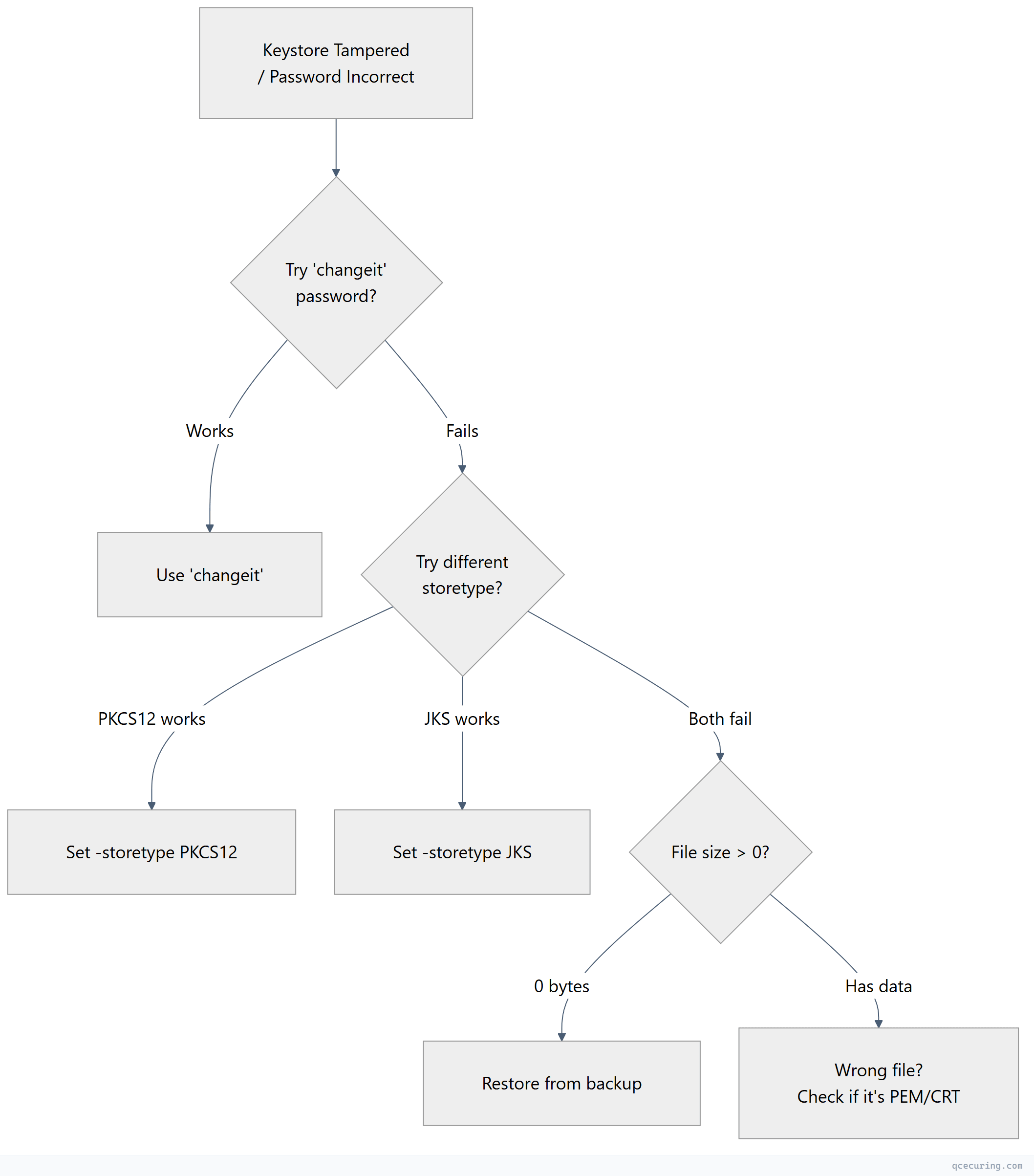
Fastest Fix: Try These Passwords
# Try the default password
keytool -list -keystore yourfile.jks -storepass changeit

# Try empty password
keytool -list -keystore yourfile.jks -storepass ""

# Try common passwords
keytool -list -keystore yourfile.jks -storepass password
keytool -list -keystore yourfile.jks -storepass changeme
If none work, try specifying the correct store type (see Cause 2 below).
Cause 1: Wrong Password (Most Common)
You’re using the wrong password. The keystore was created with a different password than what you’re providing.
For cacerts (JDK trust store): The password is always changeit unless someone changed it.
keytool -list -keystore $JAVA_HOME/lib/security/cacerts -storepass changeitFor application keystores: Check your application config, environment variables, or secrets manager for the correct password.
# Spring Boot — check application.properties/yml
grep -r "key-store-password\|trust-store-password" src/ config/

# Check environment variables
env | grep -i keystore
env | grep -i storepass
Cause 2: JKS vs PKCS12 Type Mismatch
You’re trying to open a PKCS12 file as JKS (or vice versa). Java defaults to JKS for older versions and PKCS12 for Java 9+.
Diagnose — check the file type:
# PKCS12 files start with specific bytes
file yourfile.p12
# Output: "data" (binary) — likely PKCS12

file yourfile.jks
# Output: "Java KeyStore" — definitely JKS

# Or try both types explicitly:
keytool -list -keystore yourfile -storetype PKCS12 -storepass yourpassword
keytool -list -keystore yourfile -storetype JKS -storepass yourpassword
Fix — specify the correct type:
# If it's PKCS12
keytool -list -keystore keystore.p12 -storetype PKCS12 -storepass password

# In Java code or JVM args
-Djavax.net.ssl.keyStoreType=PKCS12
In Spring Boot:
server.ssl.key-store-type=PKCS12
# or
server.ssl.key-store-type=JKS
Cause 3: Corrupted Keystore File
The file was truncated during copy, corrupted on disk, or partially written.
Diagnose:
# Check file size (0 bytes = definitely corrupted)
ls -la keystore.jks

# Try to list contents — if it fails with ANY password, file is likely corrupt
keytool -list -keystore keystore.jks -storepass changeit 2>&1
Fix: Restore from backup. If no backup exists, you’ll need to recreate the keystore and re-import certificates.
# Create a new keystore from your certificate files
openssl pkcs12 -export -in server.crt -inkey server.key -certfile chain.crt \
  -out new-keystore.p12 -name server -passout pass:newpassword

# Or create empty and import
keytool -genkeypair -alias temp -keystore new-keystore.jks -storepass newpassword -keyalg RSA
keytool -delete -alias temp -keystore new-keystore.jks -storepass newpassword
keytool -importcert -alias server -file server.crt -keystore new-keystore.jks -storepass newpassword
Cause 4: Wrong File Entirely
Your config points to the wrong file — maybe a certificate file (.crt/.pem) instead of a keystore (.jks/.p12).
# A PEM certificate is NOT a keystore
head -1 yourfile
# If it shows "-----BEGIN CERTIFICATE-----" — it's a PEM cert, not a keystore

# Convert PEM to PKCS12 keystore
openssl pkcs12 -export -in cert.pem -inkey key.pem -out keystore.p12 -passout pass:password
Recovery: When You’ve Lost the Password
If you genuinely can’t remember the keystore password and have no backup:
- If you have the original certificate and key files: Recreate the keystore from scratch
- If the keystore contains only trusted CAs (trust store): Create a new one and re-import the CAs
- If the keystore contains your private key and you have no other copy: The key is unrecoverable. Request a new certificate from your CA.
# Recreate trust store from system CAs
cp $JAVA_HOME/lib/security/cacerts new-truststore.jks
# Password is "changeit"

# Then add your custom CAs
keytool -importcert -alias my-ca -file my-ca.crt -keystore new-truststore.jks -storepass changeit -noprompt
FAQ
Q: Does “tampered with” mean someone modified my keystore maliciously?
Almost never. The error message is misleading. In 99% of cases, it’s simply a wrong password or format mismatch. Java uses the password to verify a MAC (Message Authentication Code) on the keystore — if the password is wrong, the MAC check fails, and Java reports it as “tampered with.”
Q: I just upgraded Java and now my keystore won’t open. Why?
Java 9+ defaults to PKCS12 format. If your code opens a keystore without specifying the type, it assumes PKCS12. If your file is JKS, add -storetype JKS or set KeyStore.getInstance("JKS") in code.
Q: Can I change the keystore password without recreating it?
Yes:
keytool -storepasswd -keystore keystore.jks -storepass oldpassword -new newpasswordQ: The error happens only in production but works locally. Why?
Check: (1) Different keystore file deployed to production. (2) Environment variable with the password has different value. (3) File permissions prevent reading. (4) The file was corrupted during deployment (binary mode vs text mode in SCP/FTP).
Q: How do I determine if a file is JKS or PKCS12 without knowing the password?
# Check magic bytes
xxd keystore | head -1
# JKS starts with: feed feed (hex: fe ed fe ed)
# PKCS12 starts with: 3082 (ASN.1 sequence)

# Or use file command
file keystore
Related Reading: