

Every Java application that makes an HTTPS connection relies on the cacerts trust store. When a Java client connects to a server, it validates the server’s certificate chain against the CAs in cacerts. If the issuing CA isn’t there — or if an intermediate is missing — you get the dreaded PKIX path building failed error.
This guide is the definitive reference for Java trust store operations: finding cacerts across JDK versions, listing and managing trusted CAs, importing corporate and internal certificates, using custom trust stores, programmatic access, and handling the unique challenges of containerized Java applications.
What is cacerts?
The cacerts file is a Java KeyStore (JKS or PKCS12) that contains trusted root CA certificates. When Java’s TLS implementation (JSSE) validates a server certificate, it builds a chain from the server cert up to a root CA. If that root CA exists in cacerts, the connection is trusted.
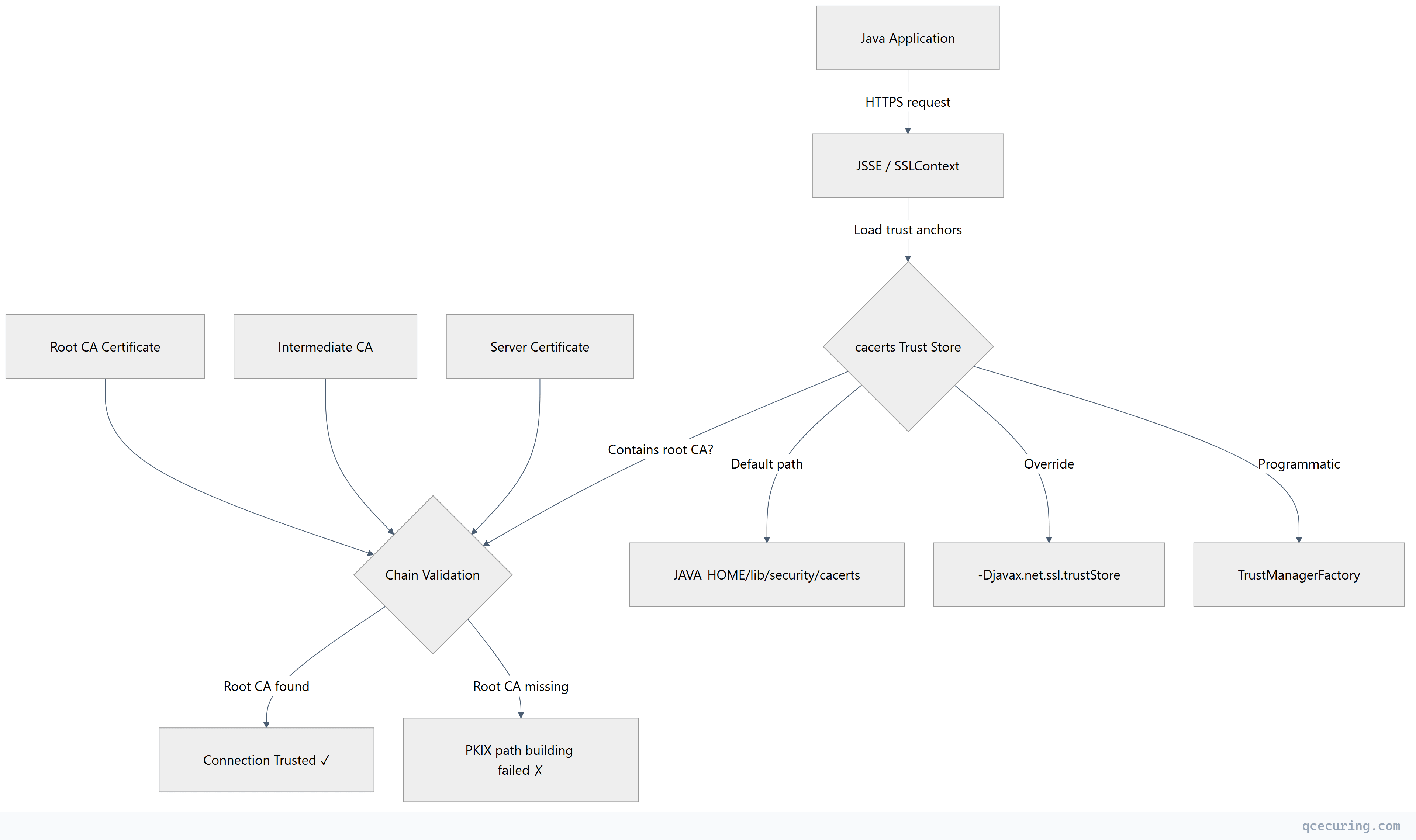
Key facts:
- Format: JKS (Java 8 and earlier) or PKCS12 (Java 9+, default since Java 9)
- Default password:
changeit(yes, for every JDK installation) - Contents: ~90-140 trusted root CA certificates (varies by JDK vendor and version)
- Scope: JVM-wide — all applications using that JDK share the same cacerts
Locating cacerts Across JDK Versions
Java 8 and Earlier
# Standard location
$JAVA_HOME/jre/lib/security/cacerts

# Common paths
/usr/lib/jvm/java-8-openjdk-amd64/jre/lib/security/cacerts      # Ubuntu/Debian
/usr/lib/jvm/java-1.8.0-openjdk/jre/lib/security/cacerts         # RHEL/CentOS
/Library/Java/JavaVirtualMachines/jdk1.8.0_xxx.jdk/Contents/Home/jre/lib/security/cacerts  # macOS
C:\Program Files\Java\jdk1.8.0_xxx\jre\lib\security\cacerts      # Windows
Java 9+ (Including 11, 17, 21)
Java 9 removed the separate jre/ directory:
# Standard location
$JAVA_HOME/lib/security/cacerts

# Common paths
/usr/lib/jvm/java-17-openjdk-amd64/lib/security/cacerts          # Ubuntu/Debian
/usr/lib/jvm/java-17-openjdk/lib/security/cacerts                 # RHEL/CentOS
/Library/Java/JavaVirtualMachines/jdk-17.jdk/Contents/Home/lib/security/cacerts  # macOS
C:\Program Files\Java\jdk-17\lib\security\cacerts                 # Windows
Find It Programmatically
# Works on any system with java in PATH
java -XshowSettings:all 2>&1 | grep -i "java.home"

# Then append the path
CACERTS_PATH="$(java -XshowSettings:properties 2>&1 | grep java.home | awk '{print $3}')/lib/security/cacerts"
echo $CACERTS_PATH
Verify the File
keytool -list -keystore $JAVA_HOME/lib/security/cacerts -storepass changeit | head -20Listing Trusted CAs
List All Certificates
keytool -list -keystore $JAVA_HOME/lib/security/cacerts -storepass changeitThis outputs alias names and fingerprints. For detailed information:
# Verbose — shows full certificate details
keytool -list -v -keystore $JAVA_HOME/lib/security/cacerts -storepass changeit

# Count total certificates
keytool -list -keystore $JAVA_HOME/lib/security/cacerts -storepass changeit | grep -c "trustedCertEntry"
Search for a Specific CA
# Find by alias
keytool -list -keystore $JAVA_HOME/lib/security/cacerts -storepass changeit -alias "digicertglobalrootg2"

# Search by issuer name
keytool -list -v -keystore $JAVA_HOME/lib/security/cacerts -storepass changeit | grep -B 5 "DigiCert"
Export a CA Certificate
keytool -exportcert -keystore $JAVA_HOME/lib/security/cacerts -storepass changeit -alias "digicertglobalrootg2" -file digicert-root-g2.crt -rfcImporting Certificates
Import a Root or Intermediate CA
keytool -importcert \
  -keystore $JAVA_HOME/lib/security/cacerts \
  -storepass changeit \
  -alias "my-internal-ca" \
  -file /path/to/internal-ca.crt \
  -noprompt
Flags explained:
-alias— Unique name for this entry (lowercase, no spaces recommended)-file— Path to the certificate file (PEM or DER format)-noprompt— Skip the “Trust this certificate?” confirmation-storepass changeit— Default password
Import from a Running Server
If you don’t have the certificate file, extract it from the server:
# Download the server's certificate chain
openssl s_client -connect api.example.com:443 -servername api.example.com -showcerts </dev/null 2>/dev/null | openssl x509 -outform PEM > server-cert.pem

# Import it
keytool -importcert -keystore $JAVA_HOME/lib/security/cacerts -storepass changeit -alias "api-example-com" -file server-cert.pem -noprompt
Import a Full Chain
For chains with multiple certificates, import each one separately:
# Split the chain file into individual certs
csplit -f cert- -b '%02d.pem' fullchain.pem '/-----BEGIN CERTIFICATE-----/' '{*}'

# Import each (skip the first empty file if present)
for cert in cert-*.pem; do
  if [ -s "$cert" ]; then
    alias=$(openssl x509 -noout -subject -in "$cert" | sed 's/.*CN = //' | tr ' ' '-' | tr '[:upper:]' '[:lower:]')
    keytool -importcert -keystore $JAVA_HOME/lib/security/cacerts -storepass changeit -alias "$alias" -file "$cert" -noprompt
    echo "Imported: $alias"
  fi
done
Removing Certificates
Delete a Trusted CA
keytool -delete -keystore $JAVA_HOME/lib/security/cacerts -storepass changeit -alias "my-internal-ca"Verify Removal
keytool -list -keystore $JAVA_HOME/lib/security/cacerts -storepass changeit -alias "my-internal-ca"
# Should output: keytool error: java.lang.Exception: Alias <my-internal-ca> does not exist
Updating cacerts After JDK Upgrades
When you upgrade the JDK, you get a fresh cacerts file. Any custom certificates you imported into the old JDK’s cacerts are lost.
Strategy 1: Re-Import After Upgrade
Maintain a directory of custom certificates and a script to import them:
#!/bin/bash
# /opt/scripts/import-custom-certs.sh
CACERTS="$JAVA_HOME/lib/security/cacerts"
CERT_DIR="/opt/custom-certs"
STOREPASS="changeit"

for cert in "$CERT_DIR"/*.crt; do
  alias=$(basename "$cert" .crt)
  keytool -importcert -keystore "$CACERTS" -storepass "$STOREPASS" -alias "$alias" -file "$cert" -noprompt 2>/dev/null
  if [ $? -eq 0 ]; then
    echo "Imported: $alias"
  else
    echo "Skipped (already exists or error): $alias"
  fi
done
Run this script after every JDK upgrade.
Strategy 2: Use a Custom Trust Store (Recommended)
Instead of modifying cacerts, maintain a separate trust store:
# Create custom trust store from cacerts (copy the base)
cp $JAVA_HOME/lib/security/cacerts /opt/app/truststore.jks

# Add your custom certs
keytool -importcert -keystore /opt/app/truststore.jks -storepass changeit -alias "internal-ca" -file /opt/custom-certs/internal-ca.crt -noprompt
Then point your application to it (see next section).
Using Custom Trust Stores
JVM System Properties
java -Djavax.net.ssl.trustStore=/opt/app/truststore.jks \
     -Djavax.net.ssl.trustStorePassword=changeit \
     -Djavax.net.ssl.trustStoreType=PKCS12 \
     -jar myapp.jar
Environment Variable (for frameworks that support it)
Some frameworks read trust store configuration from environment variables:
export JAVA_OPTS="-Djavax.net.ssl.trustStore=/opt/app/truststore.jks -Djavax.net.ssl.trustStorePassword=changeit"Spring Boot Configuration
# application.properties
server.ssl.trust-store=/opt/app/truststore.jks
server.ssl.trust-store-password=changeit
server.ssl.trust-store-type=PKCS12
Programmatic Access: SSLContext and TrustManagerFactory
For fine-grained control, configure trust programmatically:
Load a Custom Trust Store
import javax.net.ssl.*;
import java.io.FileInputStream;
import java.security.KeyStore;

public class CustomTrustStore {

    public static SSLContext createSSLContext(String trustStorePath, String password) throws Exception {
        // Load the trust store
        KeyStore trustStore = KeyStore.getInstance(KeyStore.getDefaultType());
        try (FileInputStream fis = new FileInputStream(trustStorePath)) {
            trustStore.load(fis, password.toCharArray());
        }

        // Initialize TrustManagerFactory
        TrustManagerFactory tmf = TrustManagerFactory.getInstance(TrustManagerFactory.getDefaultAlgorithm());
        tmf.init(trustStore);

        // Create SSLContext
        SSLContext sslContext = SSLContext.getInstance("TLS");
        sslContext.init(null, tmf.getTrustManagers(), null);

        return sslContext;
    }

    public static void main(String[] args) throws Exception {
        SSLContext ctx = createSSLContext("/opt/app/truststore.jks", "changeit");

        // Use with HttpsURLConnection
        HttpsURLConnection.setDefaultSSLSocketFactory(ctx.getSocketFactory());

        // Or use with HttpClient (Java 11+)
        // HttpClient client = HttpClient.newBuilder().sslContext(ctx).build();
    }
}
Combine Default + Custom Trust Stores
Sometimes you need both the default cacerts CAs and your custom CAs:
import javax.net.ssl.*;
import java.io.FileInputStream;
import java.security.KeyStore;
import java.security.cert.X509Certificate;
import java.util.Arrays;

public class CombinedTrustManager {

    public static SSLContext createCombinedSSLContext(String customTrustStorePath, String password) throws Exception {
        // Load default trust manager
        TrustManagerFactory defaultTmf = TrustManagerFactory.getInstance(TrustManagerFactory.getDefaultAlgorithm());
        defaultTmf.init((KeyStore) null); // null = use default cacerts

        // Load custom trust store
        KeyStore customStore = KeyStore.getInstance(KeyStore.getDefaultType());
        try (FileInputStream fis = new FileInputStream(customTrustStorePath)) {
            customStore.load(fis, password.toCharArray());
        }
        TrustManagerFactory customTmf = TrustManagerFactory.getInstance(TrustManagerFactory.getDefaultAlgorithm());
        customTmf.init(customStore);

        // Combine both trust managers
        X509TrustManager defaultTm = (X509TrustManager) defaultTmf.getTrustManagers()[0];
        X509TrustManager customTm = (X509TrustManager) customTmf.getTrustManagers()[0];

        X509TrustManager combinedTm = new X509TrustManager() {
            @Override
            public void checkClientTrusted(X509Certificate[] chain, String authType) throws java.security.cert.CertificateException {
                try {
                    customTm.checkClientTrusted(chain, authType);
                } catch (Exception e) {
                    defaultTm.checkClientTrusted(chain, authType);
                }
            }

            @Override
            public void checkServerTrusted(X509Certificate[] chain, String authType) throws java.security.cert.CertificateException {
                try {
                    customTm.checkServerTrusted(chain, authType);
                } catch (Exception e) {
                    defaultTm.checkServerTrusted(chain, authType);
                }
            }

            @Override
            public X509Certificate[] getAcceptedIssuers() {
                X509Certificate[] defaultIssuers = defaultTm.getAcceptedIssuers();
                X509Certificate[] customIssuers = customTm.getAcceptedIssuers();
                X509Certificate[] combined = Arrays.copyOf(defaultIssuers, defaultIssuers.length + customIssuers.length);
                System.arraycopy(customIssuers, 0, combined, defaultIssuers.length, customIssuers.length);
                return combined;
            }
        };

        SSLContext sslContext = SSLContext.getInstance("TLS");
        sslContext.init(null, new TrustManager[]{combinedTm}, null);
        return sslContext;
    }
}
Docker and Container Considerations
Containerized Java applications need special handling for trust stores because the base image’s cacerts may not include your internal CAs.
Dockerfile: Import Certificates at Build Time
FROM eclipse-temurin:17-jre-alpine

# Copy custom CA certificates
COPY certs/internal-ca.crt /usr/local/share/ca-certificates/internal-ca.crt
COPY certs/proxy-ca.crt /usr/local/share/ca-certificates/proxy-ca.crt

# Update system trust store (Alpine)
RUN update-ca-certificates

# Import into Java's cacerts
RUN keytool -importcert \
    -keystore $JAVA_HOME/lib/security/cacerts \
    -storepass changeit \
    -alias internal-ca \
    -file /usr/local/share/ca-certificates/internal-ca.crt \
    -noprompt

COPY app.jar /app/app.jar
ENTRYPOINT ["java", "-jar", "/app/app.jar"]
Dockerfile: Use a Custom Trust Store
FROM eclipse-temurin:17-jre-alpine

# Copy pre-built trust store
COPY truststore.jks /opt/app/truststore.jks

COPY app.jar /app/app.jar
ENTRYPOINT ["java", \
    "-Djavax.net.ssl.trustStore=/opt/app/truststore.jks", \
    "-Djavax.net.ssl.trustStorePassword=changeit", \
    "-jar", "/app/app.jar"]
Kubernetes: Mount Certificates via ConfigMap
apiVersion: v1
kind: ConfigMap
metadata:
  name: custom-ca-certs
data:
  internal-ca.crt: |
    -----BEGIN CERTIFICATE-----
    MIIDxTCCAq2gAwIBAgIQAqxcJmoLQ...
    -----END CERTIFICATE-----
---
apiVersion: apps/v1
kind: Deployment
metadata:
  name: java-app
spec:
  template:
    spec:
      initContainers:
        - name: import-certs
          image: eclipse-temurin:17-jre-alpine
          command: ['sh', '-c']
          args:
            - |
              cp $JAVA_HOME/lib/security/cacerts /shared/cacerts
              keytool -importcert -keystore /shared/cacerts -storepass changeit -alias internal-ca -file /certs/internal-ca.crt -noprompt
          volumeMounts:
            - name: ca-certs
              mountPath: /certs
            - name: shared-truststore
              mountPath: /shared
      containers:
        - name: app
          image: my-java-app:latest
          env:
            - name: JAVA_OPTS
              value: "-Djavax.net.ssl.trustStore=/truststore/cacerts -Djavax.net.ssl.trustStorePassword=changeit"
          volumeMounts:
            - name: shared-truststore
              mountPath: /truststore
      volumes:
        - name: ca-certs
          configMap:
            name: custom-ca-certs
        - name: shared-truststore
          emptyDir: {}
Corporate Proxy CA Import
Corporate proxies that perform TLS inspection inject their own CA certificate into the chain. Java applications behind these proxies fail with PKIX path building failed unless the proxy CA is in cacerts.
Find the Proxy CA Certificate
# Connect through the proxy and extract the CA
openssl s_client -connect google.com:443 -proxy proxy.corp.example.com:8080 -showcerts 2>/dev/null | openssl x509 -outform PEM > proxy-ca.pem

# Or export from your browser's certificate viewer
# Chrome: Settings → Privacy → Security → Manage certificates → Authorities
Import the Proxy CA
keytool -importcert \
  -keystore $JAVA_HOME/lib/security/cacerts \
  -storepass changeit \
  -alias "corporate-proxy-ca" \
  -file proxy-ca.pem \
  -noprompt
Gradle/Maven Behind Corporate Proxy
# Gradle
./gradlew build -Djavax.net.ssl.trustStore=/path/to/truststore.jks -Djavax.net.ssl.trustStorePassword=changeit

# Maven
mvn clean install -Djavax.net.ssl.trustStore=/path/to/truststore.jks -Djavax.net.ssl.trustStorePassword=changeit
Or set it globally in JAVA_TOOL_OPTIONS:
export JAVA_TOOL_OPTIONS="-Djavax.net.ssl.trustStore=/opt/truststore.jks -Djavax.net.ssl.trustStorePassword=changeit"cacerts vs Application-Specific Trust Stores
| Aspect | cacerts (JDK-level) | Application Trust Store |
|---|---|---|
| Scope | All Java apps on this JDK | Single application |
| Location | $JAVA_HOME/lib/security/cacerts | Custom path |
| Survives JDK upgrade | No | Yes |
| Shared across apps | Yes | No |
| Security risk | Broader — affects all apps | Isolated |
| Management | Requires JDK-level access | App team manages |
| Best for | System-wide CAs, corporate CAs | App-specific internal CAs |
Recommendation: Use application-specific trust stores for production applications. Modify cacerts only for development environments or system-wide corporate CA requirements.
Changing the Default Password
While changeit is the universal default, you can change it:
keytool -storepasswd -keystore $JAVA_HOME/lib/security/cacerts -storepass changeit -new "newSecurePassword"After changing the password, any application using -Djavax.net.ssl.trustStorePassword must be updated. Applications that rely on the default (no explicit password) will fail.
Debugging Trust Store Issues
Enable SSL Debug Logging
java -Djavax.net.ssl.debug=all -jar myapp.jar 2>&1 | tee ssl-debug.log

# More focused — just trust decisions
java -Djavax.net.ssl.debug=trustmanager -jar myapp.jar
Verify Which Trust Store Is Being Used
java -Djavax.net.ssl.debug=trustmanager -jar myapp.jar 2>&1 | grep "trustStore"Test a Connection Against a Specific Trust Store
# Using keytool to verify a cert would be trusted
keytool -printcert -sslserver api.example.com:443 -keystore /opt/app/truststore.jks -storepass changeit
FAQ
Q: What happens if I delete all certificates from cacerts?
Every outbound HTTPS connection from that JDK will fail with PKIX path building failed. The JVM has no trusted CAs to validate against. To recover, copy a fresh cacerts from a new JDK installation or re-download it from your JDK vendor.
Q: Is the cacerts password (changeit) a security risk?
The password protects the integrity of the trust store (preventing unauthorized modifications), not confidentiality. Since cacerts contains only public CA certificates (no private keys), the password is more of a tamper-detection mechanism. In production, restrict file permissions (chmod 644) rather than relying on the password.
Q: Can I use a PKCS12 trust store instead of JKS?
Yes. Java 9+ defaults to PKCS12 format for new keystores. You can convert an existing JKS cacerts to PKCS12:
keytool -importkeystore -srckeystore cacerts -srcstoretype JKS -destkeystore cacerts.p12 -deststoretype PKCS12 -storepass changeitThen reference it with -Djavax.net.ssl.trustStoreType=PKCS12.
Q: How do I handle cacerts in a CI/CD pipeline?
Store custom certificates in your secrets manager or artifact repository. Add a pipeline step that imports them before running tests:
# GitHub Actions example
- name: Import custom CA
  run: |
    echo "${{ secrets.INTERNAL_CA_CERT }}" > /tmp/internal-ca.crt
    keytool -importcert -keystore $JAVA_HOME/lib/security/cacerts -storepass changeit -alias internal-ca -file /tmp/internal-ca.crt -noprompt
Q: Why does my certificate work in the browser but not in Java?
Browsers maintain their own trust stores (separate from Java’s cacerts) and often cache intermediate certificates. Java is stricter — it requires the complete chain to be presented by the server or all intermediates to be in the trust store. Use openssl s_client -connect host:443 -showcerts to verify the server sends the full chain.
Q: Do I need to restart the JVM after importing a certificate?
Yes, for the default cacerts. The trust store is loaded once at JVM startup. Changes to cacerts require a JVM restart to take effect. For programmatic trust store loading (using TrustManagerFactory), you can reload without restarting by reinitializing the SSLContext.
Related Reading: