

IIS certificate binding looks straightforward in the GUI — import a PFX, select it in the dropdown, done. Until it isn’t. Bindings disappear after reboot. The certificate doesn’t show in the dropdown. Port 443 conflicts block new sites. PowerShell commands fail with cryptic errors about logon sessions.
This guide covers the full lifecycle: importing certificates, creating bindings (GUI and PowerShell), SNI configuration for multiple sites, wildcard certificate management, and systematic troubleshooting for every common failure mode.
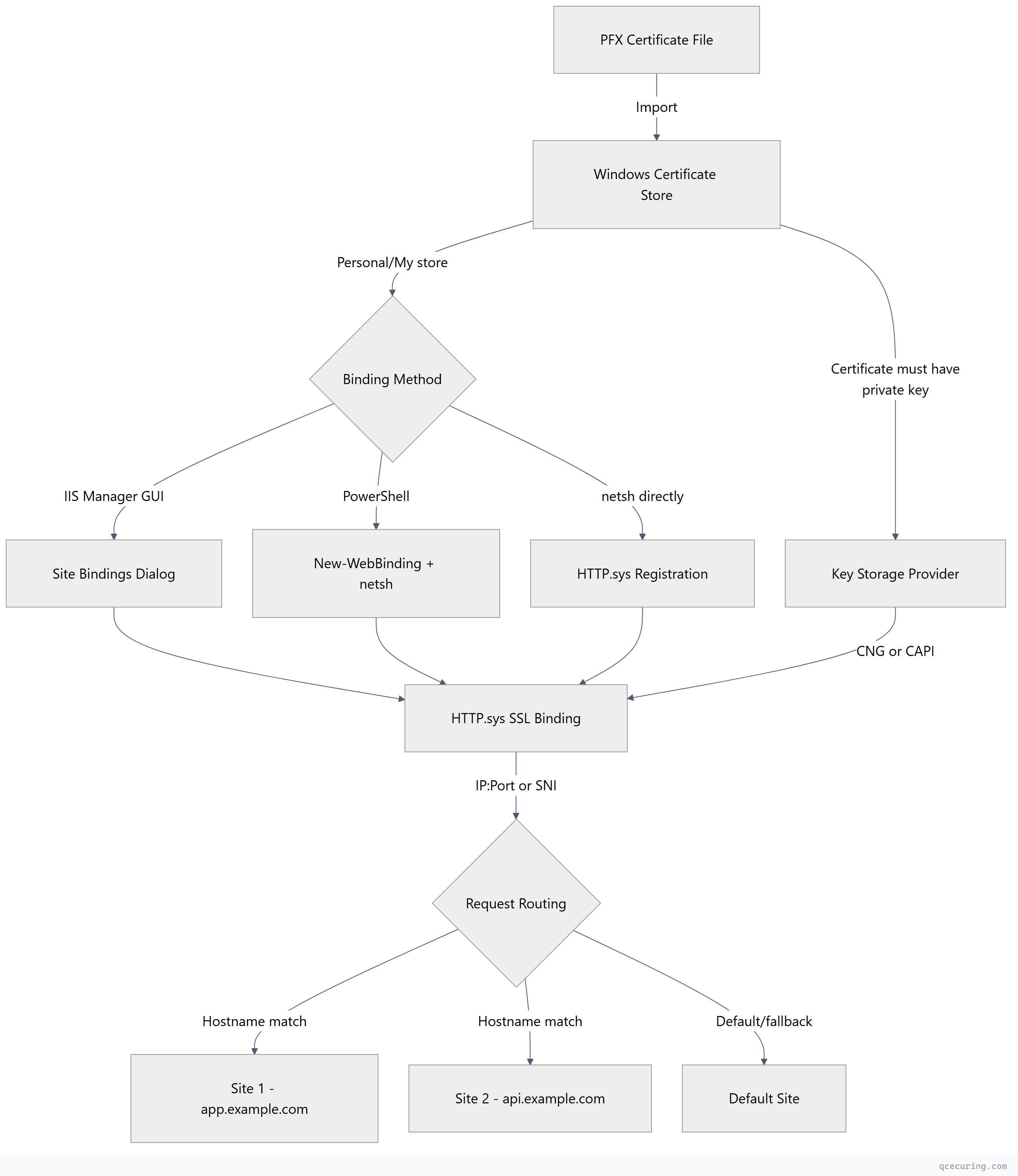
IIS Certificate Binding Architecture
Importing a PFX Certificate
Via IIS Manager (GUI)
- Open IIS Manager → Select the server node
- Double-click Server Certificates
- Click Import… in the Actions pane
- Browse to your
.pfxfile - Enter the PFX password
- Select certificate store: Web Hosting (recommended for many certs) or Personal
- Check Allow this certificate to be exported if you need to move it later
Via PowerShell
# Import PFX to the Local Machine Personal store
$pfxPassword = ConvertTo-SecureString -String "YourPfxPassword" -Force -AsPlainText
Import-PfxCertificate -FilePath "C:\certs\example.com.pfx" -CertStoreLocation "Cert:\LocalMachine\My" -Password $pfxPassword

# Verify import
Get-ChildItem Cert:\LocalMachine\My | Where-Object { $_.Subject -like "*example.com*" } | Format-List Subject, Thumbprint, NotAfter, HasPrivateKey
Via certutil
certutil -f -p "YourPfxPassword" -importpfx "C:\certs\example.com.pfx"Critical: The certificate must have HasPrivateKey = True. Without the private key, it won’t appear in the IIS binding dropdown.
Creating SSL Bindings
Via IIS Manager (GUI)
- Select your site in IIS Manager
- Click Bindings… in the Actions pane
- Click Add…
- Type: https
- IP address: All Unassigned (or specific IP)
- Port: 443
- Host name:
app.example.com(enables SNI) - Check Require Server Name Indication (for SNI)
- Select your certificate from the dropdown
- Click OK
Via PowerShell
# Get the certificate thumbprint
$cert = Get-ChildItem Cert:\LocalMachine\My | Where-Object { $_.Subject -like "*example.com*" }
$thumbprint = $cert.Thumbprint

# Create the IIS binding
New-WebBinding -Name "MyWebsite" -Protocol "https" -Port 443 -HostHeader "app.example.com" -SslFlags 1

# Bind the certificate to the site (SNI-enabled)
$binding = Get-WebBinding -Name "MyWebsite" -Protocol "https" -HostHeader "app.example.com"
$binding.AddSslCertificate($thumbprint, "My")
Via netsh (Low-Level HTTP.sys Binding)
:: IP-based binding (no SNI)
netsh http add sslcert ipport=0.0.0.0:443 certhash=THUMBPRINT_HERE appid={4dc3e181-e14b-4a21-b022-59fc669b0914} certstorename=MY

:: SNI-based binding (hostname-specific)
netsh http add sslcert hostnameport=app.example.com:443 certhash=THUMBPRINT_HERE appid={4dc3e181-e14b-4a21-b022-59fc669b0914} certstorename=MY
The appid is a GUID that identifies the application. For IIS, you can use any valid GUID — it’s used for logging purposes.
SNI Configuration for Multiple Sites
SNI (Server Name Indication) allows multiple HTTPS sites on the same IP and port. Each site gets its own certificate based on the hostname the client requests.
PowerShell — Multiple Sites on Port 443
# Site 1
New-WebBinding -Name "AppSite" -Protocol "https" -Port 443 -HostHeader "app.example.com" -SslFlags 1
$cert1 = Get-ChildItem Cert:\LocalMachine\My | Where-Object { $_.Subject -like "*app.example.com*" }
(Get-WebBinding -Name "AppSite" -Protocol "https" -HostHeader "app.example.com").AddSslCertificate($cert1.Thumbprint, "My")

# Site 2
New-WebBinding -Name "ApiSite" -Protocol "https" -Port 443 -HostHeader "api.example.com" -SslFlags 1
$cert2 = Get-ChildItem Cert:\LocalMachine\My | Where-Object { $_.Subject -like "*api.example.com*" }
(Get-WebBinding -Name "ApiSite" -Protocol "https" -HostHeader "api.example.com").AddSslCertificate($cert2.Thumbprint, "My")

# Site 3 — default (no SNI, catches unmatched requests)
New-WebBinding -Name "DefaultSite" -Protocol "https" -Port 443 -SslFlags 0
$certDefault = Get-ChildItem Cert:\LocalMachine\My | Where-Object { $_.Subject -like "*example.com*" }
(Get-WebBinding -Name "DefaultSite" -Protocol "https").AddSslCertificate($certDefault.Thumbprint, "My")
SslFlags values:
0— No SNI (IP-based binding)1— SNI required (hostname-based)2— Central Certificate Store (CCS)3— SNI + CCS
Wildcard Certificate Binding
Wildcard certificates (*.example.com) work with SNI but require specific configuration:
# Import wildcard cert
$pfxPassword = ConvertTo-SecureString -String "password" -Force -AsPlainText
$wildcardCert = Import-PfxCertificate -FilePath "C:\certs\wildcard.example.com.pfx" -CertStoreLocation "Cert:\LocalMachine\My" -Password $pfxPassword

# Bind to multiple sites using the same wildcard cert
$sites = @("app.example.com", "api.example.com", "admin.example.com")

foreach ($hostname in $sites) {
    # Assumes sites already exist
    New-WebBinding -Name $hostname -Protocol "https" -Port 443 -HostHeader $hostname -SslFlags 1
    $binding = Get-WebBinding -Name $hostname -Protocol "https" -HostHeader $hostname
    $binding.AddSslCertificate($wildcardCert.Thumbprint, "My")
}
PowerShell Automation Scripts
List All SSL Bindings
# IIS bindings
Get-WebBinding -Protocol "https" | Format-Table bindingInformation, certificateHash, sslFlags

# HTTP.sys bindings (lower level — shows everything)
netsh http show sslcert
Export Binding Configuration (Backup)
# Export all HTTPS bindings to CSV
Get-WebBinding -Protocol "https" | Select-Object @{
    Name='Site'; Expression={ $_.ItemXPath -replace ".*@name='([^']+)'.*", '$1' }
}, bindingInformation, certificateHash, sslFlags | Export-Csv -Path "C:\backup\iis-bindings.csv" -NoTypeInformation
Bulk Certificate Replacement
When renewing a certificate, update all bindings that use the old thumbprint:
$oldThumbprint = "OLD_CERT_THUMBPRINT_HERE"
$newThumbprint = "NEW_CERT_THUMBPRINT_HERE"

# Find all bindings using the old certificate
$bindings = Get-WebBinding -Protocol "https" | Where-Object { $_.certificateHash -eq $oldThumbprint }

foreach ($binding in $bindings) {
    $siteName = $binding.ItemXPath -replace ".*@name='([^']+)'.*", '$1'
    $hostHeader = ($binding.bindingInformation -split ':')[2]

    Write-Host "Updating binding for $siteName ($hostHeader)"

    # Remove old binding certificate
    $binding.RemoveSslCertificate()

    # Add new certificate
    $binding.AddSslCertificate($newThumbprint, "My")
}

Write-Host "Updated $($bindings.Count) binding(s)"
Remove SSL Binding
# Remove via IIS cmdlets
Remove-WebBinding -Name "MyWebsite" -Protocol "https" -Port 443 -HostHeader "app.example.com"

# Remove via netsh (if IIS cmdlet doesn't clean up HTTP.sys)
netsh http delete sslcert hostnameport=app.example.com:443
Troubleshooting Common Issues
Bindings Disappear After Reboot
This is a known issue documented by Microsoft. The root cause is typically one of:
1. Certificate not in the correct store:
The certificate must be in Cert:\LocalMachine\My (Personal store). If it’s in Cert:\CurrentUser\My, the binding works until the user logs off.
# Verify certificate location
Get-ChildItem Cert:\LocalMachine\My | Where-Object { $_.Thumbprint -eq "YOUR_THUMBPRINT" }
2. Private key permissions lost:
The IIS application pool identity needs read access to the private key.
# Find the private key file
$cert = Get-ChildItem Cert:\LocalMachine\My\YOUR_THUMBPRINT
$keyPath = $cert.PrivateKey.CspKeyContainerInfo.UniqueKeyContainerName
$fullPath = "C:\ProgramData\Microsoft\Crypto\RSA\MachineKeys\$keyPath"

# Grant IIS_IUSRS read access
icacls $fullPath /grant "IIS_IUSRS:(R)"
3. HTTP.sys binding orphaned:
IIS creates a binding but HTTP.sys loses the registration. Re-register:
:: List current HTTP.sys bindings
netsh http show sslcert

:: Delete orphaned binding
netsh http delete sslcert ipport=0.0.0.0:443

:: Re-add with correct thumbprint
netsh http add sslcert ipport=0.0.0.0:443 certhash=THUMBPRINT appid={4dc3e181-e14b-4a21-b022-59fc669b0914} certstorename=MY
“A specified logon session does not exist”
This error means the private key is inaccessible. Common causes:
# Check if private key exists
$cert = Get-ChildItem Cert:\LocalMachine\My\YOUR_THUMBPRINT
$cert.HasPrivateKey  # Must be True

# If using CNG key storage
$cert.PrivateKey  # Should not be null

# Re-import the PFX with exportable flag
$pfxPassword = ConvertTo-SecureString -String "password" -Force -AsPlainText
Import-PfxCertificate -FilePath "C:\certs\cert.pfx" -CertStoreLocation "Cert:\LocalMachine\My" -Password $pfxPassword -Exportable
If the certificate was imported via MMC without the “Mark this key as exportable” option, the key may be stored in a way that IIS cannot access. Re-import with the -Exportable flag.
Certificate Not Showing in IIS Dropdown
The certificate won’t appear in the binding dropdown if:
- No private key:
HasPrivateKeyisFalse - Wrong store: Certificate is in
CurrentUserinstead ofLocalMachine - Expired certificate: IIS hides expired certs by default (Server 2019+)
- Key usage mismatch: Certificate doesn’t have “Server Authentication” (OID 1.3.6.1.5.5.7.3.1) in Enhanced Key Usage
# Diagnose why a cert isn't showing
$cert = Get-ChildItem Cert:\LocalMachine\My\YOUR_THUMBPRINT
Write-Host "Has Private Key: $($cert.HasPrivateKey)"
Write-Host "Not After: $($cert.NotAfter)"
Write-Host "EKU: $($cert.EnhancedKeyUsageList | ForEach-Object { $_.FriendlyName })"
Port 443 Conflict
Only one non-SNI binding can exist on a given IP:Port combination.
# Find what's using port 443
netsh http show sslcert ipport=0.0.0.0:443

# Find the process
netstat -ano | findstr ":443"

# Check if another site has a non-SNI binding on 443
Get-WebBinding -Protocol "https" -Port 443 | Where-Object { $_.sslFlags -eq 0 }
Fix: Convert existing bindings to SNI (SslFlags=1) so multiple sites can share port 443:
# Remove the conflicting non-SNI binding
Remove-WebBinding -Name "ConflictingSite" -Protocol "https" -Port 443

# Re-create with SNI
New-WebBinding -Name "ConflictingSite" -Protocol "https" -Port 443 -HostHeader "conflicting.example.com" -SslFlags 1
Central Certificate Store (CCS)
For environments with many sites and frequent certificate renewals, IIS Central Certificate Store simplifies management by storing certificates as files on a shared path:
# Enable CCS feature
Install-WindowsFeature Web-CertProvider

# Configure CCS
Set-WebCentralCertProvider -CertStoreLocation "\\fileserver\certs" -UserName "DOMAIN\svc-iis-certs" -Password "ServiceAccountPassword" -PrivateKeyPassword "PfxPassword"

# Enable CCS
Set-WebCentralCertProvider -Enabled $true

# Create binding using CCS
New-WebBinding -Name "MyWebsite" -Protocol "https" -Port 443 -HostHeader "app.example.com" -SslFlags 3
Certificate files in CCS must be named to match the hostname: app.example.com.pfx. IIS automatically picks the right certificate based on the SNI hostname.
TLS Protocol Configuration in IIS
IIS uses Windows Schannel for TLS. Protocol and cipher configuration is done via registry or Group Policy:
# Disable TLS 1.0
New-Item -Path "HKLM:\SYSTEM\CurrentControlSet\Control\SecurityProviders\SCHANNEL\Protocols\TLS 1.0\Server" -Force
Set-ItemProperty -Path "HKLM:\SYSTEM\CurrentControlSet\Control\SecurityProviders\SCHANNEL\Protocols\TLS 1.0\Server" -Name "Enabled" -Value 0 -Type DWord
Set-ItemProperty -Path "HKLM:\SYSTEM\CurrentControlSet\Control\SecurityProviders\SCHANNEL\Protocols\TLS 1.0\Server" -Name "DisabledByDefault" -Value 1 -Type DWord

# Disable TLS 1.1
New-Item -Path "HKLM:\SYSTEM\CurrentControlSet\Control\SecurityProviders\SCHANNEL\Protocols\TLS 1.1\Server" -Force
Set-ItemProperty -Path "HKLM:\SYSTEM\CurrentControlSet\Control\SecurityProviders\SCHANNEL\Protocols\TLS 1.1\Server" -Name "Enabled" -Value 0 -Type DWord
Set-ItemProperty -Path "HKLM:\SYSTEM\CurrentControlSet\Control\SecurityProviders\SCHANNEL\Protocols\TLS 1.1\Server" -Name "DisabledByDefault" -Value 1 -Type DWord

# Enable TLS 1.2 (usually already enabled)
New-Item -Path "HKLM:\SYSTEM\CurrentControlSet\Control\SecurityProviders\SCHANNEL\Protocols\TLS 1.2\Server" -Force
Set-ItemProperty -Path "HKLM:\SYSTEM\CurrentControlSet\Control\SecurityProviders\SCHANNEL\Protocols\TLS 1.2\Server" -Name "Enabled" -Value 1 -Type DWord

# Enable TLS 1.3 (Windows Server 2022+)
New-Item -Path "HKLM:\SYSTEM\CurrentControlSet\Control\SecurityProviders\SCHANNEL\Protocols\TLS 1.3\Server" -Force
Set-ItemProperty -Path "HKLM:\SYSTEM\CurrentControlSet\Control\SecurityProviders\SCHANNEL\Protocols\TLS 1.3\Server" -Name "Enabled" -Value 1 -Type DWord
Requires reboot to take effect. Alternatively, use IIS Crypto for a GUI-based approach.
FAQ
Q: Why does my certificate work in the browser but IIS shows binding errors in Event Viewer?
The certificate chain is incomplete. The browser may have cached intermediates, but IIS needs the full chain in the PFX. Re-export your certificate with the full chain included: leaf cert + intermediate(s) + root (optional). Import the complete PFX.
Q: Can I bind the same wildcard certificate to multiple IIS sites?
Yes. A single wildcard certificate (*.example.com) can be bound to unlimited sites using SNI. Each site specifies its own hostname (app.example.com, api.example.com) but references the same certificate thumbprint.
Q: How do I migrate SSL bindings to a new server?
Export the certificate as PFX (with private key), copy to the new server, import it, then recreate bindings. For bulk migration:
# On old server — export
Get-ChildItem Cert:\LocalMachine\My\THUMBPRINT | Export-PfxCertificate -FilePath "C:\migration\cert.pfx" -Password (ConvertTo-SecureString -String "MigrationPwd" -Force -AsPlainText)

# On new server — import and bind
Import-PfxCertificate -FilePath "C:\migration\cert.pfx" -CertStoreLocation "Cert:\LocalMachine\My" -Password (ConvertTo-SecureString -String "MigrationPwd" -Force -AsPlainText)
Q: What’s the difference between IP-based and SNI-based bindings?
IP-based bindings (SslFlags=0) tie a certificate to an IP:Port pair. Only one certificate per IP:Port. SNI-based bindings (SslFlags=1) tie a certificate to a Hostname:Port pair, allowing multiple certificates on the same IP. Use SNI unless you need to support clients that don’t send SNI (extremely rare in 2026).
Q: Why does New-WebBinding succeed but HTTPS still doesn’t work?
New-WebBinding creates the IIS binding but doesn’t register the certificate with HTTP.sys. You must also call AddSslCertificate() on the binding object, or use netsh http add sslcert separately. Without the HTTP.sys registration, the TLS handshake fails.
Q: How do I check if a binding is registered in HTTP.sys?
netsh http show sslcertThis shows all SSL certificate bindings registered at the HTTP.sys level. If your IIS binding doesn’t appear here, the certificate isn’t actually bound — IIS shows it in the GUI but HTTPS connections will fail.
Related Reading: