
Most enterprises running AD CS aren’t going cloud-only anytime soon. They have domain controllers, NPS servers, and Windows endpoints that depend on AD CS — but they also have Intune-managed devices, Azure App Services, and hybrid-joined workstations that need certificates from somewhere.
The answer isn’t “pick one.” It’s a hybrid PKI architecture where AD CS handles what it’s good at (Windows domain certificates) while Azure services handle cloud-native workloads. This guide covers the integration patterns, connector configurations, and trust architecture that make hybrid PKI work.
Hybrid PKI Architecture Patterns
Three primary patterns exist for combining AD CS with Azure:
| Pattern | Use Case | Complexity | Trust Model |
|---|---|---|---|
| Connector-based | Intune delivers AD CS certs to managed devices | Medium | Existing AD CS trust |
| Cloud PKI | Intune issues certs without on-prem dependency | Low | New Microsoft cloud CA |
| Parallel CA | AD CS on-prem + separate cloud CA | High | Dual trust hierarchies |
Most enterprises end up with a combination. Domain-joined devices get AD CS certificates via autoenrollment. Intune-only devices get certificates via Cloud PKI or the Intune connector. Azure workloads use Azure Key Vault or managed identities.
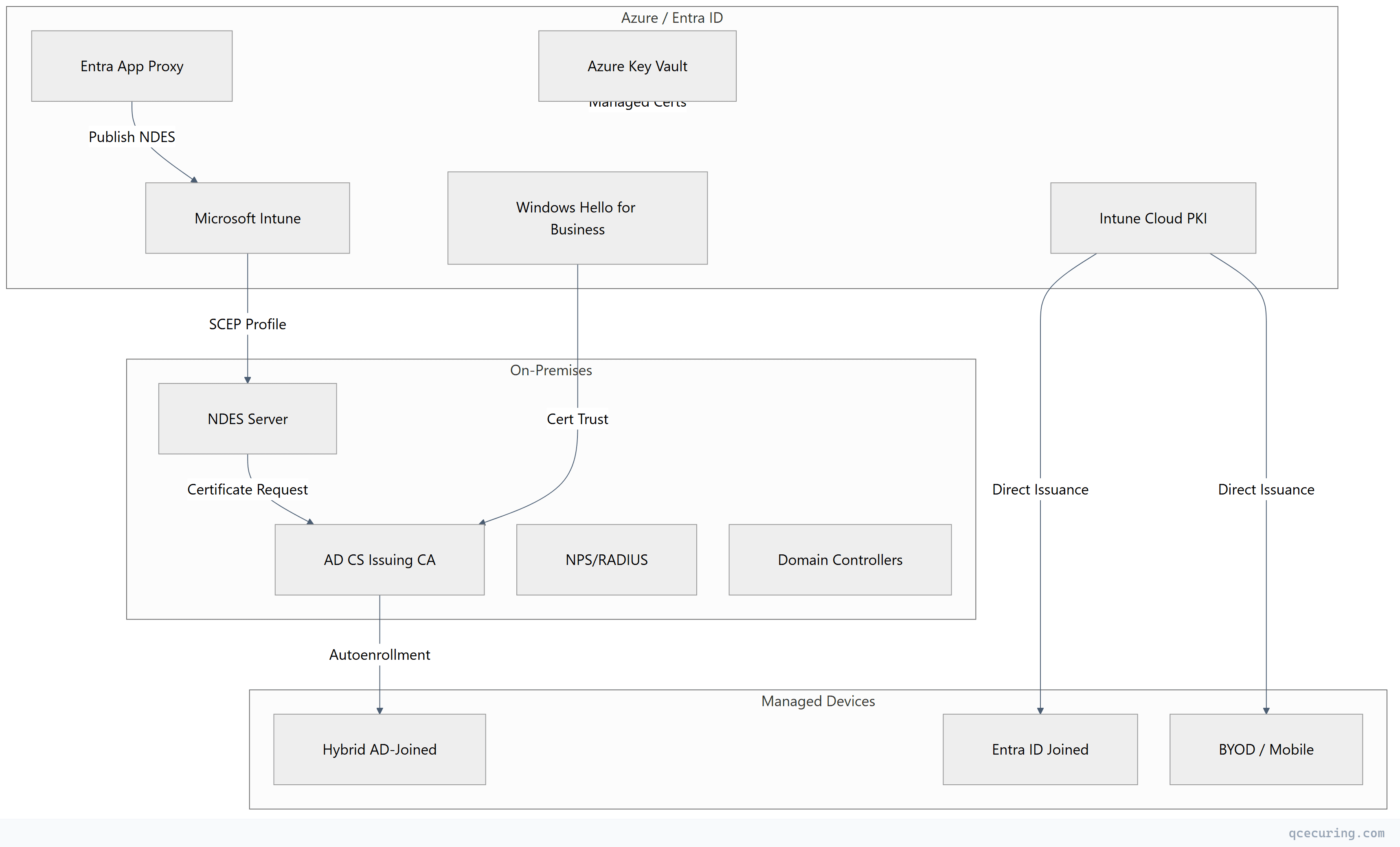
Pattern 1: Intune Certificate Connector + AD CS
This is the most common hybrid pattern. Intune delivers certificates to managed devices, but the actual issuance comes from your on-premises AD CS.
Architecture Flow
- Admin creates SCEP or PKCS certificate profile in Intune
- Device checks in and receives the profile
- Device generates a key pair and CSR
- CSR routes through the Intune Certificate Connector to AD CS
- AD CS issues the certificate using the configured template
- Certificate returns to the device via Intune
Install the Certificate Connector
# Prerequisites on the connector server
# - Windows Server 2016+ (domain-joined)
# - .NET Framework 4.7.2+
# - Network access to AD CS and Intune service endpoints

# Download from Intune admin center:
# Tenant administration > Connectors and tokens > Certificate connectors > Add

# After installation, verify connector status
Get-Service IntuneCertificateConnector | Select-Object Status, StartType

# Verify connectivity to Intune
Test-NetConnection -ComputerName manage.microsoft.com -Port 443
Test-NetConnection -ComputerName login.microsoftonline.com -Port 443
Configure the AD CS Template for Intune
# Create a dedicated template for Intune-issued certificates
# Duplicate the "Web Server" or "User" template

# Template settings for SCEP:
# - Cryptography tab: RSA 2048 minimum, allow key export
# - Subject Name: "Supply in the request" (Intune provides the subject)
# - Security: Grant "Enroll" to the connector service account
# - Issuance Requirements: No approval required (automated flow)

# Publish the template
certutil -dsTemplate "IntuneSCEP" msPKI-Cert-Template-OID

# Verify template is published on the CA
certutil -catemplates | findstr "IntuneSCEP"
SCEP Profile Configuration in Intune
Profile Type: SCEP certificate
Subject name format: CN={{UserPrincipalName}}
Subject alternative name: UPN = {{UserPrincipalName}}
Certificate validity: 1 year
Key storage provider: Software KSP
Key usage: Digital signature, Key encipherment
Key size: 2048
Hash algorithm: SHA-256
Root certificate: (link to trusted root profile)
SCEP Server URLs: https://ndes.company.com/certsrv/mscep/mscep.dll
Troubleshooting Connector Issues
# Check connector event logs
Get-WinEvent -LogName "Microsoft-Intune-CertificateConnectors/Operational" -MaxEvents 50 |
  Where-Object { $_.LevelDisplayName -eq "Error" } |
  Format-Table TimeCreated, Message -Wrap

# Common issues:
# 1. "RPC server unavailable" - Connector can't reach CA
Test-NetConnection -ComputerName ca-server.domain.local -Port 135

# 2. "Access denied" - Service account lacks Enroll permission
certutil -config "ca-server\CA-Name" -ping

# 3. "Template not found" - Template not published or name mismatch
certutil -catemplates | Select-String "IntuneSCEP"

# 4. Connector service not running
Restart-Service IntuneCertificateConnector
Pattern 2: Azure AD Application Proxy for NDES
When Intune-managed devices can’t reach NDES directly (no VPN, no hybrid connectivity), Azure AD Application Proxy publishes NDES to the internet securely.
Why App Proxy for NDES
- BYOD devices have no VPN or DirectAccess
- You don’t want to expose NDES directly to the internet
- App Proxy provides pre-authentication and conditional access
- No inbound firewall rules required
Configuration Steps
# 1. Install App Proxy connector on a server with access to NDES
# Download from: Entra admin center > Applications > App Proxy > Download connector

# 2. Register the NDES application in Entra ID
# External URL: https://ndes-company.msappproxy.net
# Internal URL: https://ndes.internal.company.com
# Pre-authentication: Passthrough (SCEP handles its own auth via challenge password)

# 3. Configure connector group
# Assign the connector to a group with network access to NDES

# 4. Update Intune SCEP profile
# Change SCEP Server URL to: https://ndes-company.msappproxy.net/certsrv/mscep/mscep.dll
Critical configuration: Set pre-authentication to Passthrough for NDES. SCEP protocol uses challenge passwords for authentication — adding Entra pre-auth breaks the enrollment flow.
# Verify App Proxy health
Get-MgServicePrincipal -Filter "displayName eq 'NDES-AppProxy'" |
  Select-Object AppId, ServicePrincipalType

# Test external URL accessibility
Invoke-WebRequest -Uri "https://ndes-company.msappproxy.net/certsrv/mscep/mscep.dll" -Method GET
Pattern 3: Windows Hello for Business — Hybrid Certificate Trust
Windows Hello for Business (WHfB) in hybrid certificate trust mode requires AD CS to issue authentication certificates to users.
How It Works
- User registers Windows Hello biometric/PIN on Entra-joined or hybrid-joined device
- Entra ID issues a partial certificate (user key attestation)
- The device requests a full authentication certificate from AD CS via the certificate enrollment endpoint
- AD CS issues a certificate using the “Windows Hello for Business Authentication” template
- User authenticates to on-premises resources using the WHfB certificate
Template Configuration
# Duplicate the "Smartcard Logon" template
# Rename to "WHfB Authentication"

# Template settings:
# Subject Name: Build from Active Directory (UPN)
# Cryptography: Key Storage Provider, ECDSA P-256 or RSA 2048
# Application Policies: Smart Card Logon + Client Authentication
# Issuance Requirements: Authorized signature (enrollment agent)
# Security: "Authenticated Users" - Enroll

# Publish template
Add-CATemplate -Name "WHfBAuthentication" -Force
Certificate Enrollment Policy (CEP) for WHfB
# Install CEP/CES role services for WHfB
Install-WindowsFeature ADCS-Enroll-Web-Pol, ADCS-Enroll-Web-Svc

# Configure CEP with certificate authentication
Install-AdcsEnrollmentPolicyWebService -AuthenticationType Certificate `
  -SSLCertThumbprint (Get-ChildItem Cert:\LocalMachine\My |
    Where-Object { $_.Subject -match "cep.company.com" }).Thumbprint

# Configure CES
Install-AdcsEnrollmentWebService -AuthenticationType Certificate `
  -CAConfig "CA-Server\Company-CA" `
  -SSLCertThumbprint (Get-ChildItem Cert:\LocalMachine\My |
    Where-Object { $_.Subject -match "ces.company.com" }).Thumbprint
Pattern 4: Microsoft Intune Cloud PKI
Intune Cloud PKI (generally available since 2024) provides a Microsoft-managed CA that issues certificates without any on-premises infrastructure.
When to Use Cloud PKI vs. Connector
| Criteria | Cloud PKI | Connector + AD CS |
|---|---|---|
| On-prem CA required | No | Yes |
| SCEP infrastructure | Not needed | NDES required |
| CA management | Microsoft-managed | Self-managed |
| Custom templates | Limited | Full flexibility |
| HSM for CA keys | Microsoft-managed HSM | Your HSM |
| Compliance (FedRAMP, etc.) | Check Microsoft compliance | Your compliance |
| Cost | Per-user Intune licensing | Infrastructure cost |
Cloud PKI Setup
# In Intune admin center:
# 1. Tenant administration > Cloud PKI > Create

# Root CA configuration:
CA Type: Root CA
Name: "Company Cloud Root CA"
Validity: 10 years
Key size: RSA 4096 or ECC P-256
Hash: SHA-256

# Issuing CA configuration:
CA Type: Issuing CA
Name: "Company Cloud Issuing CA"
Validity: 6 years
Signing CA: (select root created above)
Key size: RSA 2048 or ECC P-256

# 2. Create SCEP profile pointing to Cloud PKI
# The SCEP URL is automatically generated — no NDES needed
Trust Distribution for Cloud PKI
# Export Cloud PKI root certificate from Intune admin center
# Distribute to on-premises systems that need to trust Cloud PKI certs

# For domain-joined machines (GPO):
# Computer Configuration > Policies > Windows Settings >
#   Security Settings > Public Key Policies > Trusted Root CAs

# For NPS/RADIUS servers:
# Import Cloud PKI root into NPS server's trusted root store
Import-Certificate -FilePath "CloudPKI-Root.cer" -CertStoreLocation Cert:\LocalMachine\Root

# For Linux systems:
sudo cp cloud-pki-root.crt /usr/local/share/ca-certificates/
sudo update-ca-certificates
Pattern 5: Azure Key Vault Integration
Azure Key Vault serves as a certificate store and can integrate with AD CS for issuance or use its own integrated CAs.
Key Vault as Certificate Store for AD CS-Issued Certs
# Import AD CS-issued certificate into Key Vault
az keyvault certificate import \
  --vault-name "company-keyvault" \
  --name "api-gateway-cert" \
  --file "api-gateway.pfx" \
  --password "export-password"

# Configure auto-renewal with Key Vault integrated CA
az keyvault certificate create \
  --vault-name "company-keyvault" \
  --name "webapp-cert" \
  --policy @cert-policy.json
cert-policy.json for DigiCert integration:
{
  "issuerParameters": {
    "name": "DigiCert",
    "certificateType": "OV-SSL"
  },
  "keyProperties": {
    "exportable": true,
    "keyType": "RSA",
    "keySize": 2048,
    "reuseKey": false
  },
  "secretProperties": {
    "contentType": "application/x-pkcs12"
  },
  "x509CertificateProperties": {
    "subject": "CN=api.company.com",
    "subjectAlternativeNames": {
      "dnsNames": ["api.company.com", "api-dr.company.com"]
    },
    "validityInMonths": 12
  },
  "lifetimeActions": [
    {
      "trigger": { "daysBeforeExpiry": 30 },
      "action": { "actionType": "AutoRenew" }
    }
  ]
}
Key Vault + App Service Integration
# Bind Key Vault certificate to App Service
az webapp config ssl import \
  --resource-group "production-rg" \
  --name "company-webapp" \
  --key-vault "company-keyvault" \
  --key-vault-certificate-name "webapp-cert"

# Enable auto-sync (App Service picks up renewed certs automatically)
az webapp config ssl bind \
  --resource-group "production-rg" \
  --name "company-webapp" \
  --certificate-thumbprint "$THUMBPRINT" \
  --ssl-type SNI
Cross-Trust Scenarios
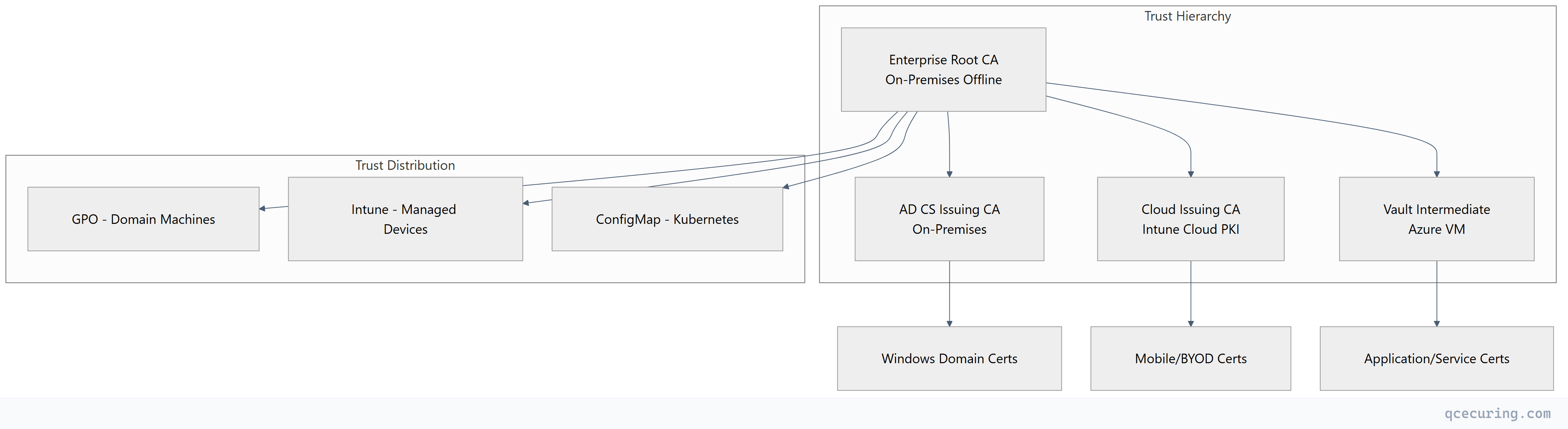
Single Root, Multiple Issuing CAs
The cleanest hybrid architecture uses a single offline root CA that signs multiple intermediates:
- AD CS Issuing CA — Windows domain certificates
- Cloud PKI Issuing CA — Intune-managed device certificates
- Vault/step-ca Issuing CA — Application and service certificates
All certificates chain to the same root, so trust distribution is a one-time operation.
# Sign Cloud PKI intermediate CSR with on-prem root
# (Export CSR from Intune Cloud PKI settings)
certutil -sign cloud-pki-int.csr cloud-pki-int.cer

# Sign Vault intermediate CSR with on-prem root
certutil -sign vault-int.csr vault-int.cer

# Both intermediates now chain to your existing root
# All existing trust stores already trust the root = zero client changes
Monitoring and Operational Considerations
Health Checks Across Hybrid PKI
# Monitor Intune Certificate Connector health
$connectorStatus = Get-WinEvent -LogName "Microsoft-Intune-CertificateConnectors/Operational" -MaxEvents 1
if ($connectorStatus.LevelDisplayName -eq "Error") {
    Send-Alert -Message "Intune Certificate Connector error detected"
}

# Monitor AD CS certificate expiry
$expiringCerts = certutil -view -restrict "NotAfter<=$(Get-Date).AddDays(30)" -out "CommonName,NotAfter"
if ($expiringCerts.Count -gt 0) {
    Send-Alert -Message "$($expiringCerts.Count) certificates expiring within 30 days"
}

# Monitor CRL publication
$crl = certutil -verify -urlfetch "issuing-ca.crl"
if ($LASTEXITCODE -ne 0) {
    Send-Alert -Message "CRL verification failed for issuing CA"
}
Disaster Recovery
| Component | RPO | RTO | Recovery Method |
|---|---|---|---|
| Root CA (offline) | N/A | 4 hours | HSM backup + documented rebuild |
| AD CS Issuing CA | 1 hour | 2 hours | System State backup + restore |
| Intune Connector | N/A | 30 min | Reinstall on standby server |
| Cloud PKI | N/A | Microsoft SLA | Microsoft-managed |
| Vault PKI | 15 min | 1 hour | Raft snapshot + unseal keys |
Security Hardening for Hybrid Deployments
Network Segmentation
# Firewall rules for hybrid PKI
# Intune Connector → AD CS: TCP 135, 49152-65535 (RPC)
# Intune Connector → Internet: TCP 443 (Intune service)
# App Proxy Connector → NDES: TCP 443
# App Proxy Connector → Internet: TCP 443 (Azure relay)
# Vault → AD CS Root (signing only): TCP 443 (restricted, temporary)
Conditional Access for Certificate Enrollment
# Entra ID Conditional Access Policy
Name: "Require compliant device for certificate enrollment"
Assignments:
  Users: All users
  Cloud apps: Microsoft Intune Enrollment
Conditions:
  Device platforms: All platforms
Grant:
  Require device to be marked as compliant
  Require multifactor authentication
FAQ
Q: Can Intune Cloud PKI completely replace AD CS? A: Not yet. Cloud PKI handles device certificates well (Wi-Fi, VPN, email signing), but it can’t issue domain controller certificates, NPS server certificates, or certificates requiring custom V2/V3 templates with complex issuance policies. For a pure Entra ID environment with no on-prem AD, Cloud PKI may be sufficient.
Q: How many Intune Certificate Connectors do I need? A: Microsoft recommends at least two connectors for high availability. Each connector can handle approximately 100 certificate requests per minute. For environments with 10,000+ managed devices, deploy three or more connectors across different sites.
Q: Does the Intune connector support PKCS (PFX) and SCEP? A: Yes, the unified connector (version 6.x+) handles both PKCS and SCEP profiles. Older separate connectors for PFX and SCEP are deprecated. Upgrade to the unified connector if you’re still running the legacy versions.
Q: What happens if the Intune connector goes offline? A: Devices that already have certificates continue working — the certificate is on the device. New enrollment requests and renewals queue in Intune and process once the connector comes back online. If the connector is down for more than 24 hours, pending requests may time out and devices will retry on next check-in.
Q: Can I use my on-premises AD CS root to sign the Cloud PKI intermediate? A: Yes, this is the recommended approach for enterprises with existing trust infrastructure. Export the CSR from Cloud PKI settings, sign it with your offline root CA using certutil, and upload the signed certificate back. This gives you a single trust anchor across all PKI components.
Q: How do I handle certificate revocation in a hybrid environment? A: Each CA maintains its own CRL/OCSP. AD CS publishes CRLs to AD and HTTP. Cloud PKI has Microsoft-managed OCSP. For Vault, configure the built-in OCSP responder. The challenge is ensuring all relying parties can reach the appropriate revocation endpoint — especially for cross-environment trust (cloud app trusting on-prem cert or vice versa).
Related Reading: