
You’re seeing this when trying to enroll a certificate, access the CA, or during auto-enrollment:
The RPC server is unavailable. 0x800706ba (WIN32: 1722 RPC_S_SERVER_UNAVAILABLE)CertEnroll::CX509Enrollment::Enroll: The RPC server is unavailable. 0x800706bacertutil -ping: The RPC server is unavailable.Auto-enrollment failed. The RPC server is unavailable.Certificate enrollment is broken. Users can’t get certificates, auto-enrollment is failing, and services depending on certificates are degrading. Here’s how to fix it.
Fastest Fix: Identify the Broken Link
Run these three commands from the client experiencing the error:
# 1. Can you reach the CA at all?
certutil -ping -config "CA-SERVER\CA-Name"

# 2. Is the RPC port open?
Test-NetConnection -ComputerName CA-SERVER -Port 135

# 3. Can you resolve the CA hostname?
Resolve-DnsName CA-SERVER
Interpret the results:
- DNS fails → Jump to DNS Fix
- Port 135 blocked → Jump to Firewall Fix
- Port 135 open but certutil -ping fails → Jump to CA Service Fix
- Everything works from server but not from client → Jump to DCOM Permissions
RPC Communication Flow in AD CS
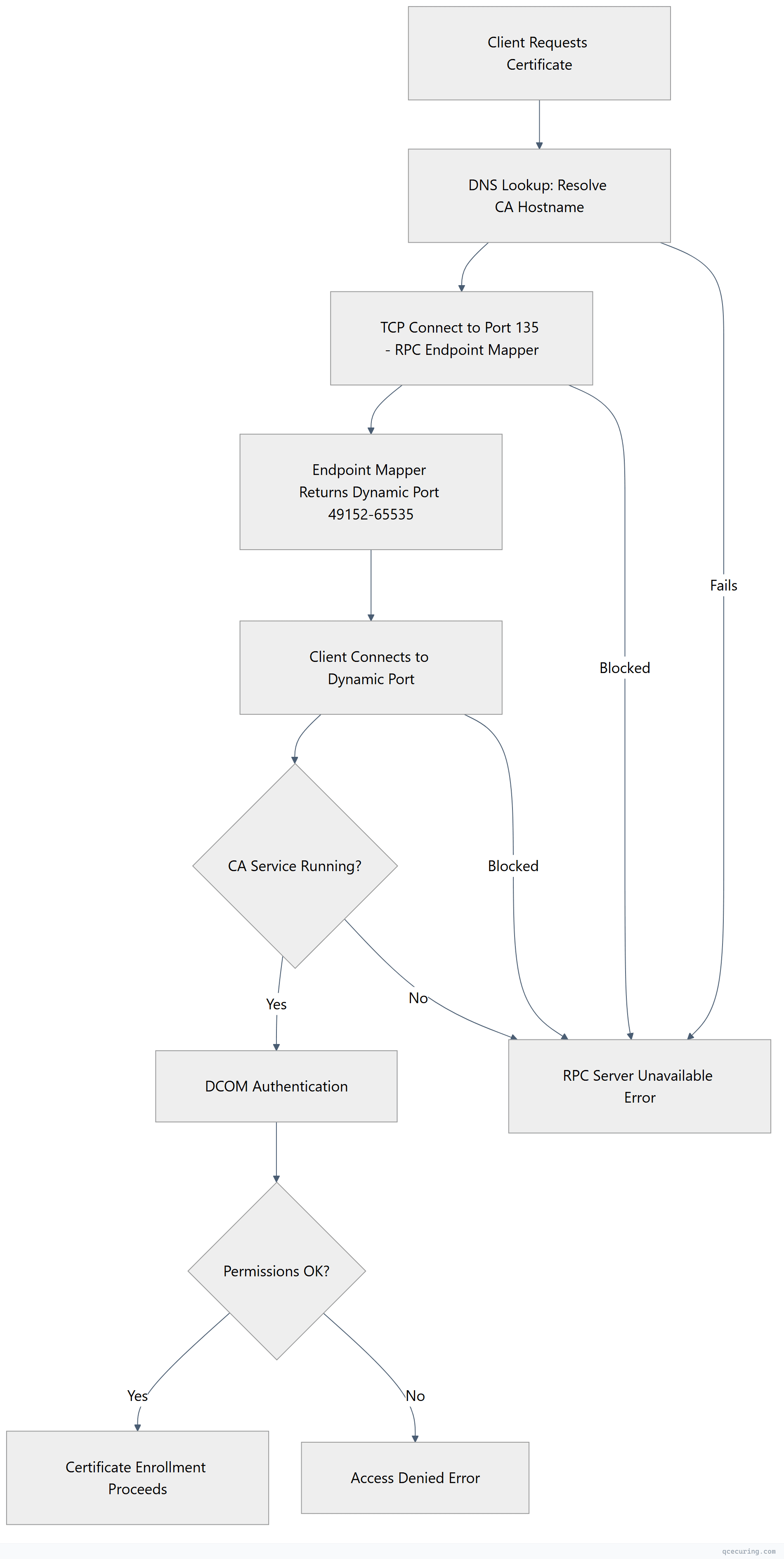
Cause 1: CA Service Stopped or Crashed
What’s happening: The Active Directory Certificate Services service (CertSvc) isn’t running on the CA server.
Diagnose — on the CA server:
# Check service status
Get-Service CertSvc

# Check if the service crashed recently
Get-WinEvent -LogName Application -FilterXPath "*[System[Provider[@Name='Microsoft-Windows-CertificationAuthority']]]" -MaxEvents 10
Fix — restart the CA service:
# Start the service
Start-Service CertSvc

# If it won't start, check the event log for the reason
Get-WinEvent -LogName Application -MaxEvents 20 | Where-Object { $_.ProviderName -like "*Cert*" } | Format-List TimeCreated, Message

# Common fix: CA certificate expired — check it
certutil -ca.cert | findstr "NotAfter"
If the CA certificate itself has expired:
# Renew the CA certificate
certutil -renewCert ReuseKeys

# Then restart
Restart-Service CertSvc
Set the service to auto-start:
Set-Service CertSvc -StartupType AutomaticCause 2: Firewall Blocking RPC Ports
What’s happening: RPC requires port 135 (endpoint mapper) PLUS a dynamic port range (49152-65535). If either is blocked, enrollment fails.
Diagnose — from the client:
# Test RPC endpoint mapper
Test-NetConnection -ComputerName CA-SERVER -Port 135

# Test a sample of dynamic ports
Test-NetConnection -ComputerName CA-SERVER -Port 49152
Test-NetConnection -ComputerName CA-SERVER -Port 49153

# Full port scan of RPC range (takes time)
1..20 | ForEach-Object { Test-NetConnection -ComputerName CA-SERVER -Port (49152 + $_) -WarningAction SilentlyContinue } | Where-Object { $_.TcpTestSucceeded }
Fix — open required firewall ports on the CA server:
# Allow RPC endpoint mapper
New-NetFirewallRule -DisplayName "AD CS - RPC Endpoint Mapper" -Direction Inbound -Protocol TCP -LocalPort 135 -Action Allow

# Allow RPC dynamic ports
New-NetFirewallRule -DisplayName "AD CS - RPC Dynamic Ports" -Direction Inbound -Protocol TCP -LocalPort 49152-65535 -Action Allow

# Or allow the CertSvc program directly (more restrictive)
New-NetFirewallRule -DisplayName "AD CS - Certificate Services" -Direction Inbound -Program "%SystemRoot%\System32\certsrv.exe" -Action Allow
Better fix — restrict the dynamic port range:
# On the CA server, restrict RPC to a smaller range
netsh int ipv4 set dynamicport tcp start=49152 num=1000

# Then only open 49152-50152 in the firewall
New-NetFirewallRule -DisplayName "AD CS - RPC Dynamic (Restricted)" -Direction Inbound -Protocol TCP -LocalPort 49152-50152 -Action Allow
If there’s a network firewall between client and CA:
Required ports (client → CA):
- TCP 135 (RPC Endpoint Mapper)
- TCP 49152-65535 (RPC Dynamic) — or your restricted range
- TCP 443 (if using Web Enrollment / CES)
- TCP 80 (if using CRL/AIA HTTP distribution)
Cause 3: DNS Resolution Failure
What’s happening: The client can’t resolve the CA server’s hostname, so RPC can’t connect.
Diagnose:
# Check if the CA hostname resolves
Resolve-DnsName CA-SERVER
Resolve-DnsName CA-SERVER.domain.local

# Check what CA config the client is using
certutil -config - -ping
# This shows the CA config string: \\SERVER\CA-Name

# Verify the FQDN resolves
nslookup CA-SERVER.domain.local
Fix — DNS registration:
# On the CA server, re-register DNS
ipconfig /registerdns

# On the client, flush DNS cache
ipconfig /flushdns

# If using a CNAME or alias, verify it resolves to the correct IP
Resolve-DnsName CA-SERVER.domain.local | Select-Object Name, IPAddress
Fix — if the CA moved to a new IP:
# Update DNS A record (on DNS server or via DNS Manager)
Add-DnsServerResourceRecordA -Name "CA-SERVER" -ZoneName "domain.local" -IPv4Address "10.0.1.50"

# Remove stale record
Remove-DnsServerResourceRecord -Name "CA-SERVER" -ZoneName "domain.local" -RRType A -RecordData "10.0.1.25"
Fix — if clients are in a different DNS zone:
# Add a conditional forwarder or stub zone
Add-DnsServerConditionalForwarderZone -Name "pki.domain.local" -MasterServers 10.0.1.10
Cause 4: CA Certificate Expired
What’s happening: The CA’s own signing certificate has expired. The service may still be running but can’t process requests.
Diagnose — on the CA server:
# Check CA certificate validity
certutil -ca.cert | findstr "NotBefore NotAfter"

# Or view the full CA cert
certutil -ca.cert

# Check CA status
certutil -CAInfo
Fix — renew the CA certificate:
# For an Enterprise CA (uses same key pair)
certutil -renewCert ReuseKeys

# For a Standalone Root CA
certutil -renewCert ReuseKeys

# Restart the service after renewal
Restart-Service CertSvc

# Publish the new CA cert to AD (Enterprise CA)
certutil -dspublish -f "C:\Windows\System32\CertSrv\CertEnroll\CA-Name.crt" RootCA
Distribute the renewed CA certificate:
# Publish to AD for domain-joined clients (auto-distributed via GPO)
certutil -dspublish -f NewCACert.crt RootCA

# Force Group Policy update on clients
gpupdate /force

# Verify clients have the new CA cert
certutil -store Root | findstr "NotAfter"
Cause 5: DCOM Permissions Misconfigured
What’s happening: The client’s computer account or user doesn’t have DCOM activation/launch permissions on the CA server.
Diagnose — on the CA server:
# Check DCOM errors in the System event log
Get-WinEvent -LogName System -FilterXPath "*[System[Provider[@Name='Microsoft-Windows-DistributedCOM'] and (EventID=10016)]]" -MaxEvents 5 | Format-List TimeCreated, Message
Fix — grant DCOM permissions:
- On the CA server, open
dcomcnfg(Component Services) - Navigate to: Component Services → Computers → My Computer → DCOM Config
- Find CertSrv Request (or the CA’s DCOM application)
- Right-click → Properties → Security tab
- Under Launch and Activation Permissions, click Edit
- Add Authenticated Users or the specific group with Local Launch and Local Activation
PowerShell alternative — check and fix CertSrv permissions:
# Verify CA security settings
certutil -getreg CA\Security

# Check who has enrollment permissions
certutil -getreg CA\Officer

# Reset CA security to defaults (use with caution)
certutil -setreg CA\Security "D:(A;;RPWPCR;;;AU)(A;;RPWPCR;;;DA)"
Restart-Service CertSvc
Cause 6: Network Issues (VPN, Routing, MTU)
What’s happening: RPC is sensitive to network quality. VPN tunnels, MTU mismatches, and routing issues can break RPC even when basic connectivity works.
Diagnose:
# Test with larger packets (RPC uses large payloads)
ping CA-SERVER -l 1400 -f

# If this fails with "Packet needs to be fragmented but DF set"
# you have an MTU issue

# Trace the route
tracert CA-SERVER

# Check for packet loss
pathping CA-SERVER
Fix — MTU issues:
# On the client, reduce MTU on the VPN interface
netsh interface ipv4 set subinterface "VPN Connection" mtu=1400 store=persistent
Fix — verify routing:
# Ensure traffic to CA goes through the correct interface
route print | findstr "10.0.1"

# Add a static route if needed
route add 10.0.1.0 mask 255.255.255.0 10.0.0.1 -p
Verify the Fix
After applying your fix, confirm enrollment works:
# Test CA connectivity
certutil -ping -config "CA-SERVER\CA-Name"

# Test enrollment (request a test certificate)
certreq -new request.inf request.req
certreq -submit -config "CA-SERVER\CA-Name" request.req

# Trigger auto-enrollment
certutil -pulse

# Check auto-enrollment event log
Get-WinEvent -LogName "Application" -FilterXPath "*[System[Provider[@Name='Microsoft-Windows-CertificateServicesClient-AutoEnrollment']]]" -MaxEvents 5
Minimal request.inf for testing:
[NewRequest]
Subject = "CN=Test Certificate"
KeyLength = 2048
Exportable = TRUE
MachineKeySet = TRUE
RequestType = PKCS10

[RequestAttributes]
CertificateTemplate = Computer
Quick Diagnostic Script
Run this all-in-one script from the affected client:
$CAServer = "CA-SERVER"
$CAName = "Your-CA-Name"
$CAConfig = "$CAServer\$CAName"

Write-Host "=== RPC/PKI Connectivity Diagnostic ===" -ForegroundColor Cyan

# DNS
Write-Host "`n[1] DNS Resolution:" -ForegroundColor Yellow
try {
    $dns = Resolve-DnsName $CAServer -ErrorAction Stop
    Write-Host "  OK: $CAServer resolves to $($dns.IPAddress)" -ForegroundColor Green
} catch {
    Write-Host "  FAIL: Cannot resolve $CAServer" -ForegroundColor Red
}

# Port 135
Write-Host "`n[2] RPC Endpoint Mapper (Port 135):" -ForegroundColor Yellow
$tcp = Test-NetConnection -ComputerName $CAServer -Port 135 -WarningAction SilentlyContinue
if ($tcp.TcpTestSucceeded) {
    Write-Host "  OK: Port 135 is open" -ForegroundColor Green
} else {
    Write-Host "  FAIL: Port 135 is blocked" -ForegroundColor Red
}

# Dynamic ports
Write-Host "`n[3] RPC Dynamic Ports (sample):" -ForegroundColor Yellow
$openPorts = 0
49152, 49153, 49154, 49155, 49156 | ForEach-Object {
    $t = Test-NetConnection -ComputerName $CAServer -Port $_ -WarningAction SilentlyContinue
    if ($t.TcpTestSucceeded) { $openPorts++ }
}
if ($openPorts -gt 0) {
    Write-Host "  OK: $openPorts/5 dynamic ports responding" -ForegroundColor Green
} else {
    Write-Host "  FAIL: No dynamic ports responding (firewall?)" -ForegroundColor Red
}

# CertUtil ping
Write-Host "`n[4] CA Service (certutil -ping):" -ForegroundColor Yellow
$pingResult = certutil -ping -config $CAConfig 2>&1
if ($pingResult -match "successfully") {
    Write-Host "  OK: CA is responding" -ForegroundColor Green
} else {
    Write-Host "  FAIL: $pingResult" -ForegroundColor Red
}

Write-Host "`n=== Diagnostic Complete ===" -ForegroundColor Cyan
FAQ
Why does certutil -ping work from the CA server itself but not from clients?
This confirms a network issue between client and CA. The CA service is running fine, but something is blocking RPC traffic. Check: (1) Windows Firewall on the CA server — it may allow local connections but block remote ones. (2) Network firewalls between subnets. (3) IPsec policies that might be blocking traffic. Run Test-NetConnection -ComputerName CA-SERVER -Port 135 from the client to confirm.
Auto-enrollment was working yesterday and stopped today. What changed?
Check these in order: (1) Was the CA server rebooted and the CertSvc service didn’t auto-start? (2) Did someone apply a new GPO with firewall rules? (3) Did the CA certificate expire? (4) Was a network change made (VLAN, firewall rule, routing)? Check Get-WinEvent -LogName System -MaxEvents 50 on the CA for recent changes.
Can I use HTTPS enrollment (CES/CEP) to avoid RPC issues?
Yes. Certificate Enrollment Web Services (CES) and Certificate Enrollment Policy (CEP) use HTTPS (port 443) instead of RPC. This is the recommended approach for clients across firewalls, in DMZs, or on the internet. Configure CES/CEP on the CA or a separate server, then point clients to the HTTPS endpoint via GPO.
The error only happens for some users/computers but not others. Why?
This is usually a permissions issue, not connectivity. If some clients can enroll and others can’t from the same network: (1) Check certificate template permissions — the failing accounts may lack Enroll permission. (2) Check DCOM permissions on the CA. (3) Check if the failing clients are in a different OU with different GPO settings. Run certutil -ping from the failing client to distinguish connectivity from permissions.
How do I fix this in a multi-site AD environment with multiple CAs?
Clients should be enrolling from their local site’s CA. Check: (1) AD Sites and Services — is the CA’s server object in the correct site? (2) Is the client’s site correctly defined? (3) Run certutil -config - -ping to see which CA the client is trying to reach. If it’s targeting a remote CA, the local CA may not have the required template published. Use certutil -CATemplates on each CA to verify.
Related Reading
- AD CS Complete Architecture Guide — understand the full AD CS topology
- AD CS Troubleshooting Common Errors — fix other AD CS issues
- NDES Configuration Troubleshooting Guide — fix SCEP/NDES enrollment
- Understanding PKI Basics — foundational PKI concepts