
On September 9, 2025, Microsoft permanently removed the ability to run domain controllers in Compatibility mode for certificate-based authentication. The StrongCertificateBindingEnforcement registry key no longer allows reverting to weak certificate mapping. If your certificates don’t have strong mappings to Active Directory accounts, certificate-based authentication breaks — smart cards stop working, Wi-Fi 802.1X fails, VPN certificates are rejected, and SCEP-enrolled devices lose network access.
This change (KB5014754) has been rolling out since May 2022, with multiple deadline extensions. The final enforcement is now permanent. Here’s what it means, how to check if you’re affected, and how to fix it.
What Changed and Why
The Vulnerability
Before KB5014754, Windows domain controllers used weak certificate mapping to determine which AD account a certificate belongs to. The mapping relied on the certificate’s Subject or SAN fields — which the certificate requestor could potentially control (especially with misconfigured templates — see ESC1).
An attacker who could obtain a certificate with a manipulated subject name could authenticate as any user in the domain. This is a certificate spoofing vulnerability that enables privilege escalation.
The Fix: Strong Certificate Mapping
Strong mapping requires an explicit, non-spoofable binding between the certificate and the AD account. Two methods qualify as “strong”:
| Mapping Type | How It Works | Certificate Requirement |
|---|---|---|
| SID extension (preferred) | Certificate contains the account’s SID in a new X.509 extension (OID 1.3.6.1.4.1.311.25.2) | CA must add SID extension during issuance |
| Explicit mapping | Admin manually maps certificate to account via altSecurityIdentities attribute | Manual configuration per user/computer |
What’s “Weak” (No Longer Accepted)
| Weak Mapping Method | Why It’s Insecure |
|---|---|
| Subject CN → sAMAccountName | Requestor may control CN |
| SAN UPN → userPrincipalName | Requestor may control SAN (ESC1) |
| SAN email → mail attribute | Requestor may control SAN |
| Issuer + Serial → certificate | Requires explicit mapping (actually strong if done correctly) |
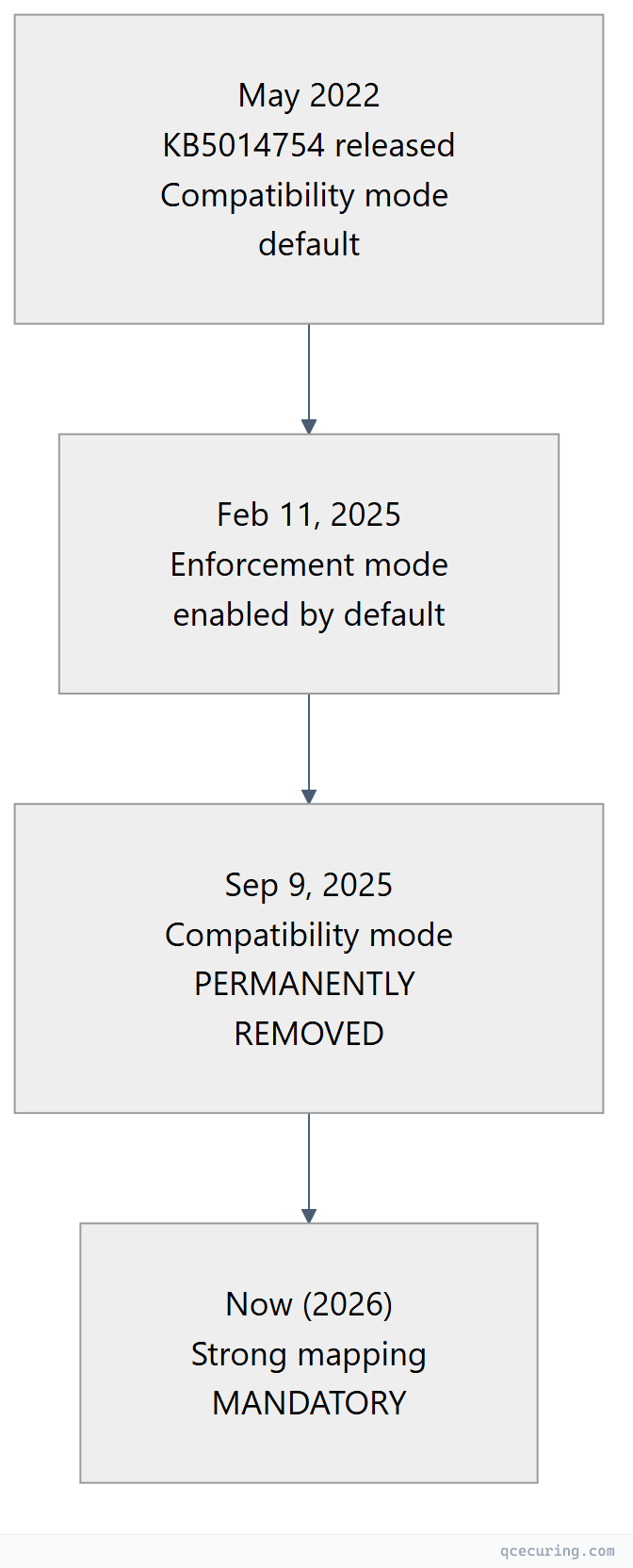
Timeline
| Date | What Happened |
|---|---|
| May 10, 2022 | KB5014754 released. Compatibility mode (default) — weak mappings still work but log warnings |
| Feb 11, 2025 | Enforcement mode enabled by default. Weak mappings rejected. Registry key allows reverting to Compatibility |
| Sep 9, 2025 | StrongCertificateBindingEnforcement registry key no longer supported. Enforcement is permanent |
| Now (2026) | All certificate-based authentication requires strong mapping. No workaround available |
How to Check If You’re Affected
Step 1: Check for Warning Events
Before enforcement, domain controllers log Event ID 39 (warning) when weak mappings are used:
# Check for weak mapping warnings on domain controllers
Get-WinEvent -LogName "System" -FilterXPath "*[System[Provider[@Name='Microsoft-Windows-Kerberos-Key-Distribution-Center'] and EventID=39]]" |
  Select-Object -First 20 TimeCreated, Message

# Event 39 text: "The Key Distribution Center (KDC) encountered a user certificate
# that was valid but could not be mapped to a user in a strong way"
If you see Event ID 39, those certificates will FAIL after enforcement.
Step 2: Check Certificate SID Extension
# Check if a certificate has the SID extension
$cert = Get-ChildItem Cert:\LocalMachine\My | Where-Object { $_.Subject -like "*server*" }
$cert.Extensions | Where-Object { $_.Oid.Value -eq "1.3.6.1.4.1.311.25.2" }

# If no output — the certificate lacks the SID extension (weak mapping)
Step 3: Check altSecurityIdentities Mappings
# Check explicit certificate mappings for a user
Get-ADUser -Identity "jsmith" -Properties altSecurityIdentities |
  Select-Object -ExpandProperty altSecurityIdentities

# Check for a computer
Get-ADComputer -Identity "WORKSTATION01" -Properties altSecurityIdentities |
  Select-Object -ExpandProperty altSecurityIdentities

# Strong mapping formats:
# X509:<SKI>abcdef1234...           (Subject Key Identifier)
# X509:<SHA1-PUKEY>abcdef1234...    (SHA1 of public key)
# X509:<I>DC=com,DC=contoso,CN=CA<SR>1234567890  (Issuer + Serial)
# X509:<S>CN=user@contoso.com       (Subject — WEAK, won't work)
Step 4: Check the Registry Key (Pre-September 2025)
# Check current enforcement mode (only relevant before Sep 2025)
Get-ItemProperty -Path "HKLM:\SYSTEM\CurrentControlSet\Services\Kdc" -Name "StrongCertificateBindingEnforcement" -ErrorAction SilentlyContinue

# Values:
# 0 = Disabled (not recommended — no security)
# 1 = Compatibility mode (weak mappings work but log warnings)
# 2 = Enforcement mode (weak mappings rejected)
# Key absent = default behavior (Enforcement since Feb 2025)

# After September 9, 2025: This key is IGNORED regardless of value
How to Fix: Implementing Strong Mapping
Option 1: Re-Enroll with SID Extension (Recommended)
The cleanest fix: re-issue certificates from a CA that includes the SID extension automatically. Windows Server 2022+ CAs and updated Windows Server 2016/2019 CAs (with KB5014754 installed) automatically add the SID extension to new certificates.
# Verify your CA adds the SID extension
# Issue a test certificate and check:
certutil -dump test-cert.cer | findstr "szOID_NTDS_CA_SECURITY_EXT"
# If present: 1.3.6.1.4.1.311.25.2 — SID extension is included

# Force re-enrollment for all auto-enrolled certificates:
# 1. Delete existing certificates from client stores
# 2. Run: certutil -pulse (triggers auto-enrollment)
# 3. Verify new cert has SID extension
For Intune/MDM-enrolled certificates:
Microsoft published guidance for implementing strong mapping in Intune SCEP profiles. The certificate profile must include the {{OnPremisesSecurityIdentifier}} variable in the URI SAN field:
URI: tag:microsoft.com,2022-09-14:sid:<{{OnPremisesSecurityIdentifier}}>Option 2: Manual Explicit Mapping
For certificates that can’t be re-issued (third-party CAs, legacy devices), manually map the certificate to the AD account:
# Map by Issuer + Serial Number (strong)
$issuer = "DC=com,DC=contoso,CN=Contoso Issuing CA"
$serial = "6100000000a1b2c3d4e5f6"
Set-ADUser -Identity "jsmith" -Add @{
    altSecurityIdentities = "X509:<I>$issuer<SR>$serial"
}

# Map by Subject Key Identifier (strong)
$ski = "a84a6a63047dddbae6d139b7a64565eff3a8eca1"
Set-ADUser -Identity "jsmith" -Add @{
    altSecurityIdentities = "X509:<SKI>$ski"
}

# Map by SHA1 of public key (strong)
$sha1pubkey = "f3a8eca1a84a6a63047dddbae6d139b7a64565ef"
Set-ADUser -Identity "jsmith" -Add @{
    altSecurityIdentities = "X509:<SHA1-PUKEY>$sha1pubkey"
}
Option 3: Certificate Backdating (Temporary)
For certificates issued before May 10, 2022, a separate registry key allows them to bypass strong mapping requirements:
# CertificateBackdatingCompensation — allows old certs to use weak mapping
# ONLY for certificates issued BEFORE the KB5014754 date
# Registry: HKLM\SYSTEM\CurrentControlSet\Services\Kdc
# Value: CertificateBackdatingCompensation (REG_DWORD)
# Data: Number of days to backdate (e.g., 50 = certs issued 50+ days before patch)

# This is a TEMPORARY workaround — replace certificates as soon as possible
Impact by Scenario
Smart Card Authentication
Smart card certificates must have the SID extension or explicit mapping. If your smart card certificates were issued by an older CA without the SID extension, users can’t log in.
Fix: Re-enroll smart card certificates from an updated CA. For Windows Hello for Business, ensure the certificate profile includes the SID extension.
802.1X Wireless/Wired (RADIUS/NPS)
Computer and user certificates used for 802.1X authentication must be strongly mapped. If NPS can’t map the certificate to an AD account, the connection is rejected.
Fix: Re-enroll computer certificates via auto-enrollment (updated CA adds SID extension automatically). For user certificates, ensure the template builds subject from AD.
VPN Certificate Authentication
IKEv2 VPN with certificate authentication requires strong mapping for the user certificate.
Fix: Re-issue VPN certificates from an updated CA, or add explicit mappings for existing certificates.
SCEP/NDES Enrolled Devices
Devices enrolled via SCEP (routers, MDM-managed devices) often have certificates without the SID extension because SCEP doesn’t natively support it.
Fix for Intune: Use the {{OnPremisesSecurityIdentifier}} variable in the SCEP profile URI SAN. Fix for network devices: Add explicit altSecurityIdentities mappings for each device’s certificate.
Third-Party CA Certificates
Certificates from non-Microsoft CAs (DigiCert, Sectigo, Let’s Encrypt) don’t include the Microsoft SID extension. If these are used for AD authentication, they need explicit mapping.
Fix: Add altSecurityIdentities entries (Issuer+Serial or SKI) for each certificate used for AD authentication.
Troubleshooting Authentication Failures
Event ID 21 (KDC Error)
"The certificate for user <user> could not be mapped to an account.
The certificate was denied because it could not be strongly mapped to the account."
Cause: Certificate lacks SID extension and no explicit mapping exists. Fix: Re-enroll or add explicit mapping (see above).
Event ID 40 (Audit)
"A certificate was mapped to an account using weak mapping.
Certificate: <thumbprint>, Account: <user>, Mapping type: <type>"
Cause: Weak mapping was used (only logged in Compatibility mode — won’t work in Enforcement). Fix: Transition to strong mapping before enforcement.
Smart Card “The system could not log you on”
Cause: Smart card certificate can’t be strongly mapped to the user account. Fix: Check if the certificate has the SID extension. If not, re-enroll. If using a third-party smart card CA, add explicit mapping.
Bulk Remediation Script
# bulk-fix-certificate-mapping.ps1
# Adds explicit altSecurityIdentities mappings for all users with certificates

$users = Get-ADUser -Filter * -Properties Certificates, altSecurityIdentities

foreach ($user in $users) {
    foreach ($certBytes in $user.Certificates) {
        $cert = [System.Security.Cryptography.X509Certificates.X509Certificate2]::new($certBytes)

        # Check if SID extension exists
        $sidExt = $cert.Extensions | Where-Object { $_.Oid.Value -eq "1.3.6.1.4.1.311.25.2" }

        if (-not $sidExt) {
            # No SID extension — add explicit mapping by Issuer+Serial
            $issuer = $cert.Issuer
            $serial = $cert.SerialNumber
            $mapping = "X509:<I>$issuer<SR>$serial"

            if ($user.altSecurityIdentities -notcontains $mapping) {
                Write-Output "Adding mapping for $($user.SamAccountName): $mapping"
                Set-ADUser -Identity $user -Add @{ altSecurityIdentities = $mapping }
            }
        }
    }
}
FAQ
Q: Can I still revert to Compatibility mode?
No. As of September 9, 2025, the StrongCertificateBindingEnforcement registry key is permanently ignored. Enforcement mode is the only option. There is no workaround or override.
Q: Do ALL certificates need the SID extension?
Only certificates used for Active Directory authentication (smart card logon, 802.1X, VPN, certificate-based Kerberos). TLS server certificates used for HTTPS don’t need it — they’re validated differently (hostname matching, not AD account mapping).
Q: What if my CA is too old to add the SID extension?
Install KB5014754 on your CA server (Windows Server 2016/2019/2022). After the update, the CA automatically adds the SID extension to newly issued certificates. Existing certificates must be re-enrolled to get the extension.
Q: Does this affect Let’s Encrypt or public CA certificates?
Only if you use public CA certificates for AD authentication (rare). Public CA certificates used for HTTPS (web servers) are not affected — they don’t authenticate to AD. If you use a public CA certificate for smart card logon or 802.1X (unusual), you’ll need explicit mapping.
Q: How do I handle devices that can’t re-enroll?
For devices that can’t get new certificates (legacy hardware, third-party appliances), add explicit altSecurityIdentities mappings using the certificate’s Issuer+Serial or Subject Key Identifier. This is a manual process per device but doesn’t require re-enrollment.
Q: What’s the impact on Intune SCEP certificates?
Significant. Intune SCEP profiles must include the {{OnPremisesSecurityIdentifier}} variable in the URI SAN field for strong mapping. Microsoft published detailed guidance in their Intune support blog. Certificates issued without this variable will fail authentication.
Related Reading: